Editing Level Fields

Step-by-step guidance for editing level fields and settings.

To access the editing fields discussed on this page, begin by opening up the Level Editor, accessible from the Levels Page.

Titles

Level Title

When first creating a level, you’ll need to add a title. 

The title is the only required section for creating a level, so you need to include one even if you are undecided on what the title for that level will be.

You can change the title at any time by re-opening this editor.

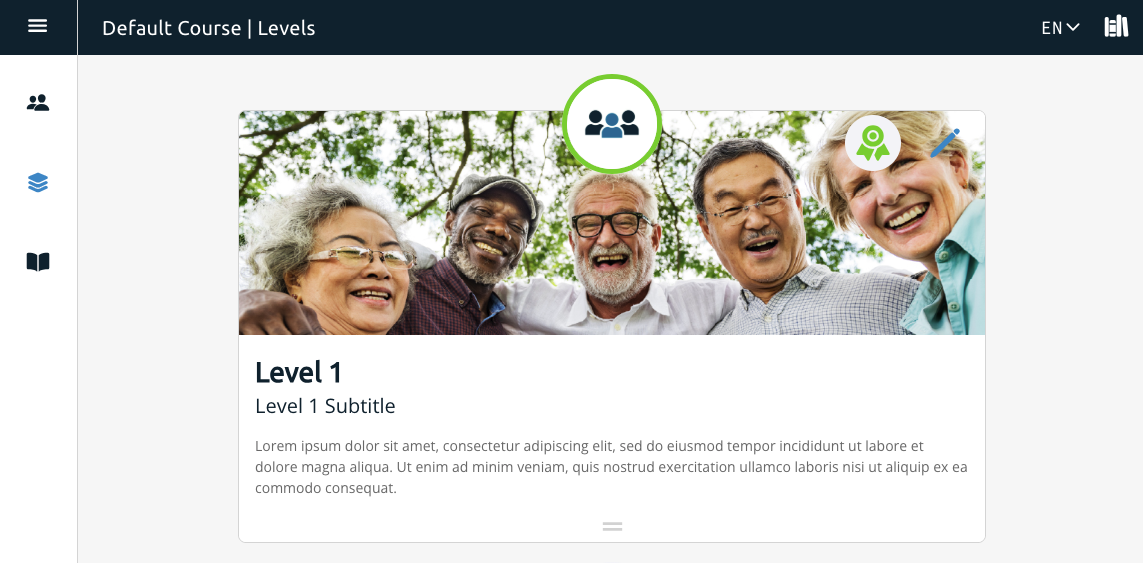
The level title is shown in large bold font as shown in the image, and will be the most prominent part of each level on the level display page.

Abbreviated Title

If your level title is very long, you may want to consider using an abbreviated title.

The abbreviated title will replace the title on interface elements outside of the level list, such as on level pages.

Progress Style

The Progress Style lets you select how user progress is displayed on the level card.

Select Progress Style to open a list allowing you to choose between Ellipse Icon and Bar styles.

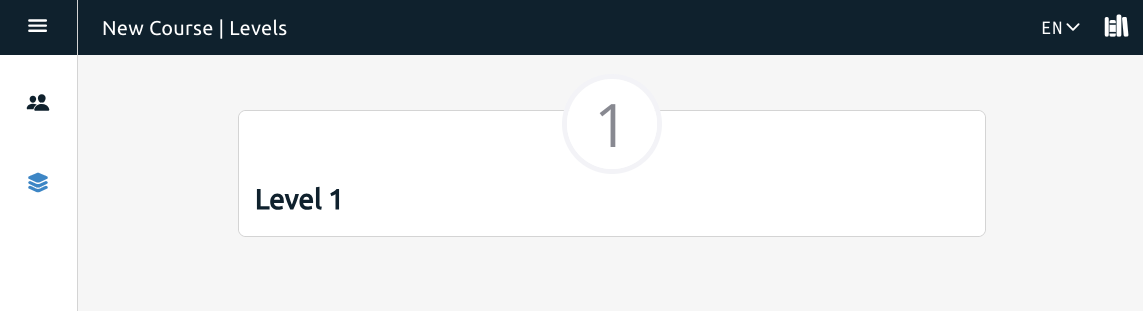
Ellipse Icon

This style shows progress as a circle around the level number or icon image (if one has been uploaded).
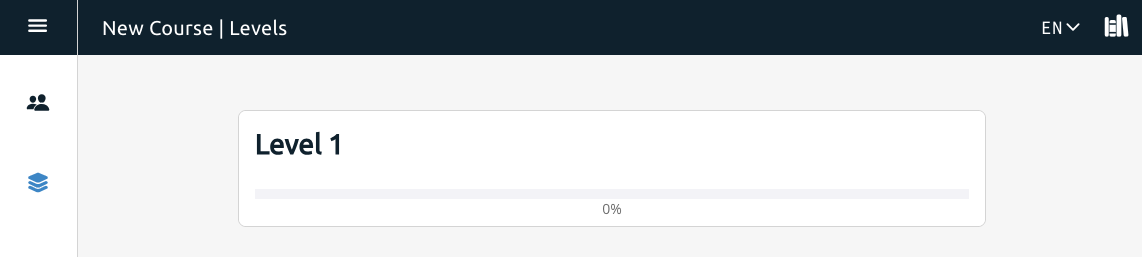
Progress Bar

This style shows progress as a bar with a completion percentage.

Subtitles

The subtitle is not required but can help add context to what your level is about.

The subtitle will display in smaller font underneath the title.

Descriptions

The description is meant for longer text to tell your users in more detail about what they’ll find in the level.

The level description is shown in smaller text in a less prominent color.

Icons and Banners

Icons and Banners can be added to level cards to help differentiate them and bring visual interest to your level list.
Icons

The level icon is a circular image you can add to your level that replaces the default number on the level page.

After opening the editor, click on Select icon to add an icon. This will open up a dialogue box where you can select the image you want to use. We recommend using an image in PNG or JPG format.

The recommended  size for icons is 90px square.

In addition, icons cannot be used when the progress style is set to “bar”

Once you’ve uploaded the icon, you can add an accessibility description for the icon. While it’s not required, we recommend it for ease of use with screen readers.

If you no longer want to use an icon, you can just click the trash bin icon on the right-hand side to delete it.

If you still want an icon, but you want a different one, you can replace it by clicking on change icon. This will bring up the file selection dialogue box again so you can choose a different image. The accessibility text will remain even if you upload a new icon.

Banners

Banners are large, rectangular images you can have featured on each level card. They can be used alone or in addition to icons. Unlike icons, which can’t be used when the progress style is set to “Bar”, banners can be used in either style. Similar to icons, banners can also use alt text to describe the image.

Clicking Select banner will open up a dialogue box allowing you to choose an image. If an image is already selected, clicking Change banner will let you reselect an image. The recommended size for banners is 768px in width.

Adding alt text, changing banners, and deleting them follow the same process as described in the icon flow.

Compact View

Selecting the compact view toggle will allow you to decrease the size of the level cards on the page.

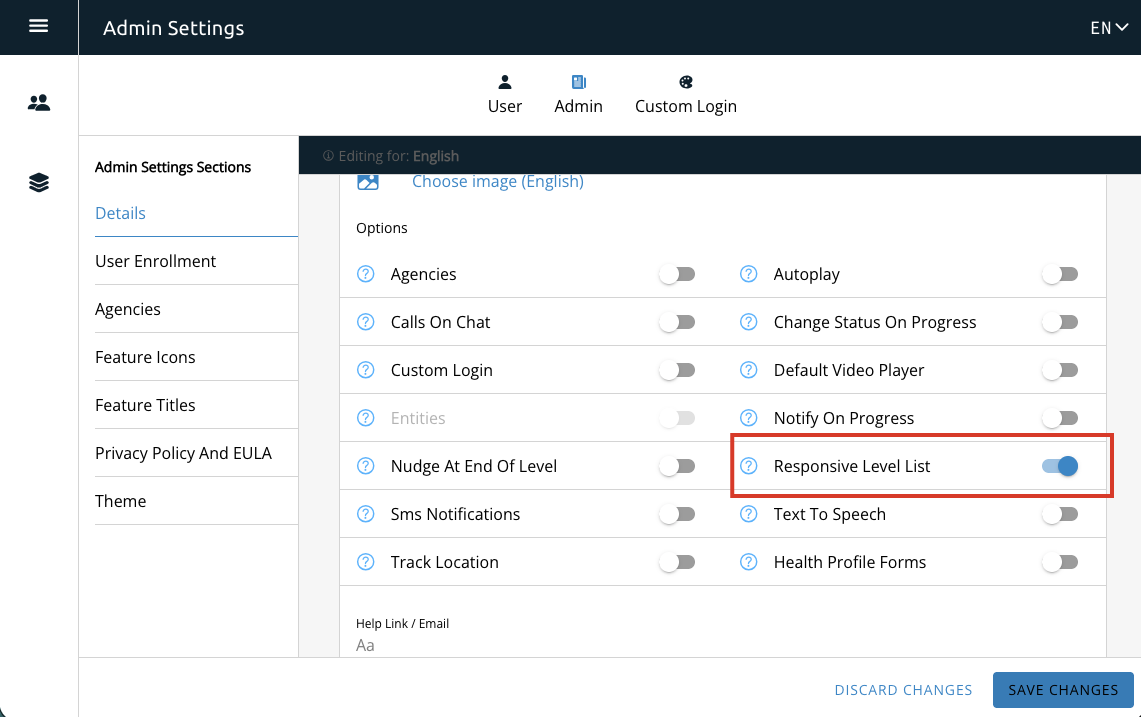
Note that this will only work if the Responsive Level List toggle has been switched on in the admin settings under Details > Options.

If this setting has not been turned on, the compact view toggle will not change the size of the level cards. If you cannot access the admin panel, please speak with an admin user.
Great job! You now know how to edit new Level Fields, the next step is learning how to edit Sections.