Editing Sections
Step-by-step guidance for editing sections and settings.
Please note, Sections can only be added after pages have been created within a level.
Overview
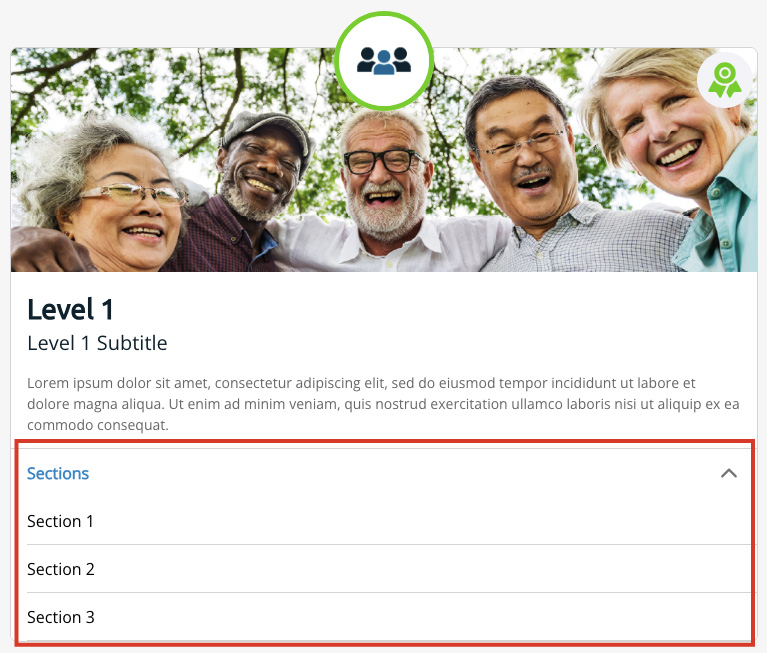
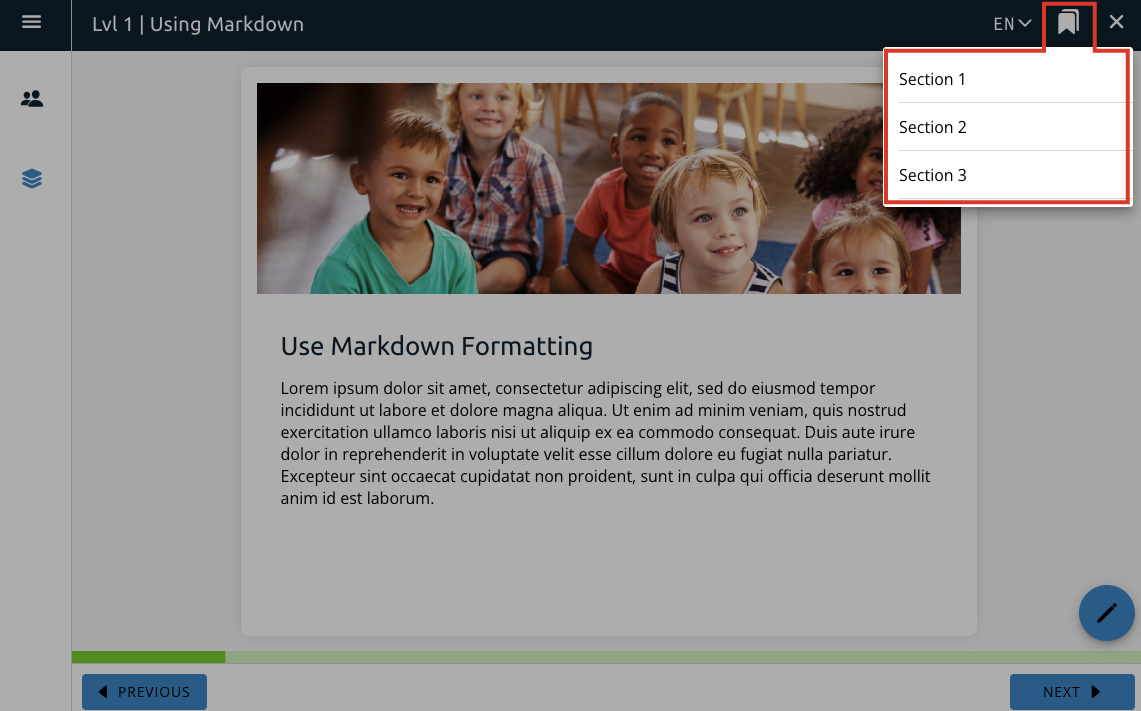
One section can be linked to only one page. You can access this list from a drop-down menu on the level list or from bookmark icon on the upper right corner of a level page.
Sections are only viewable (by either the bookmark tab on a page or by clicking the dropdown list on the level page) by users once they’ve completed a level, but they are always viewable by editors.
List view
Drop-down menu view
Adding a Section
To add a section, go into the level editor and open up the drop-down list at the bottom.
This will show what sections you currently have and let you add new sections.
Step 2
Select Add New Section
Write the title for your section in the Section Title field.
Then select the field below the Page heading to select the page you want the section to link to.
You will see the titles of the pages shown in the order they are in the level. Select the radio button to choose which page you want and then press OK.
Note: Please see thePagessection of this guide for more on level pages and how to set them up.
Step 4
Once you’ve added the title and selected a page, just click theAdd buttonto add the section, or cancel if you no longer wish to add a section.
If you wish to add more sections, select theAdd New Sectionbutton. If you’re done making changes, click theSave Changesbutton.
Note: if you select save changes before adding the section, the section will not be saved.
Editing a Section
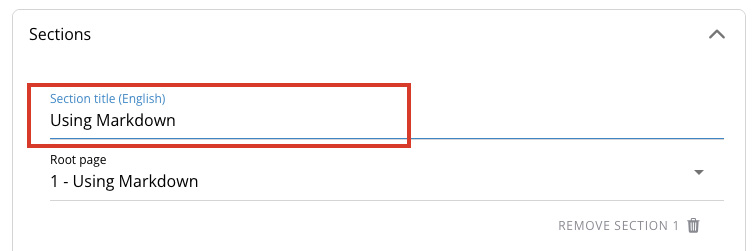
Deleting a Section
Reassigning Sections
You can reassign sections to different pages after creation. Just select the page next to the section you want to change.
This will bring up the page selection list.
Selecting the new page will reassign the section to that page. This will also move the section to be in the same order as the page that was selected.
Note: Because assigning a page to a section removes it from the list, if all pages have already been assigned sections then you won’t be able to reassign a section to a new page. If you need to reassign a section you will need to delete one of the existing sections to free up that page.
Nudges
Nudges allow you to send push notifications to all user’s phones at specific intervals.
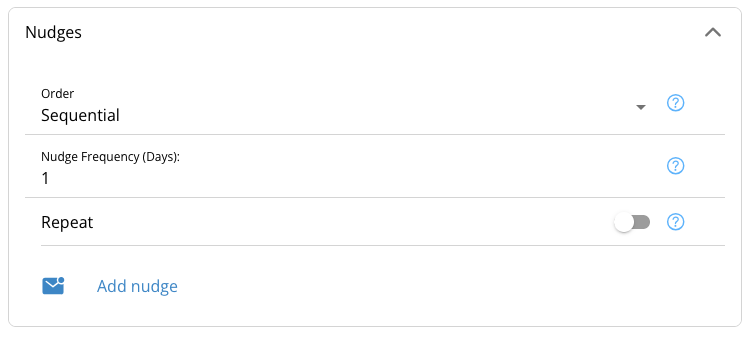
The first option box, Order, shows options that will apply to all nudges.
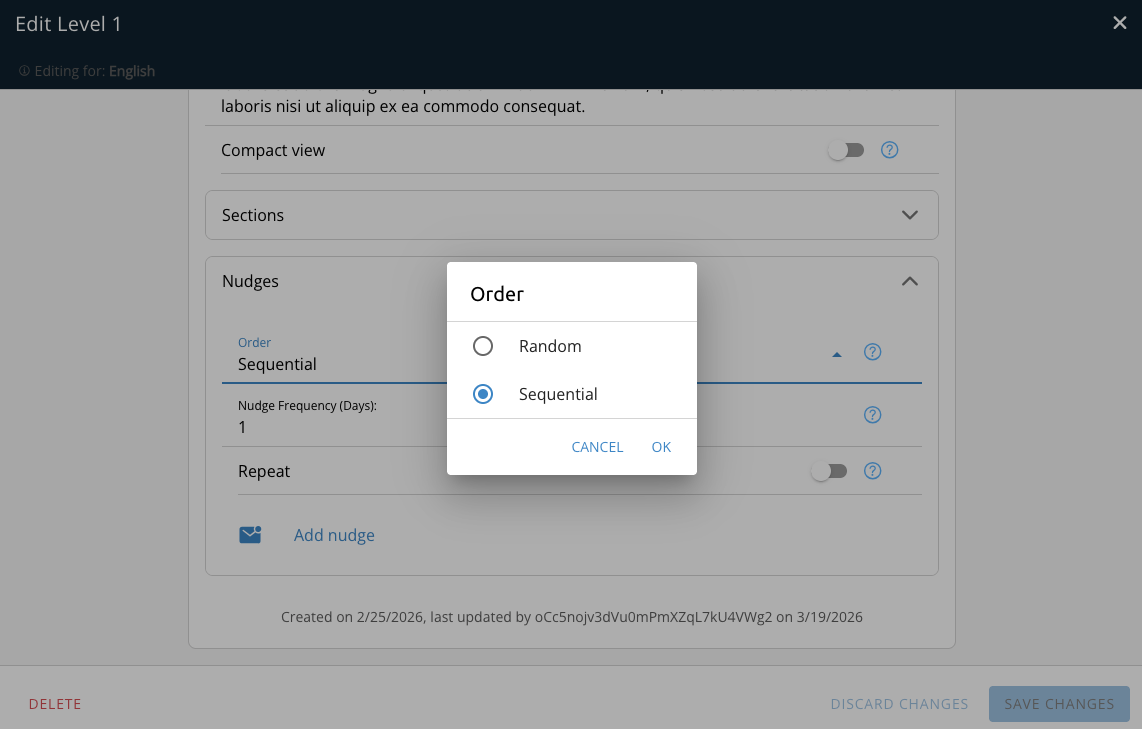
The first option within this box selects the order you want the nudges to be shown in.
Random — will select one at random to display during the time specified.
Sequential — will show them in order as you have them listed.
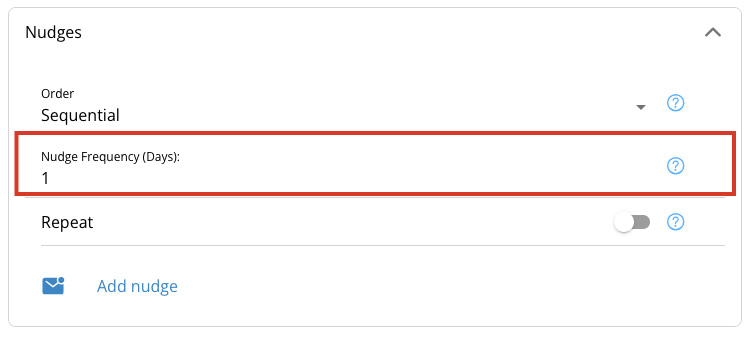
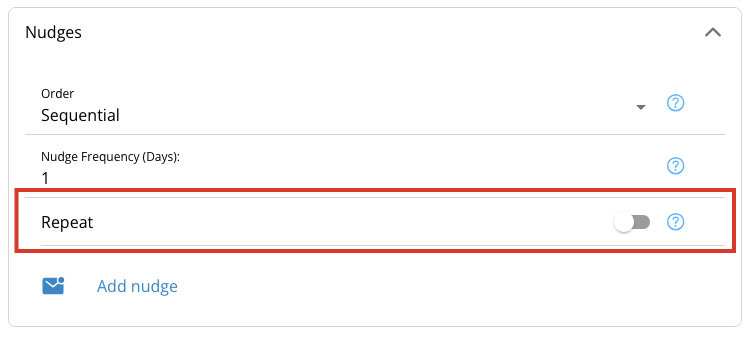
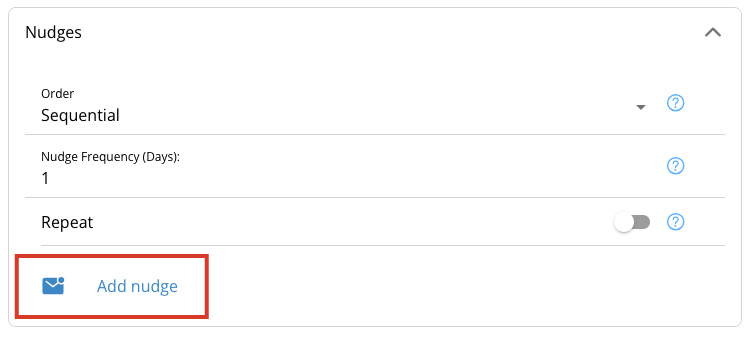
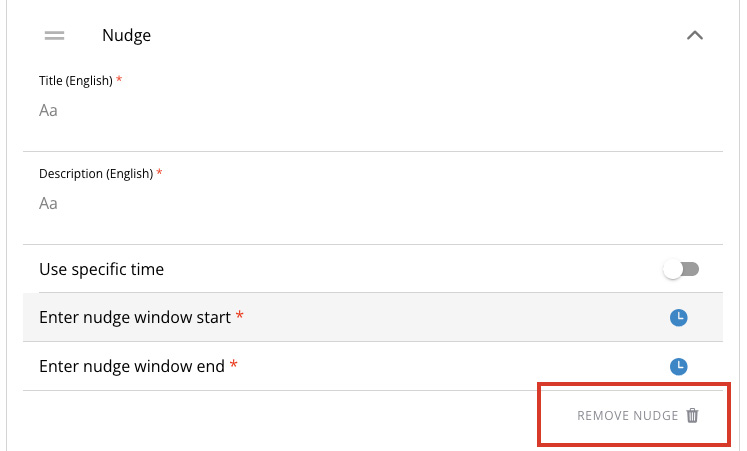
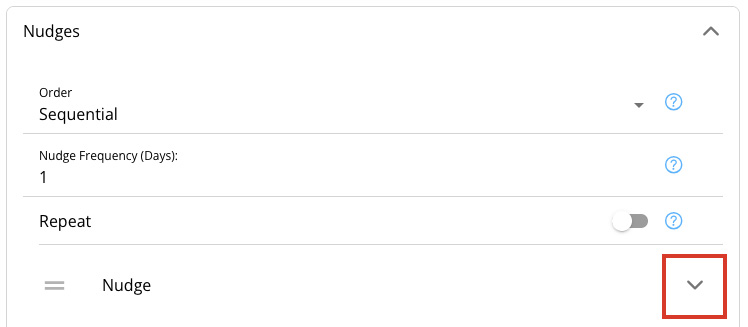
Opening up the nudge drop down will let you fill in information for your nudge.
The title and description for your nudge will be what is displayed on the push notification when it is sent.
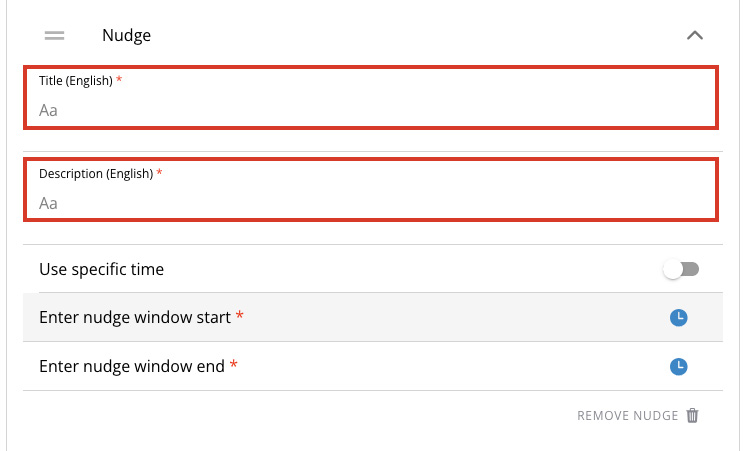
Then you’ll need to select a time for your nudge to be sent. If you toggle on “use specific time” this will let you directly select the time the push notification will appear.
If you have multiple nudges, you can reorder them by clicking and dragging the bars to the left.
If you decide you no longer need a nudge, just click “remove nudge” at the bottom of the nudge details.