Page Editor
This section will show you how to set up and manage pages in your levels.
Pages display the content of your level in sequential order that can be navigated by the Previous and Next buttons. A level can be as short as only one page, or as long as you need.
To start editing pages, go to the page you want to edit and click the pencil icon at the bottom right to open the editor.
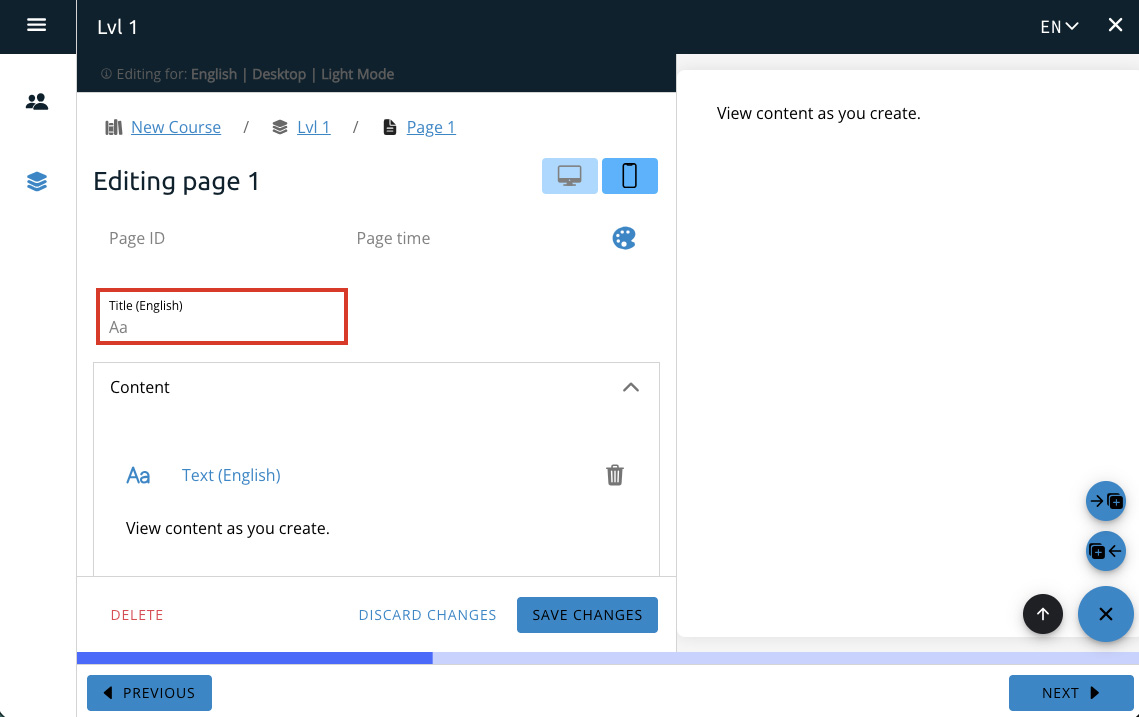
This will open up the editor with the editor on the left and the page preview on the right.
As a reminder, when you create a new level, the first page will be created for you.
Creating Pages
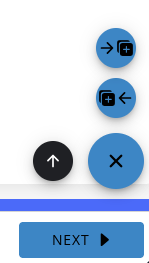
After opening the editor, at the bottom right of the page you can see buttons for creating new pages.
The arrow pointing right — creates a page after the current page, while the arrow pointing left creates a page before the current page.
The arrow pointing up — will move these buttons up and down on the page.
The x button — closes the editor if you no longer need it open.
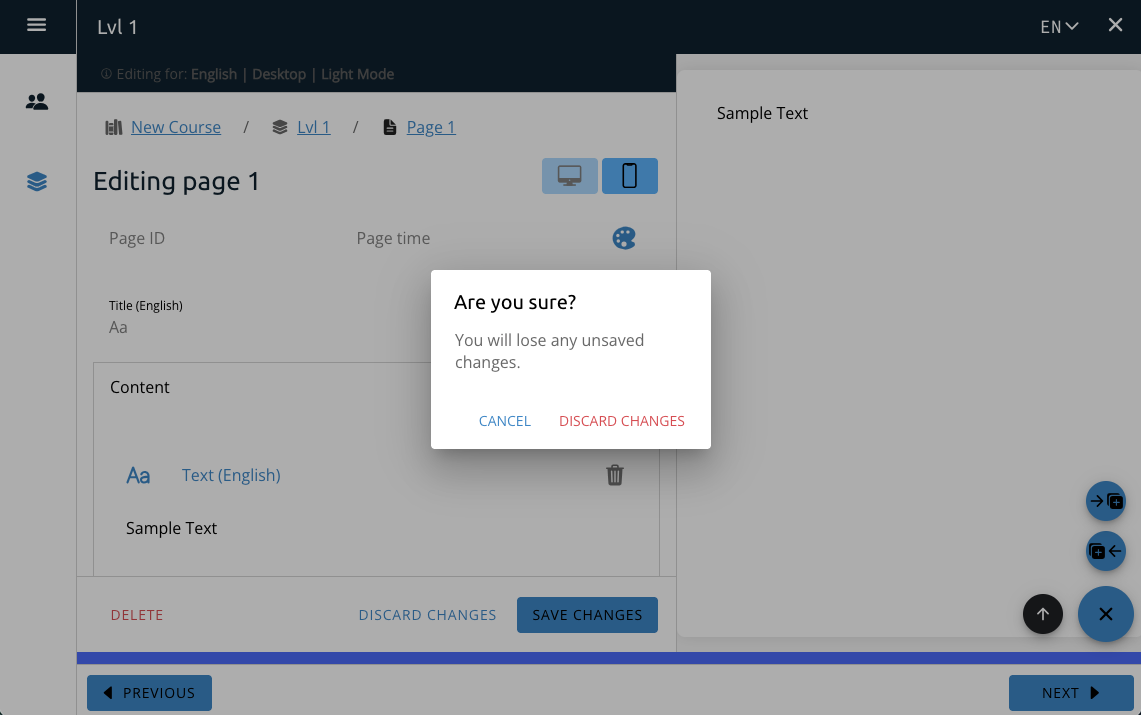
When you add a new page, you’ll automatically be taken to the page you just created. If you haven’t saved your changes on the previous page, you’ll be prompted to do so before you continue.
Page Basics
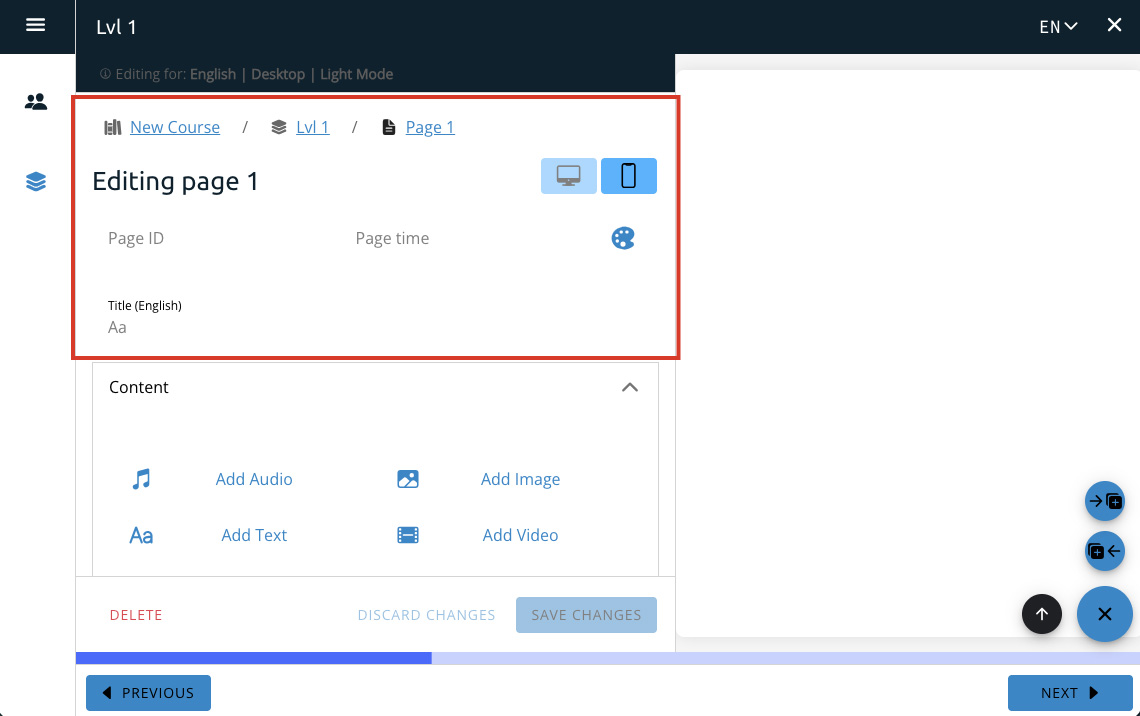
These are parts of each page that are important to take note of but are not part of page content. They are found at the top part of the editor.
Page Preview
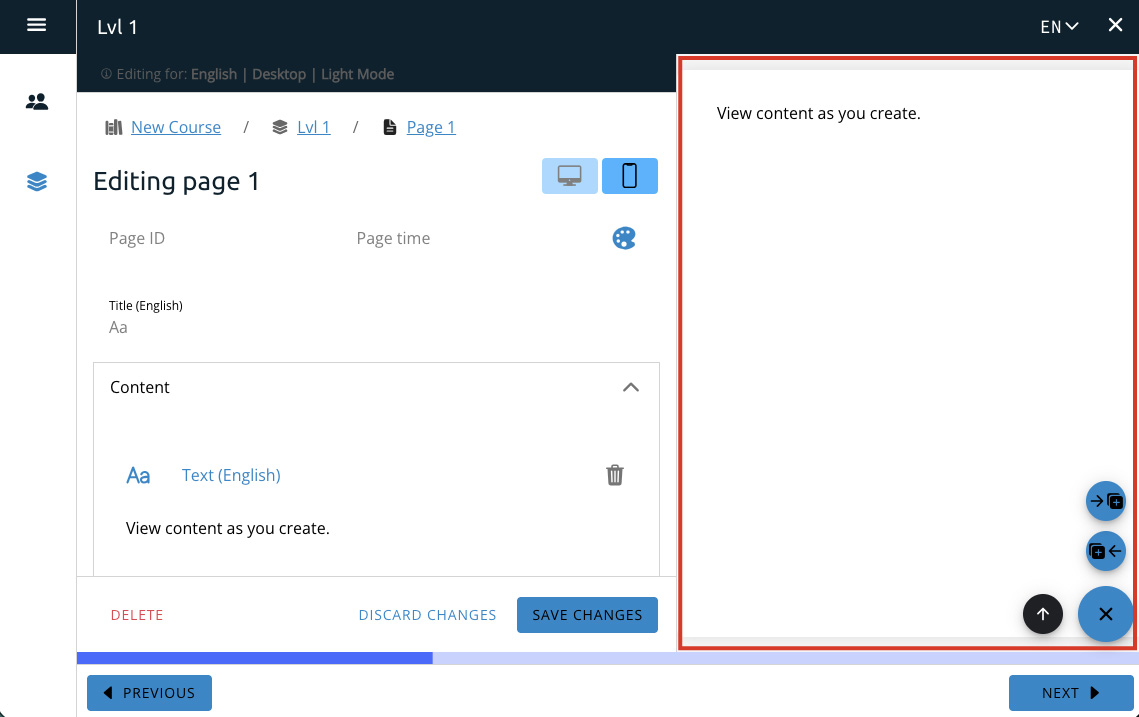
The page preview will show up on the right side of the page editor. This will show you a preview of what the content will look like as you edit.
While you will see the content added in the page preview, it will only be uploaded to the server when you press Save Changes.
Note: Most content and features are shown immediately in the page preview, but quiz questions must be saved before you can see them.
Screen Size Preview
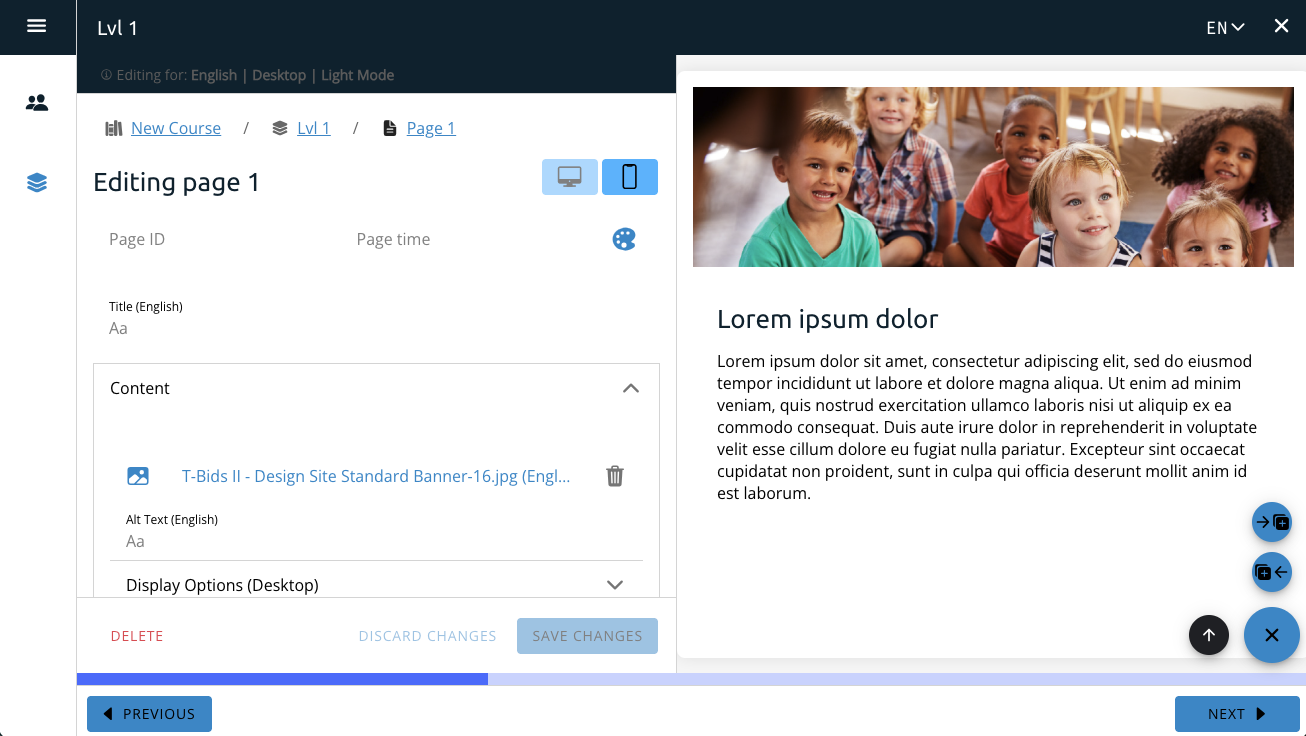
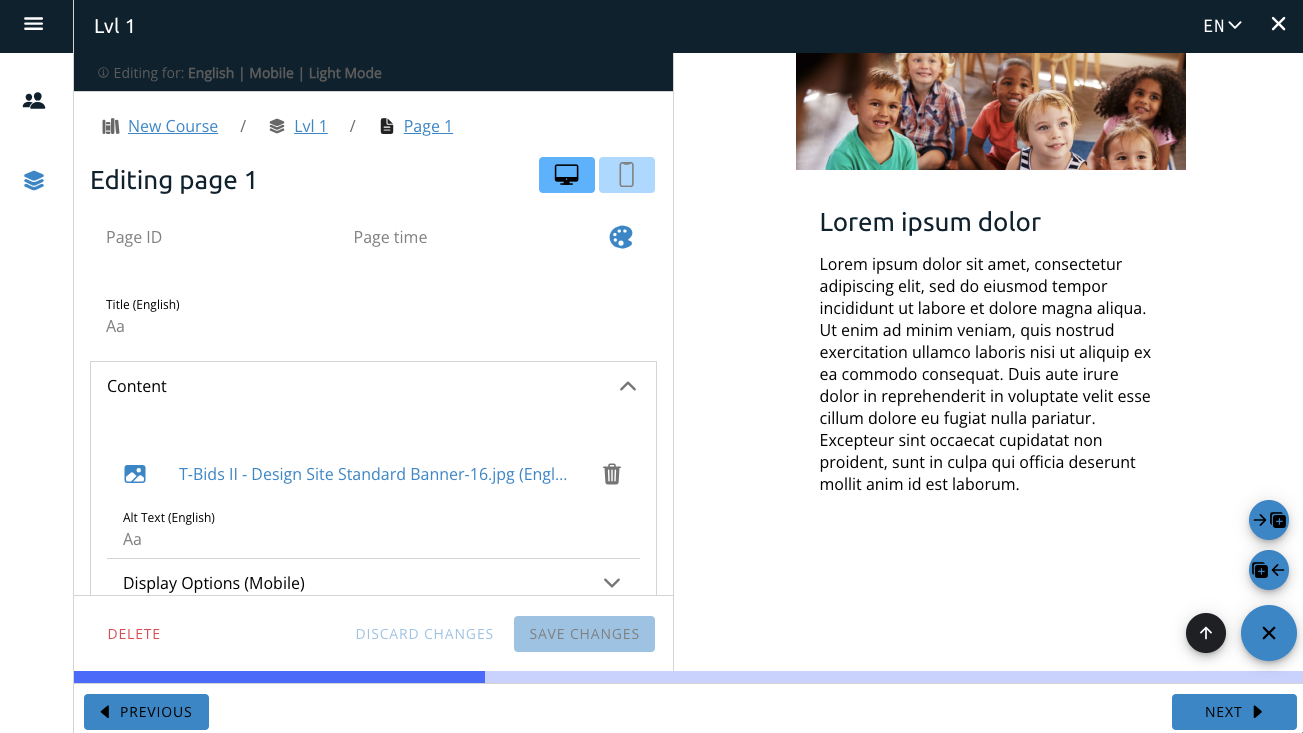
You can view the desktop and mobile views by toggeling between these two icons.
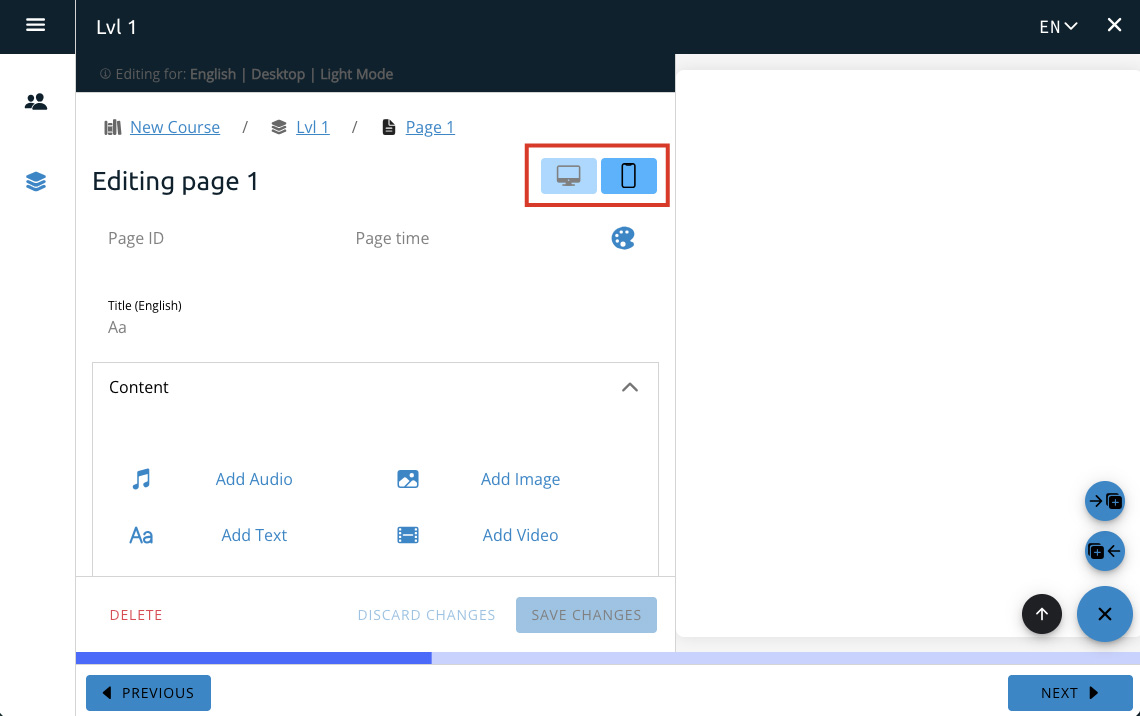
Desktop View
Mobile View
Page Colors
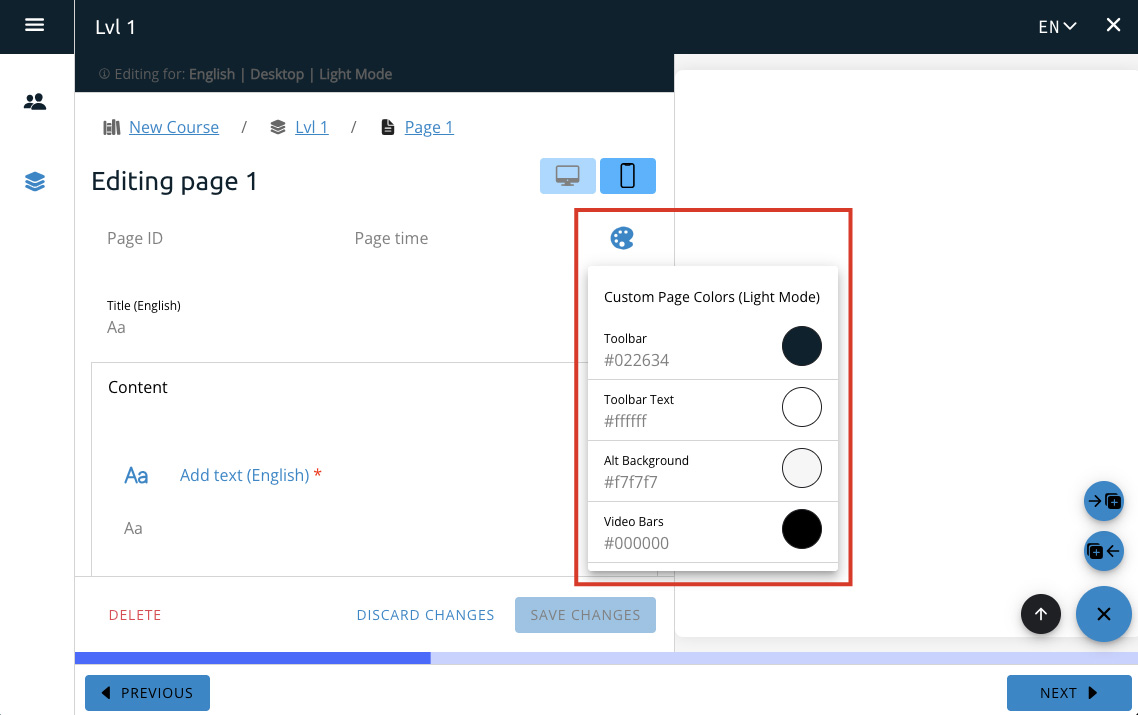
The palette icon lets you select specific colors for each page that will override the default colors.
Toolbar — This changes the color of the toolbar at the top of the page.
Toolbar Text — This changes the color of the text on the toolbar.
Alt Background — This changes the color of the background that surrounds the page content.
Video Bars — This will change the color of the bars around the video that appear if the video size does not fit the page.
Changing these colors will only affect the page they are changed on. If you wish to have other pages use these colors, you will need to change them on each individual page. If you want all pages to use a color you should change the color from the admin settings page in the Theme Section.
Page Number
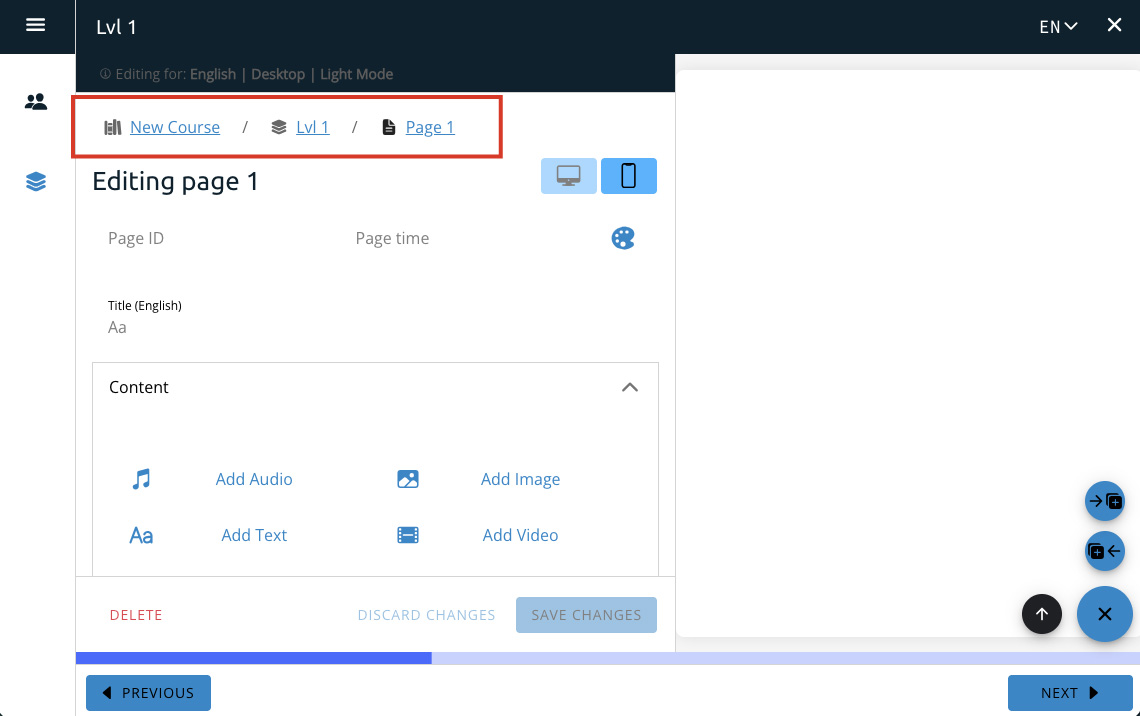
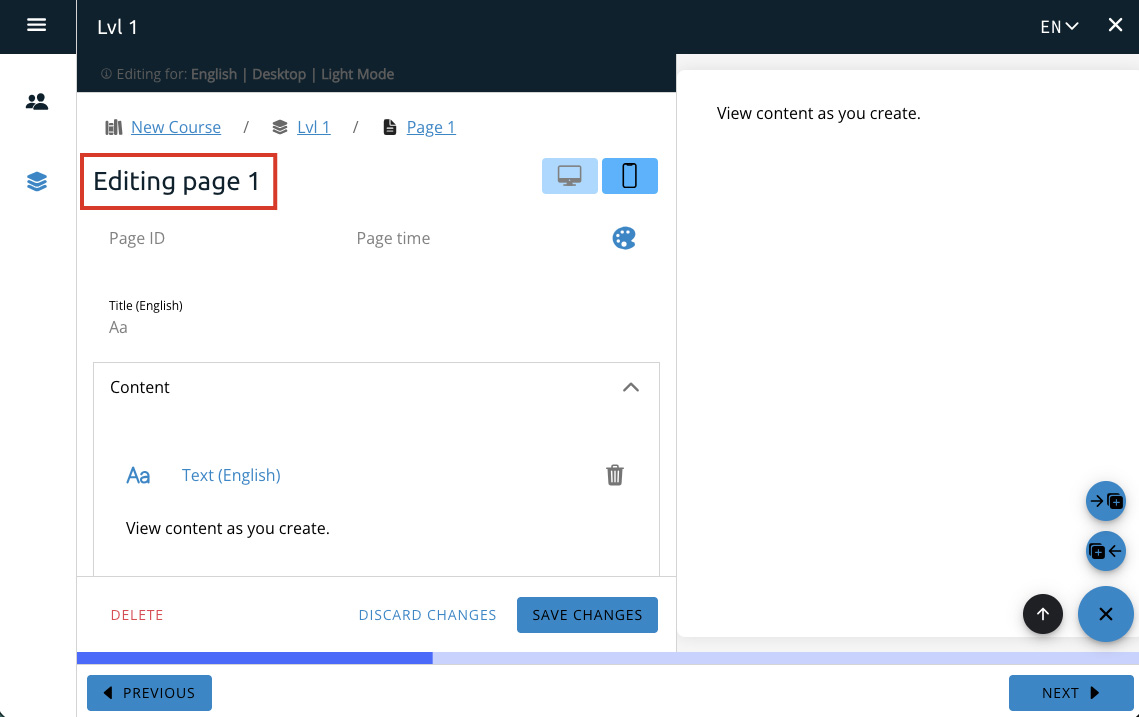
The page number shows where the page is located in the level. When you add a new page, the new page will have a number that is after the one on the current page.
Note: If you add a page between pages, or delete a page, all the following pages will be renumbered to reflect their current position in the level.
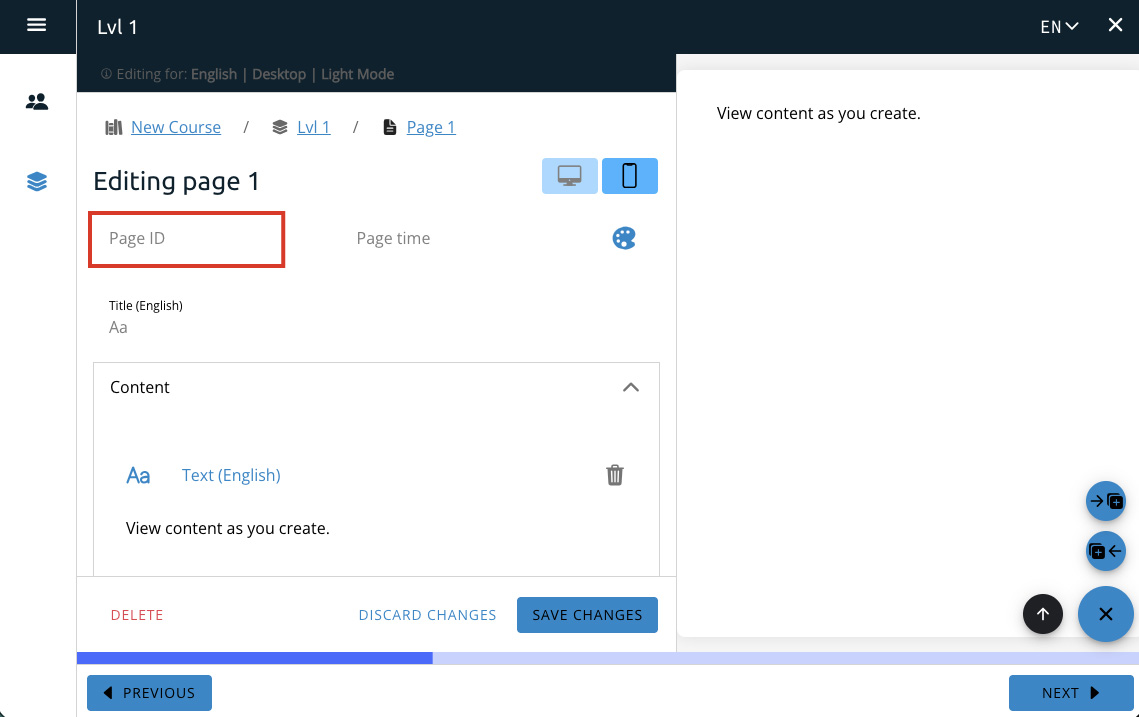
Page ID
The page ID is an ID that you can assign with anything you wish to help identify the page. While it’s not required, it is recommended to help identify the page as the page number can change depending on its current position in the level.
The page ID is not viewable by users and is for internal use only.
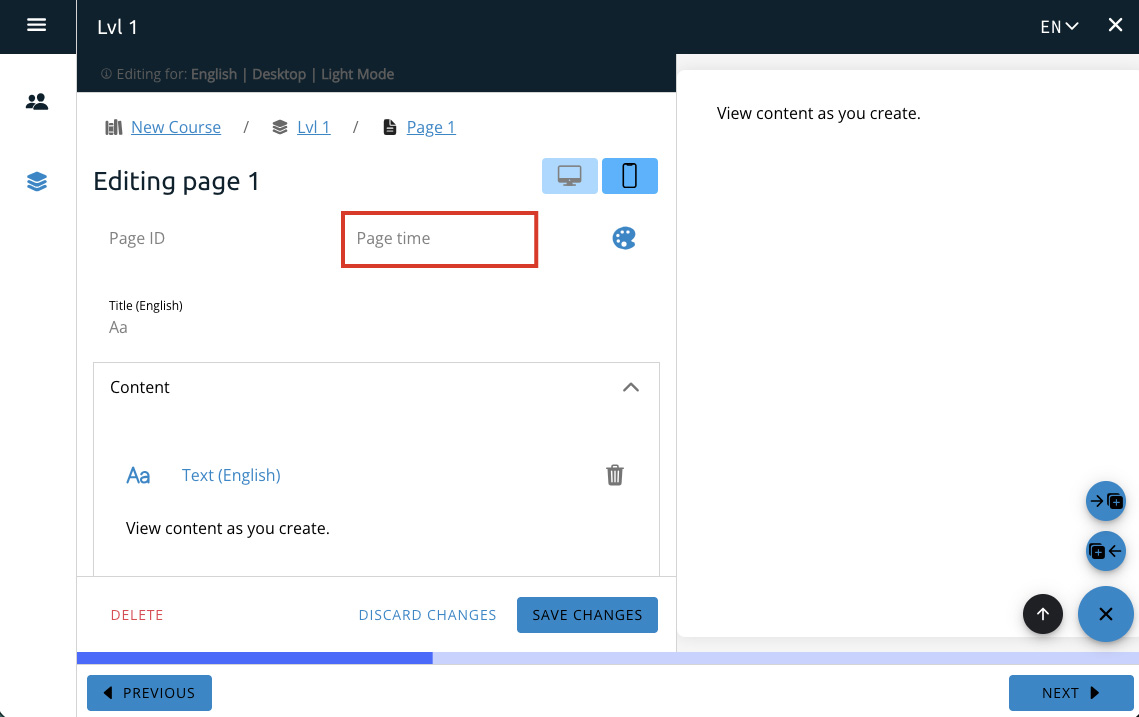
Page Time
Content coming soon!
Page Title
The page title shows up at the top of the page and is viewable by users. While it’s not required, it’s recommended to help identify the page when creating Sections or looking at quiz results.