Branching
Overview
Branching Page Setup
To begin setting up a page for branching, first you will need to add quiz questions.
You only need one question for a quiz to be used in branching. The question must be selected as “scorable” to be counted.
Each quiz question will give a score of 1, so the total number of questions on the page is the total number a user can receive.
Even if your question doesn’t have correct or incorrect answers, it must still be flagged as scorable to be used in branching. See the Tips section for examples of how you can set up your quiz questions if you do not have correct or incorrect answers.
See more about quiz questions Here.
Passing Score
As each quiz question on a page is worth one point, the passing score must be between 1 and the number of questions on the page.
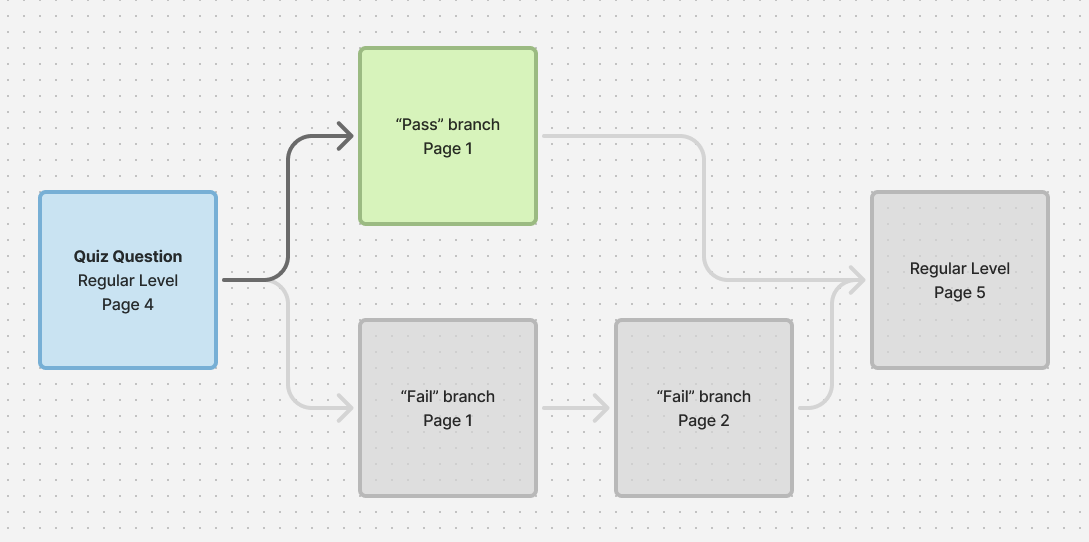
In branching, users who score equal to or above the passing score will be sent to the first pass branch page (if created.)
Users who score below the passing score will be sent to the fail branch page (if created.)
See more about how to set the passing score Here.
Pass/Fail Branching
Once you have your quizzes set to scorable and passing score set, you can create your pass and fail branches.
Go to the quiz tab and you’ll find the option to create the first pass or fail branch page. Click on one of the buttons and you’ll be automatically sent to the page you just created.
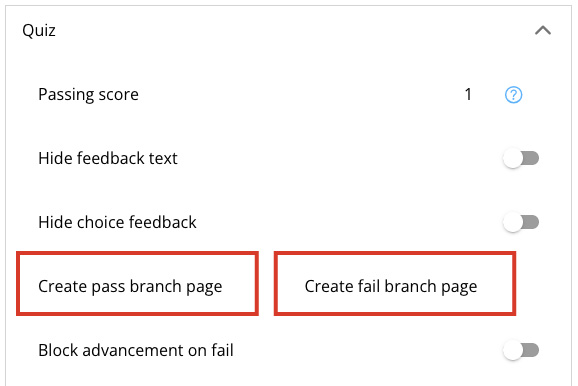
If you need to return to the pass or fail branch after you’ve created the branch, you can do so by going back to the originating page and clicking on the “go to pass branch” or “go to fail branch” buttons.
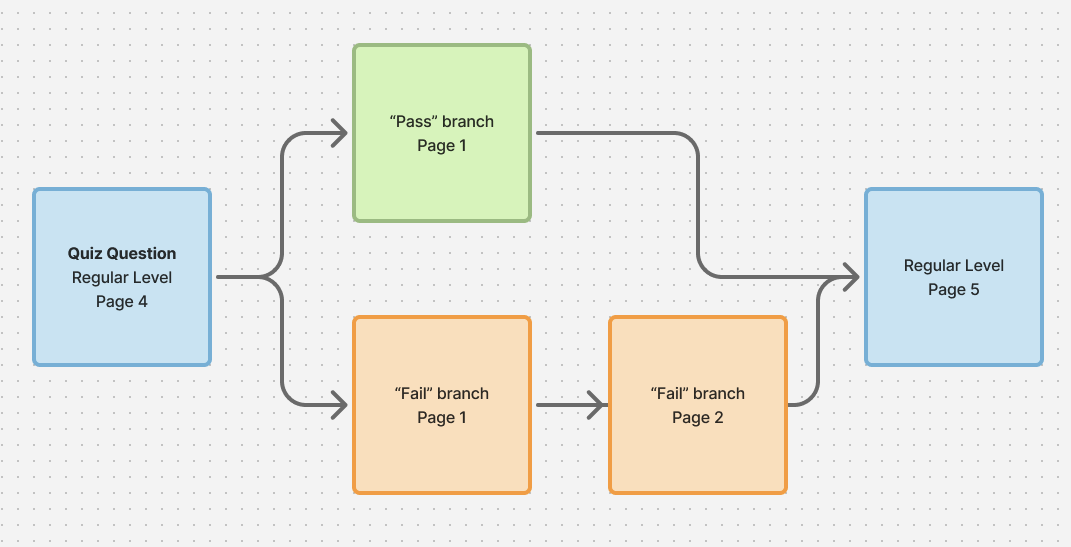
The pass branch is the branch users are sent to if they score at or above the Passing Score. The fail branch is the branch users are sent to if they score below the passing score. It is not required to create both a pass and a fail branch, you only need to create the branch that has unique content you want users to see. If one is not created, users will be sent to the next regular page in a level.
A branch can have multiple pages. If you want to add pages to the branch, just click the new page button on any branch page. A branch can also have quizzes, but you cannot create a branch from these quizzes. Currently, there is only one level of branching.
Pass Branch
Fail Branch
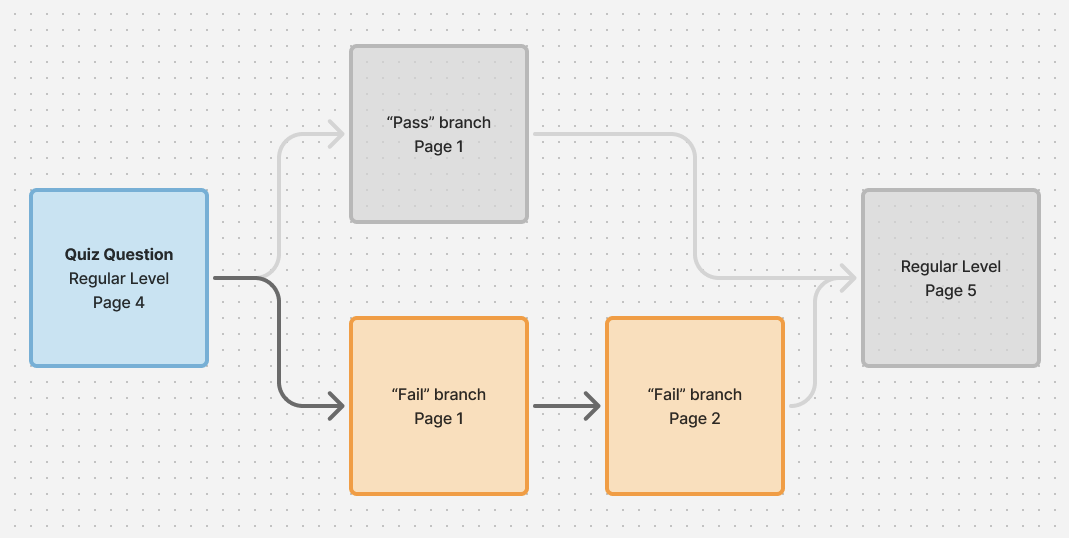
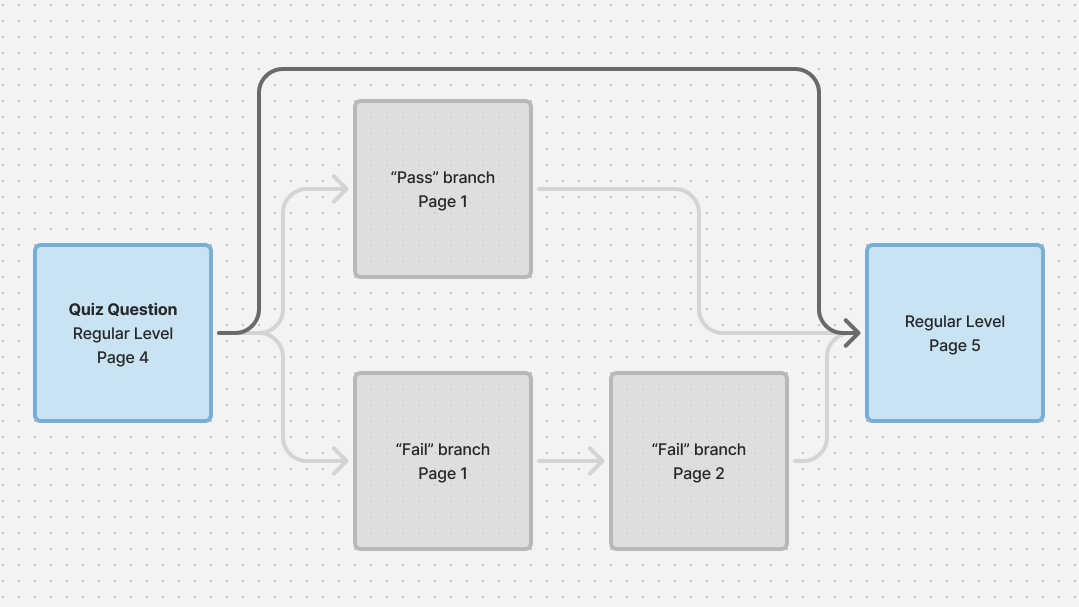
Note: If you want to add a new regular level page after the branch pages, go back to the last regular page and click the new page button. This will create a new page after the branch pages conclude.
New Regular Level Page
Tips
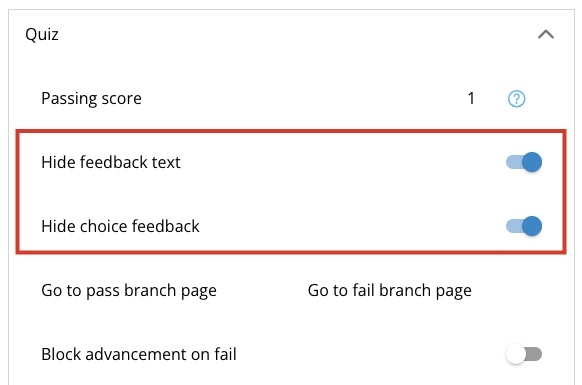
If you want to have a page branch, but your questions do not have a right or wrong answer, you can use the Hide Feedback Text and Hide Choice Feedback options to prevent the user from seeing how you’ve set up your quiz questions to be scored.
If there’s a question where multiple answers will send to one branch, and only one answer sends to the second branch, use the pass branch as the second branch, even if the answer has a negative connotation. You can hide the feedback, so the user won’t see how the scoring is being done.
Currently only two different branches are possible. If you have a question that would lead to more than two branches, you will need to reorganize the question so that only two branches are needed.