Resources
Overview
To add a resource section to your course, begin by going to the course list page and selecting the pencil icon at the bottom right-hand side of the page.
Next, select the course that you would like to add the resources section to. Scroll down to the options section and, using the drop-down, select the resources check box.
Close out of the first layer pop-up and save in the 2nd pop-up. You now have a resources section added to your course!
Creating New Resources
Resource Basics
Step 1
After a resource is created it will show up as its own tab.
Click on the resource tab to open the editor for that resource.
In the Resource Title section, add a title that describes what the resource tab will contain. As the tabs will be displayed in a list with only the titles visible, it’s important to add a title so the user will easily be able to know which resource they’re looking for.
Audio
Audio for resources works similarly to Page Audio, except since it is not associated with a page it does not have the extra options that work with a level.
Image
Images for resources work exactly the same as Page Images.
With Add PDF, you can add a selectable link to a PDF on your resource page. When the link is selected, it will open up a separate page in the browser.
Step 1
Select Add PDF to add a PDF to your resource content.
Step 2
And choose the PDF from your files.
Once it’s added, you will see the PDF as a link on the resource page.
The default name will be the PDF file name, but you can set this name to whatever you like.
Text
Text for resources works exactly the same as Page Text, including the use of Markdown.
Video
Video for resources works similarly to Page Video, except since it is not associated with a page it does not have the extra options that work with a level.
Resource video also has an additional option “display in modal”, which will show the video as a clickable link instead of loading the video on the resource page. You can also set a name for the link instead of the default file name.
When clicked, the video will pop up in a modal within the page and can be played from there.
Delete, Discard and Save
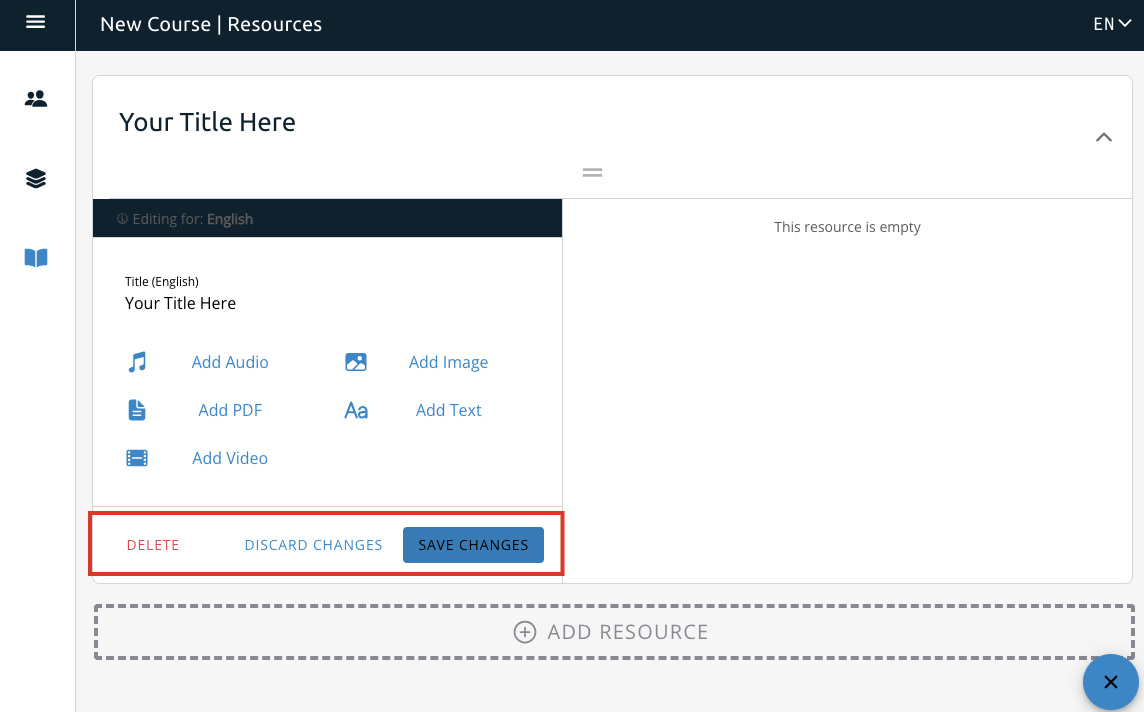
At the bottom of the resource editor, you’ll see options for delete, discard changes, and save changes.
Delete — will completely delete the resource collection. Once deleted, a resource collection cannot be retrieved.
Discard Changes — will get rid of any changes you’ve made since the previous time you saved.
Save Changes — will save any changes you’ve made since the previous time you saved.