User List Report Data
Overview
To access report data for users in a course, begin by going to the users tab in the left-hand menu. From there, select the button with three dots on the upper right hand of the user menu. This will open a list of reports you can choose from.
Not all report types will be available for all programs, the report list will be restricted to only the reports for that program.
Admins and managers can see all report types, but the reports are restricted for guides. Currently the only reports available for guides are the Guide Report and Quiz Results.
While managers can see all report types, they will only see data for users in their agency/district.
AE Report
The Adverse Event report shows a list of all adverse events reported through the Mom-Net session log separated by month.
Use the arrows in the upper left corner to select the desired month you want to view, then click on Download CSV in the upper right corner to download the report for the specified month.

Columbia Report
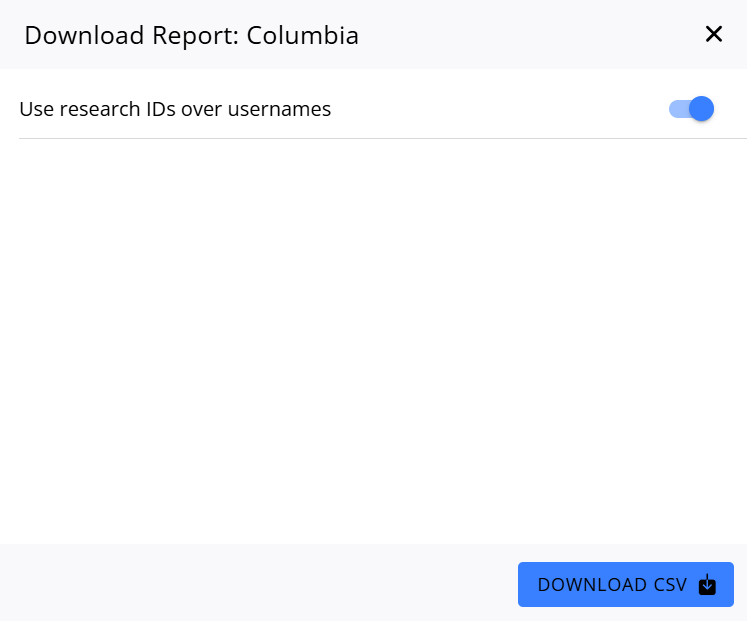
Clicking on Columbia Report will pop up a modal window where you can download the CSV. Click Download CSV on the bottom right. By default, this will download the CSV using research IDs in place of usernames, but this can be turned off with the Use research IDs over usernames toggle at the top. Note that if no research ID is present when this is turned on, N/A will show up in place of a research ID for that user.
The download may take some time depending on the number of entries. There will be a percentage number indicating the progress until completion.
Guide Report
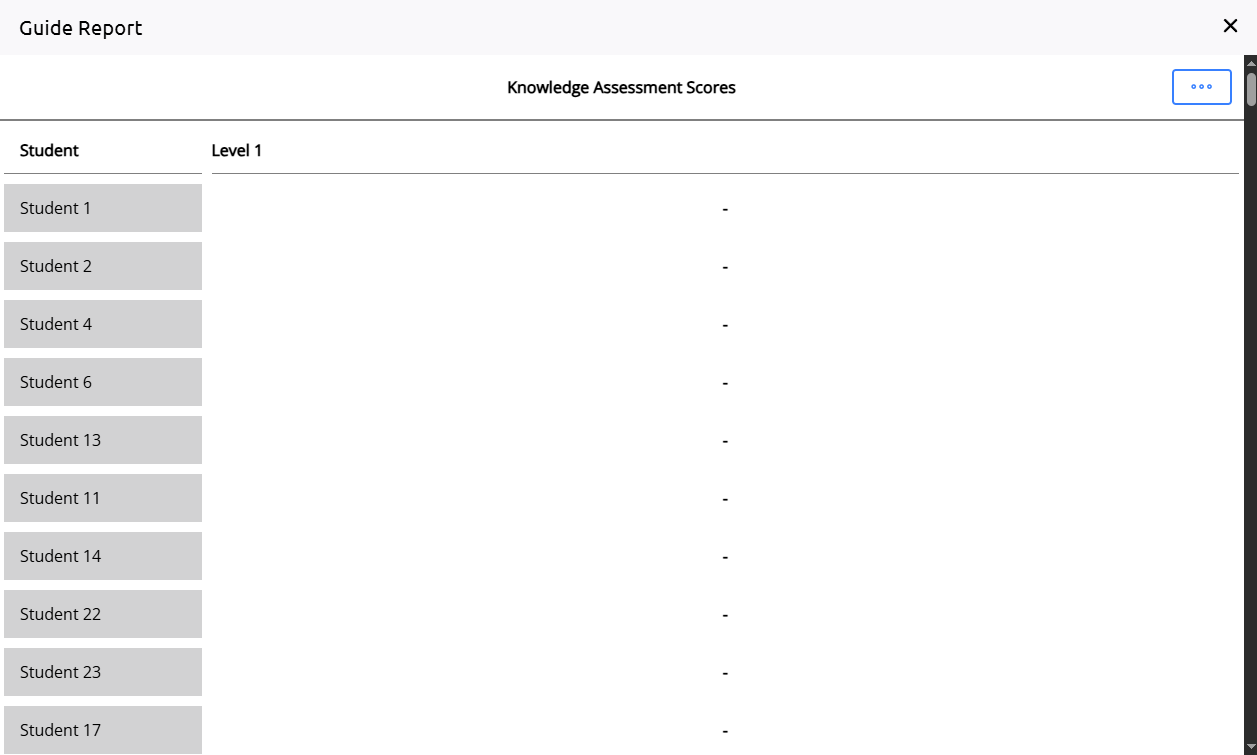
The guide report displays quiz and usage data for users. While admins can see data for all users, managers can only see the data for users in their agency, and guides can only see the data for users that have been assigned to them.
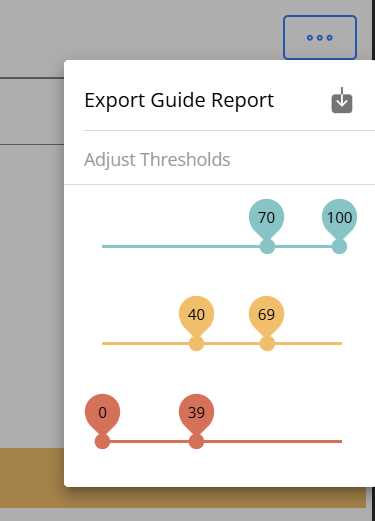
Click on the button with the three dots on the upper right corner to open the menu and click on Export Guide Report at the top. This will export the graph data as a PDF.
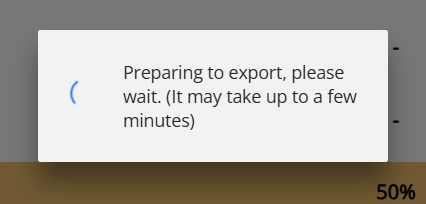
Note that this can be an intensive process and may take several minutes for the export to complete.
Guide Session Report
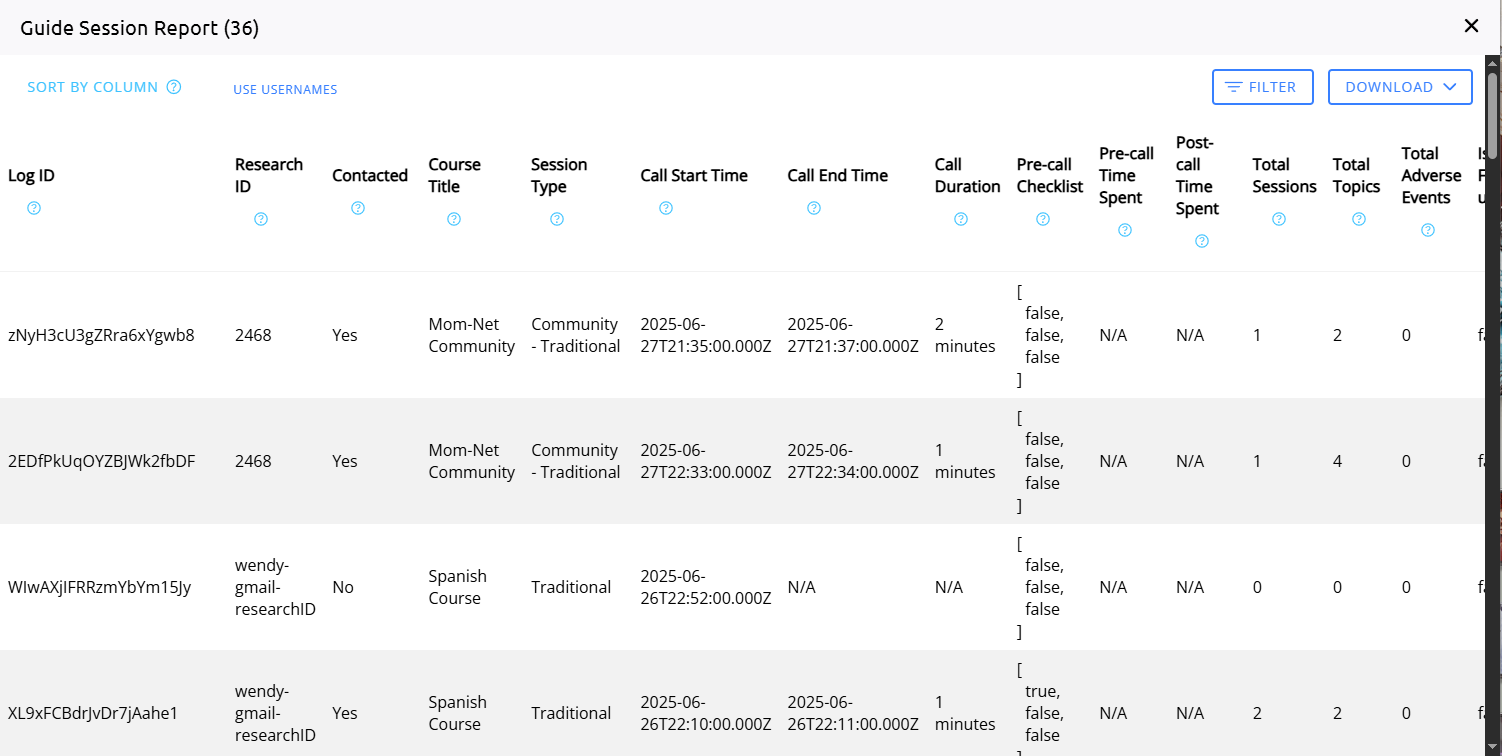
The guide session report shows data for all Mom-Net guide session logs. This shows all session logs across courses.
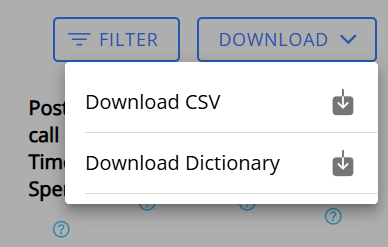
Click on the Download button on the upper right corner to display a menu where you can download the CSV or download the dictionary.
The CSV will download with the data that is currently displayed on the page, so the data will be restricted to any filters that have been applied to it. This includes the use usernames option, which replaces the research ID with the username.
The dictionary is a list that shows the definition for each column in the guide session report.
Log Report
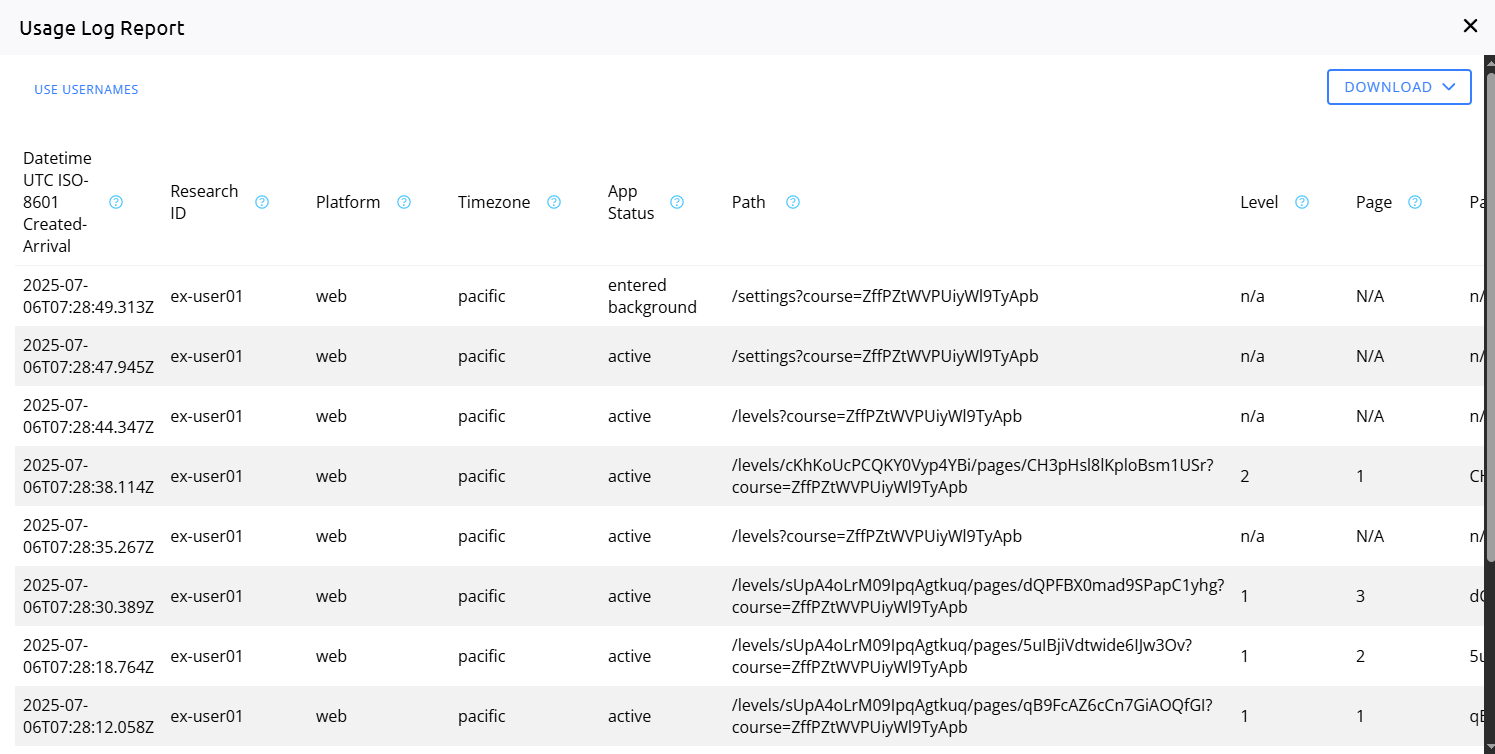
Click on the Download button on the upper right corner to display a menu where you can download the CSV or download the dictionary.
The CSV will download with the data that is currently displayed on the page. Since you can select between use usernames and use research IDs on the upper left, you should check that you have the correct one selected before downloading.
The dictionary is a list that shows the definition for each column in the usage log report.
PHQ90 Report
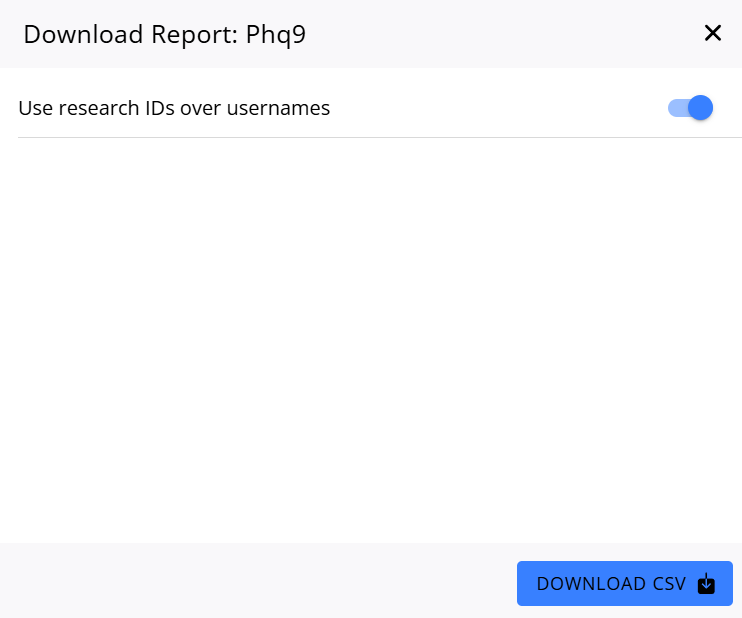
Clicking on PHQ9 Report will pop up a modal window where you can download the CSV. Click Download CSV on the bottom right. By default this will download the CSV using research IDs in place of usernames, but this can be turned off with the Use research IDs over usernames toggle at the top. Note that if no research ID is present when this is turned on, N/A will show up in place of a research ID for that user.
The download may take some time depending on the number of entries. There will be a percentage number indicating the progress until completion.
Quiz Report
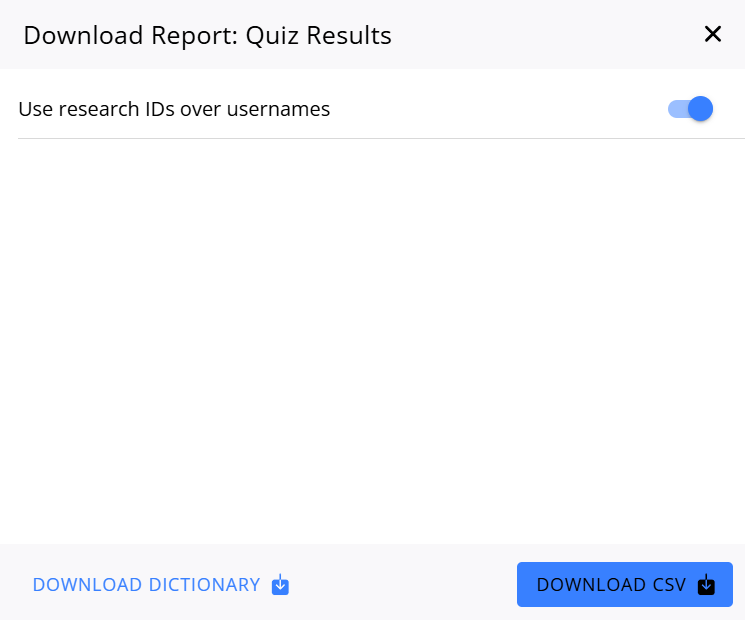
Clicking on Quiz Results will pop up a modal window where you can download the CSV. Click Download CSV on the bottom right. By default, this will download the CSV using research IDs in place of usernames, but this can be turned off with the Use research IDs over usernames toggle at the top. Note that if no research ID is present when this is turned on, N/A will show up in place of a research ID for that user.
The download may take some time depending on the number of entries. There will be a percentage number indicating the progress until completion.
You can also download the dictionary. The dictionary is a list that shows the definition for each column in the quiz results.
Trainer Report
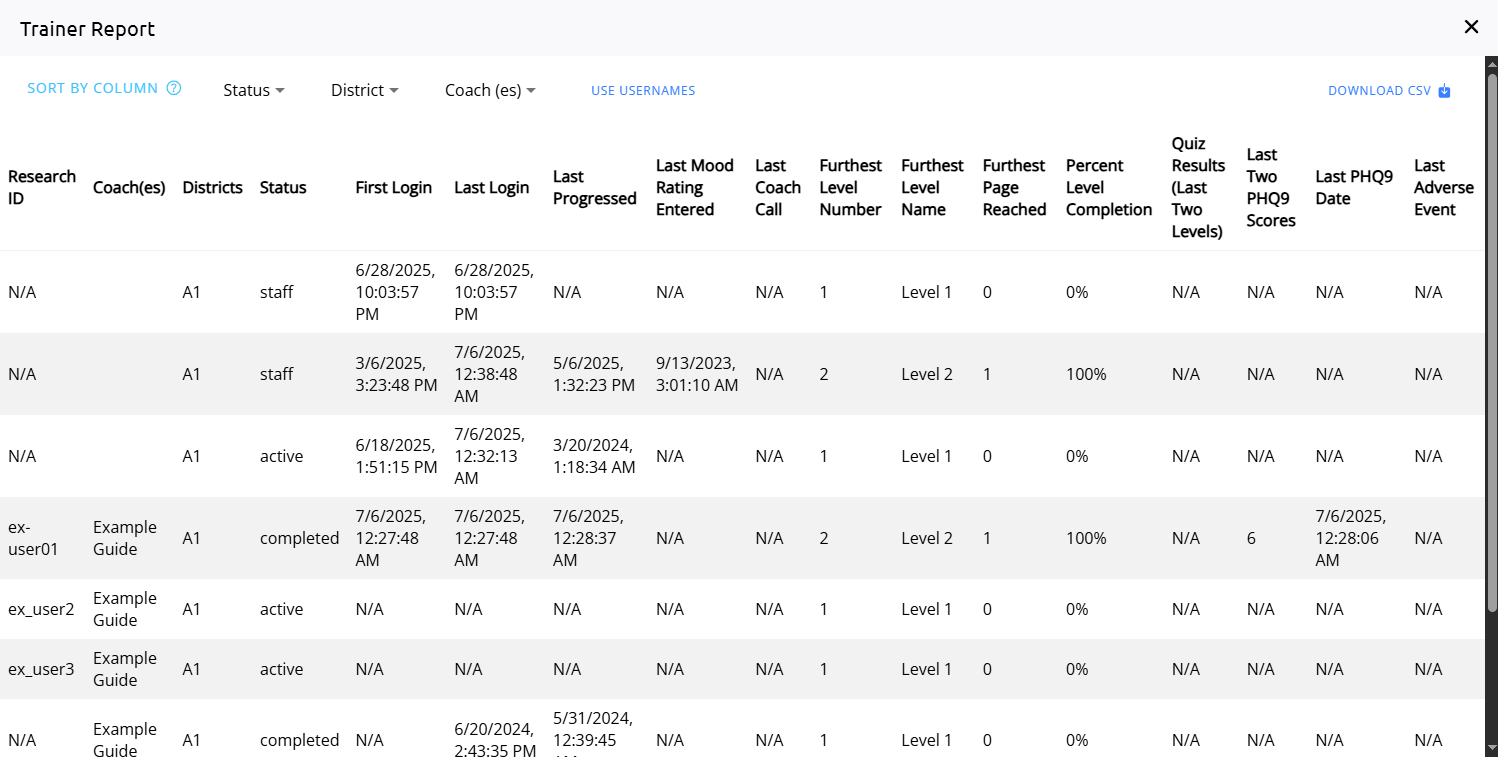
Click Download CSV in the upper right corner to download the CSV file.
The CSV will download with the data that is currently displayed on the page, so the data will be restricted to any filters that have been applied to it. This includes the “use usernames” option, which replaces the research ID with the username.
User Time Report
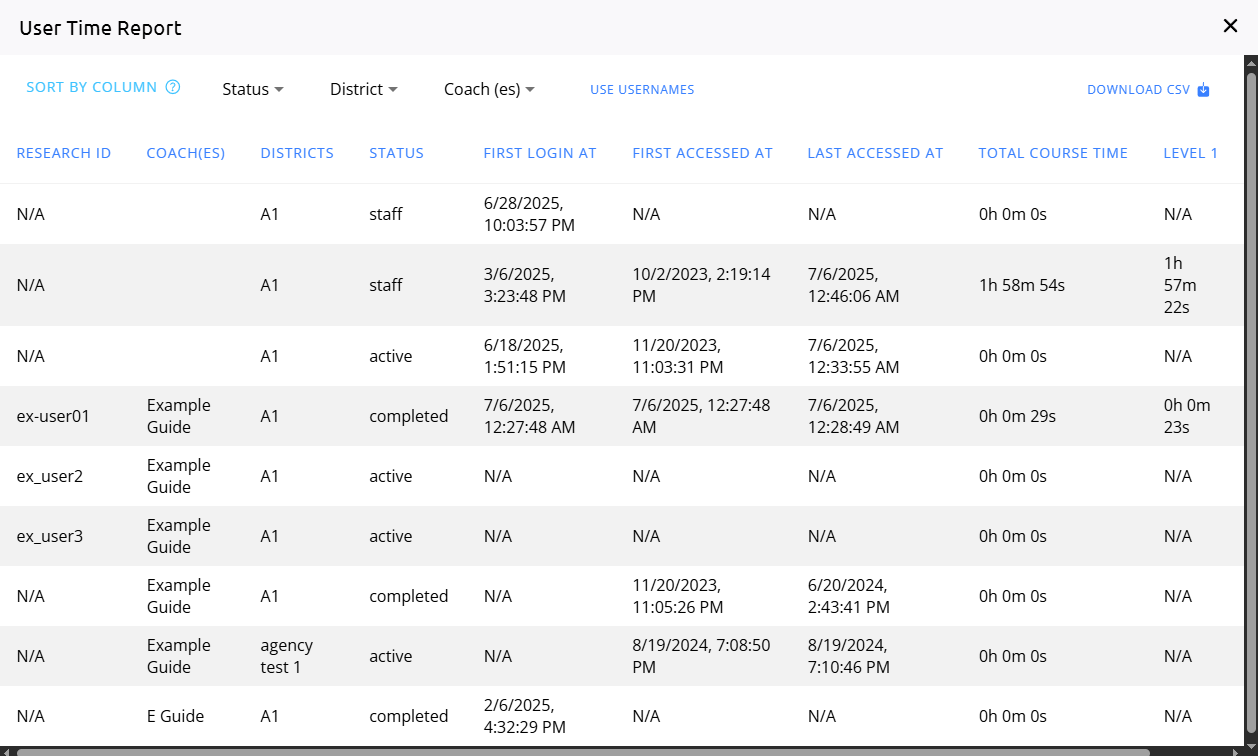
Click Download CSV in the upper right corner to download the CSV file.
The CSV will download with the data that is currently displayed on the page, so the data will be restricted to any filters that have been applied to it. This includes the use usernames option, which replaces the research ID with the username.
Course List Report Data
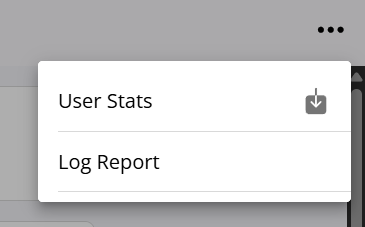
User Stats
Multi Course Log Report
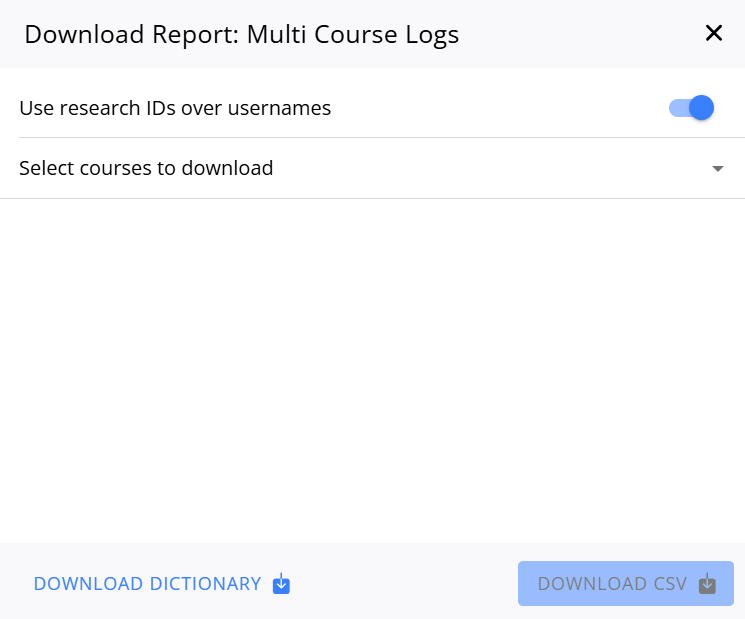
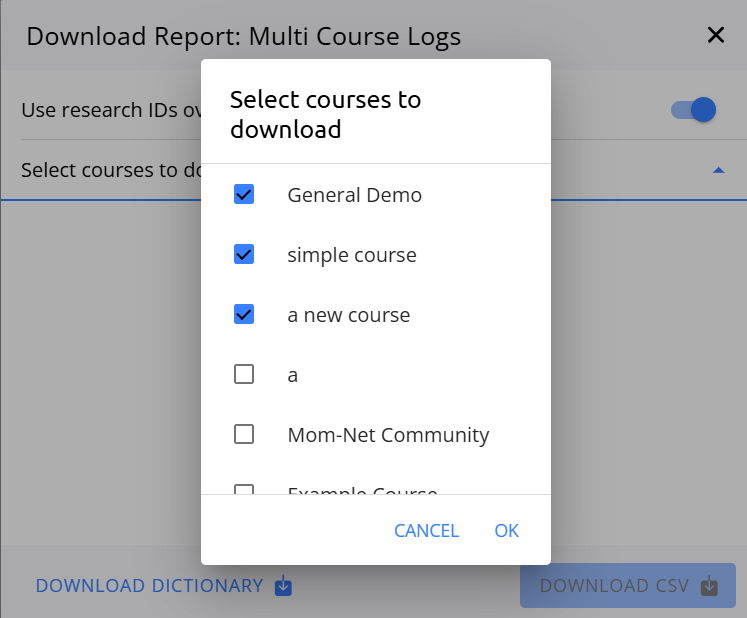
Clicking on Log Report will pop up a modal window where you can download the CSV. Before you can download the CSV you’ll need to select which courses you want to have in the report.
Once they’ve been selected, click the OK button and then click Download CSV on the bottom right. By default this will download the CSV using research IDs in place of usernames, but this can be turned off with the Use research IDs over usernames toggle at the top. Note that if no research ID is present when this is turned on, N/A will show up in place of a research ID for that user.
The download may take some time depending on the number of entries. There will be a percentage number indicating the progress until completion.
You can also download the dictionary. The dictionary is a list that shows the definition for each column in the log report.