Accessibility
Accessibility in Admin Settings
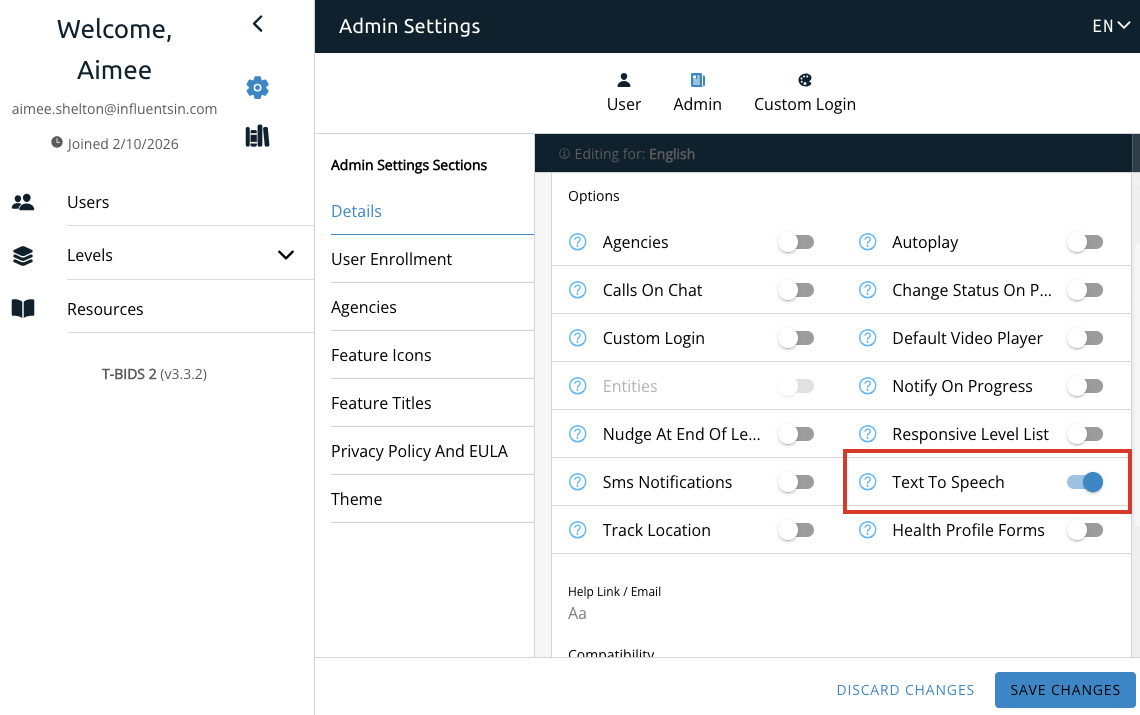
Text to Speech
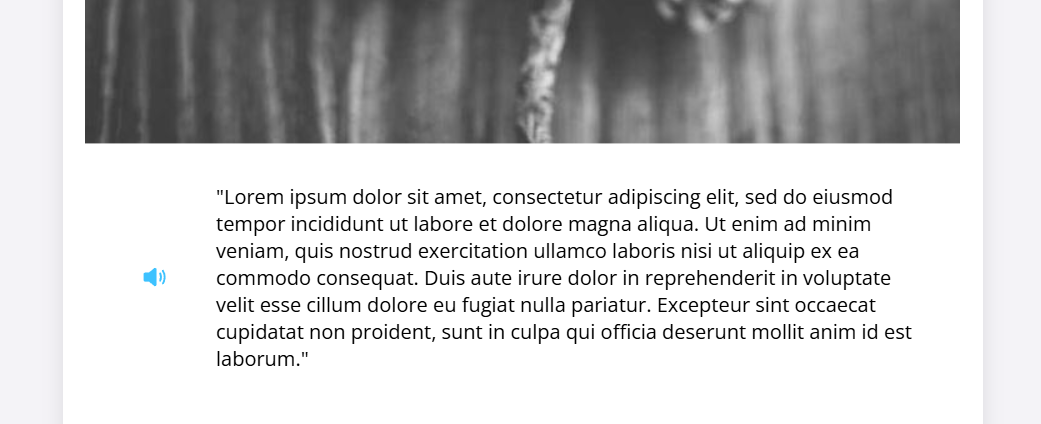
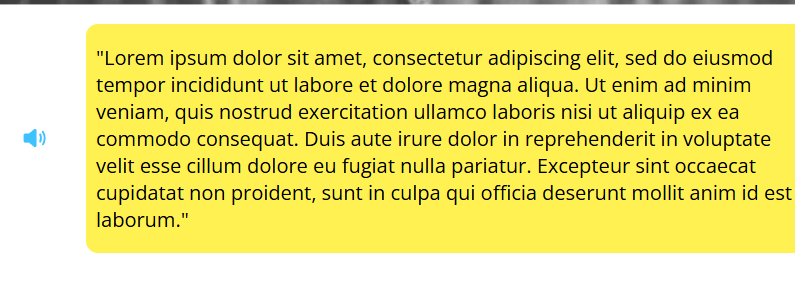
The Text to Speech option in the Details section of the admin settings will allow you to turn on text to speech for level page text content.
Note that this option uses the browser text to speech functionality, so the voice a user is hearing may vary in quality. It also doesn’t take into account other types of text, such as quiz questions. For higher quality narration, please consider creating and uploading narration audio for each piece of text needed. See the Level Page section for more information.
Autoplay
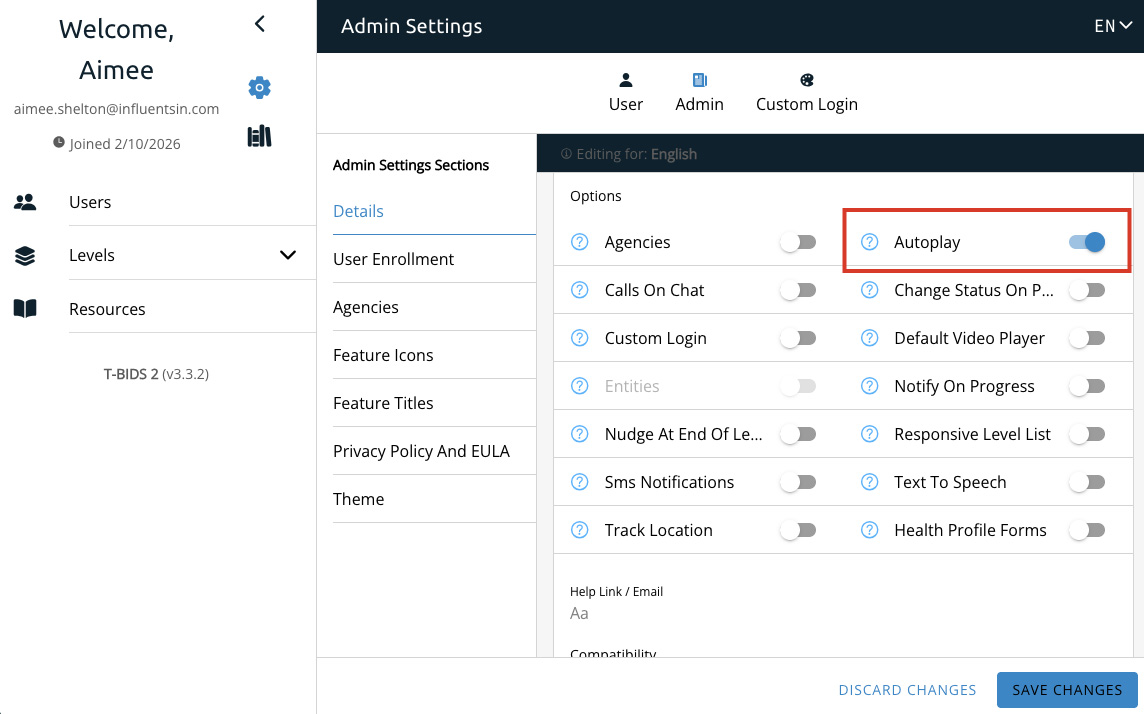
The Autoplay option in the Details section of the admin settings will cause all audio and video to play automatically on a level page when the page is loaded, however this may not be an option you want to use if you’re considering accessibility. Autoplay can interfere with screen readers and may be confusing for some users.
Theme Colors
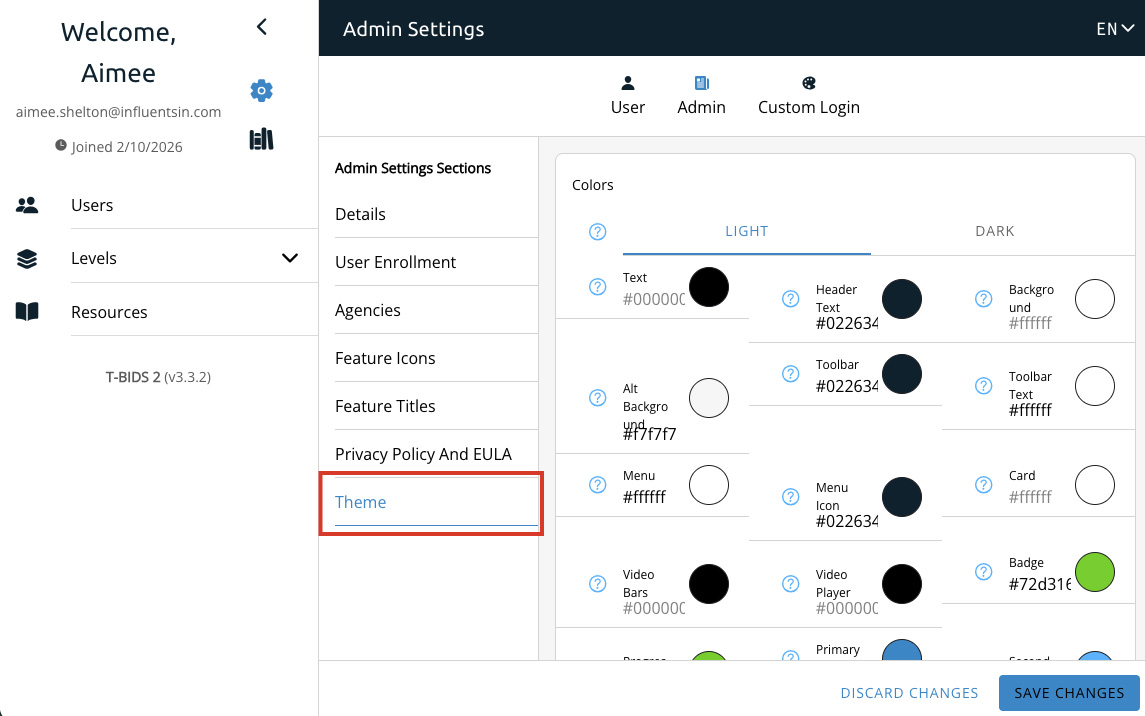
Theme colors, found in the Theme section of the admin settings, should be chose with consideration to contrast and visibility for all users. To check your site for color blindness accessibility, there are sites available where you can upload a screenshot to see how it would look to color blind users:
Coblis — Color Blindness Simulator
Accessibility in Level List
Banner
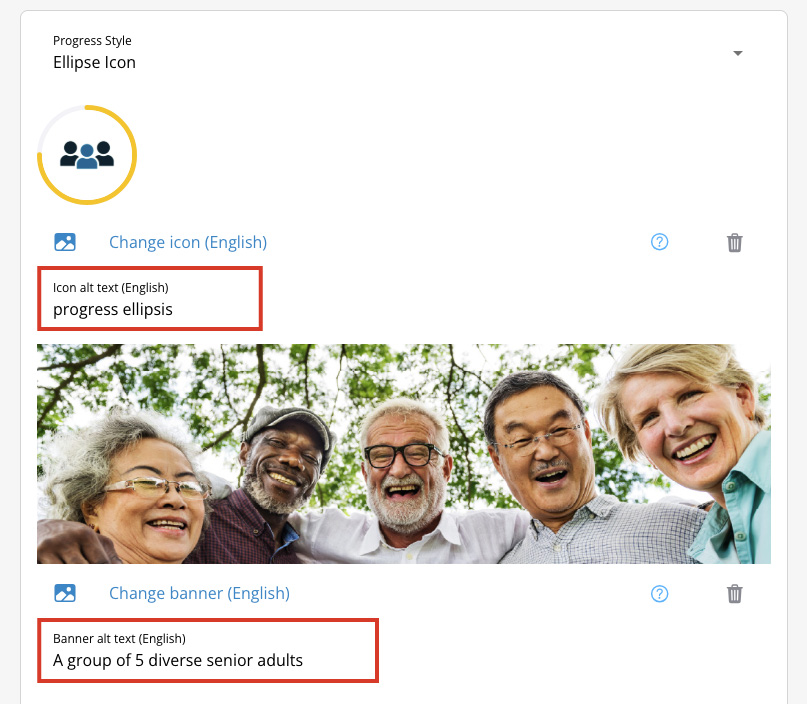
Banner and Icon upload allows for alt text to be provided for both the banner and icon image. Alt text should be provided so that users using screen readers will understand the content of an image.
You can read more about alt text best practices here.
Accessibility in Level Page
Image
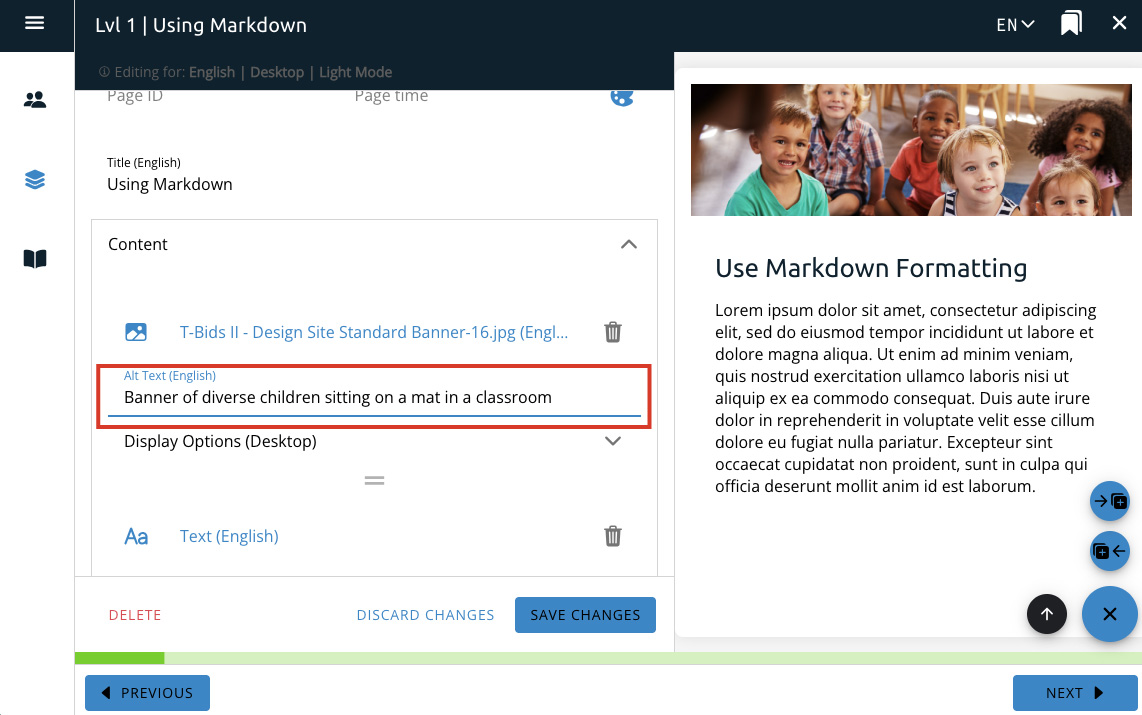
Images include an alt text option. Alt text should be provided so that users using screen readers will understand the content of an image.
You can read more about alt text best practices here.
Text
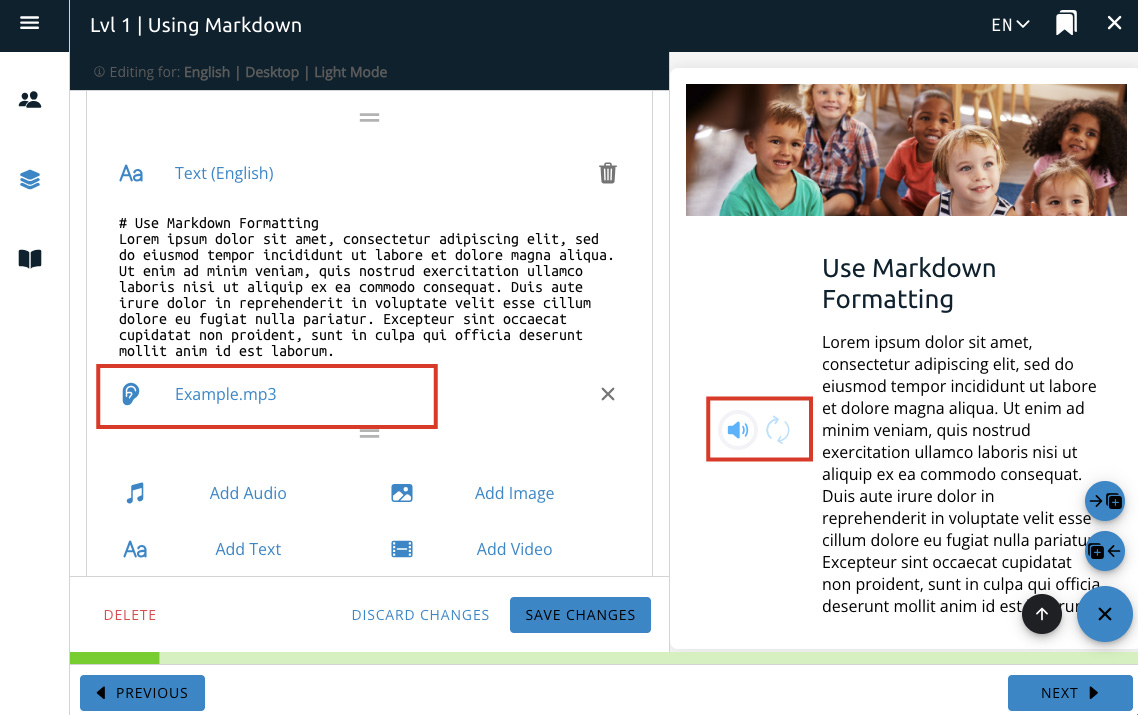
Text includes an audio narration upload option. This is for uploading audio files that you have prepared to be used for audio narration. If you don’t have audio files created for this purpose, you can also use the Text to Speech feature found in the admin settings.
Other benefits to using premade narration audio files is that the audio can be paused, where the Text to Speech feature can only start playing from the beginning.
Video
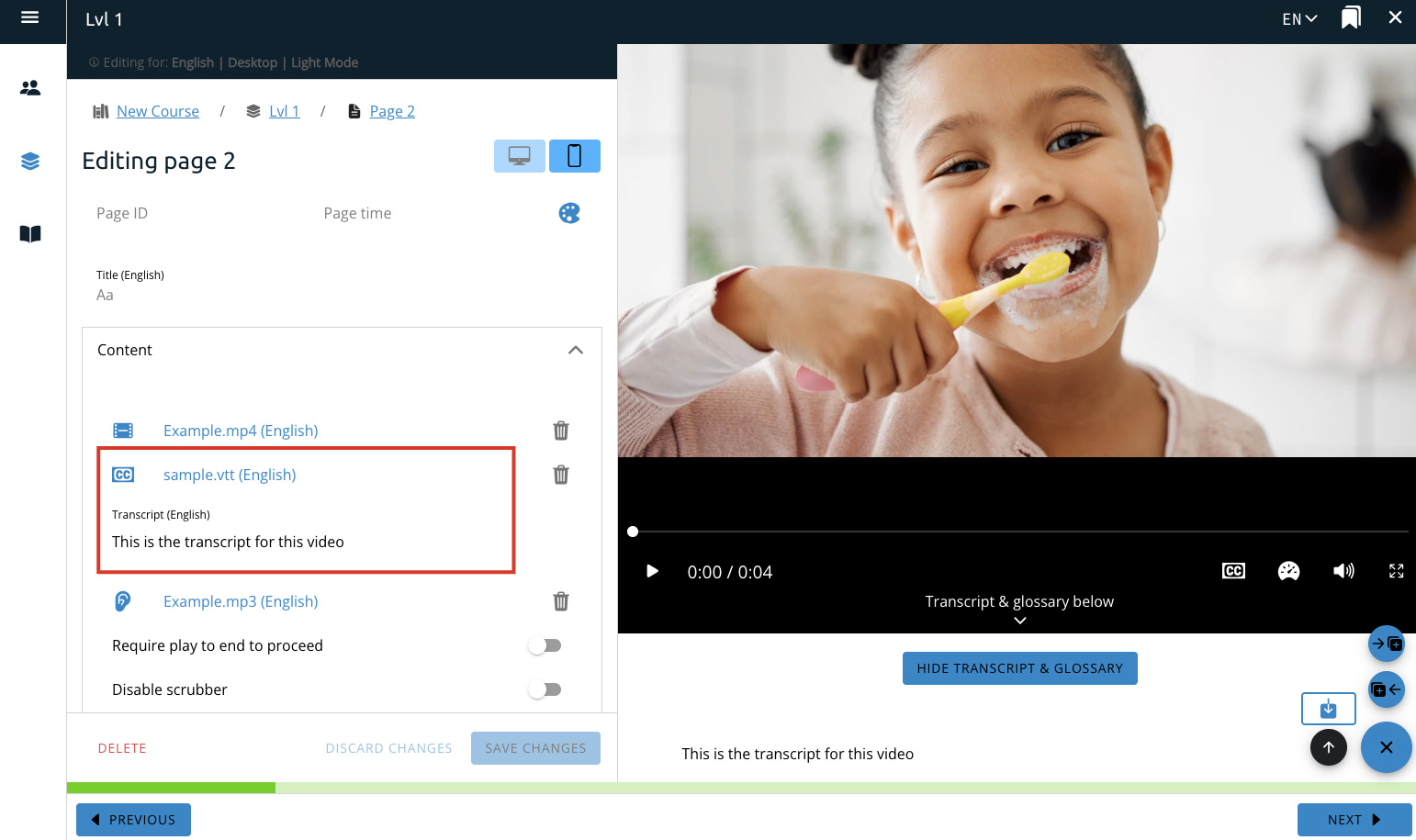
Video includes a closed caption upload option. This is for uploading .vtt files that you have prepared to be used for closed captioning.
It also includes a transcript option. This is text that appears separate from the video and is displayed by pressing a button. The text box works similarly to regular content text boxes other than where it’s located. This requires transcript text that you have prepared for this purpose.
Quiz Questions
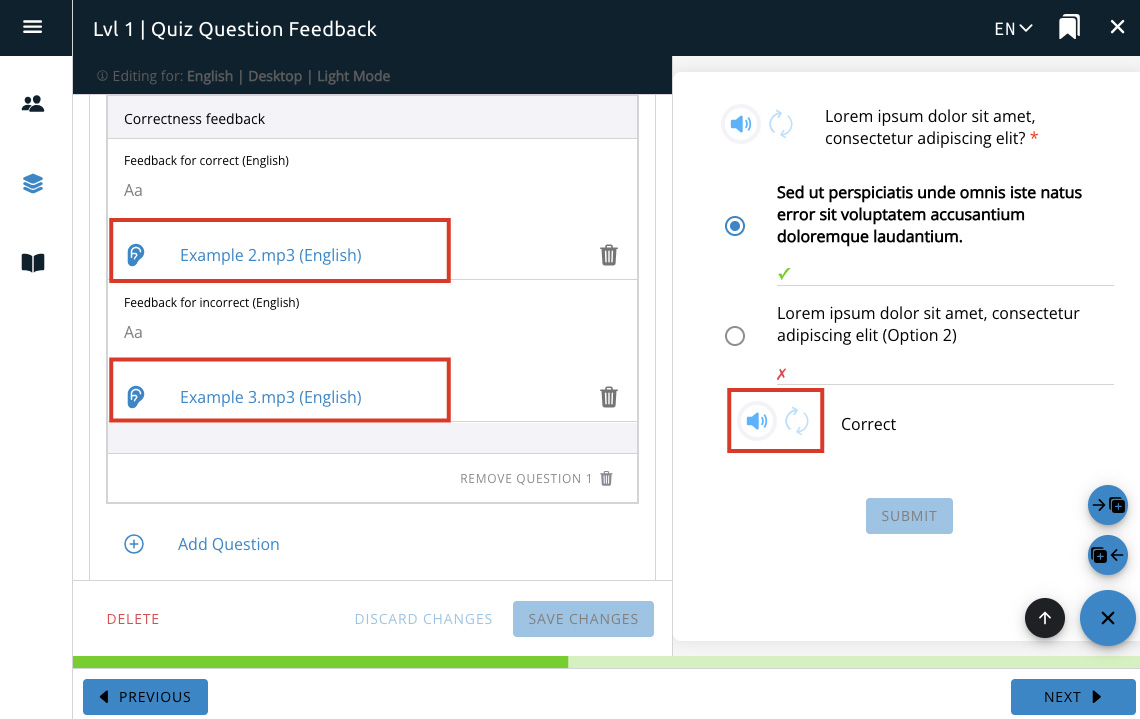
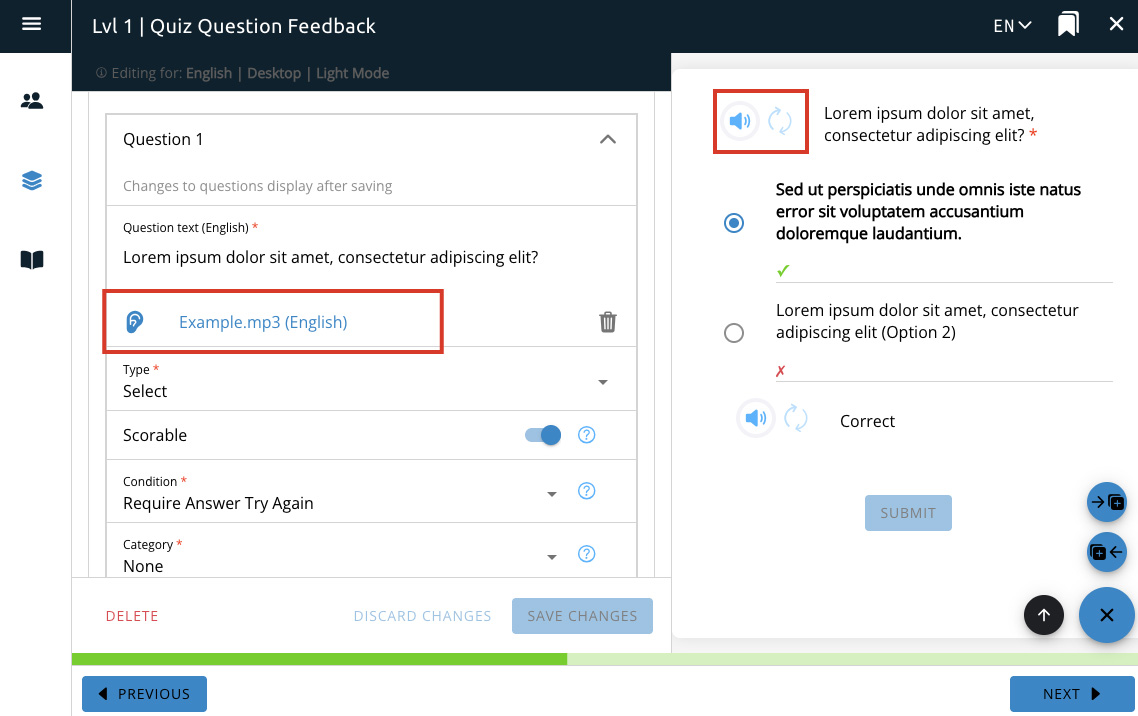
Quiz questions include a narration upload option for both the quiz question and feedback. This is for uploading audio files that you have prepared to be used for audio narration. If a quiz has been checked as scorable you will be able to upload narration for both positive and negative feedback separately rather than just one for general feedback.
Note that currently there is no option to upload audio narration files for individual quiz answers. If answer narration is required, it needs to be included with the question narration audio file.
Question Narration
Correct/Incorrect Feedback