Content
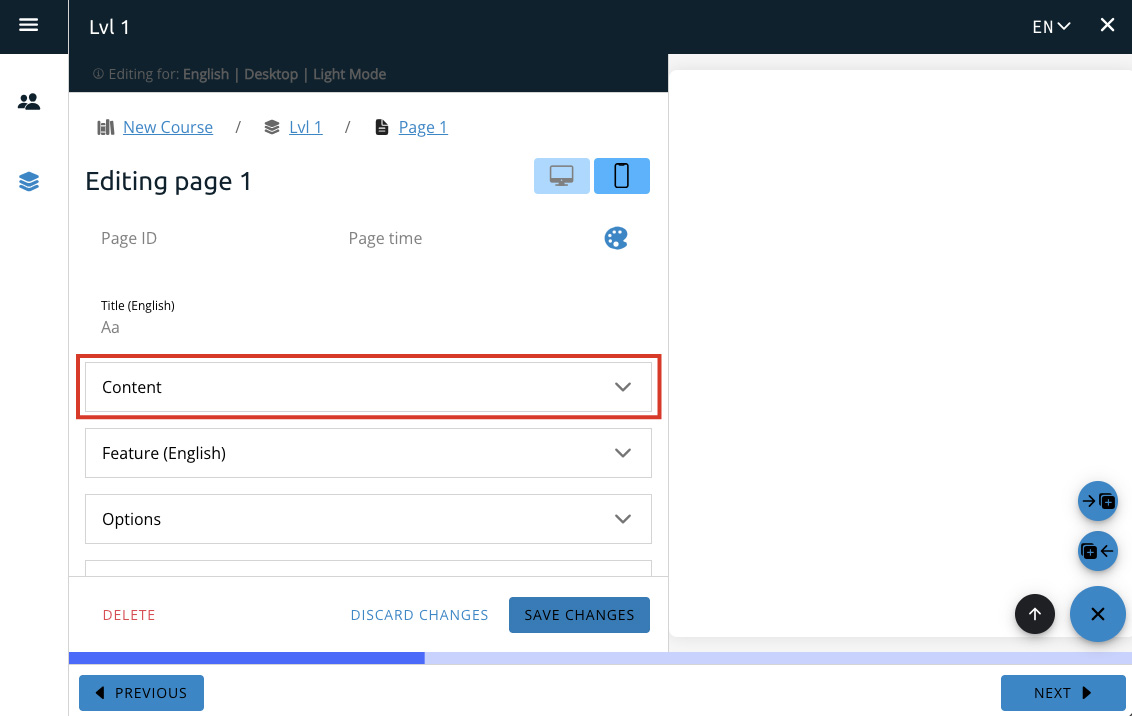
To access the Pages Editor go to the page you want to edit and click the pencil icon at the bottom right to open the editor.
This will open up the editor with the editor on the left and the page preview on the right.
Overview
This section describes the main building blocks of a page, found under the content tab of the page editor.
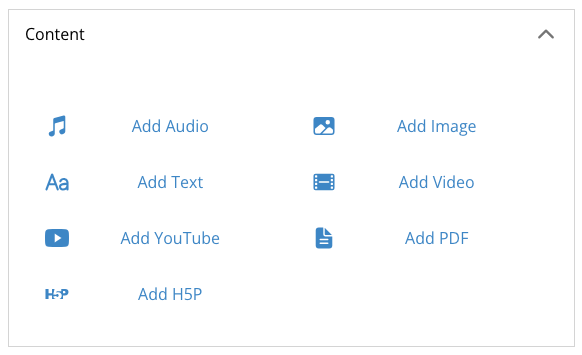
Audio Basics
Adding Audio
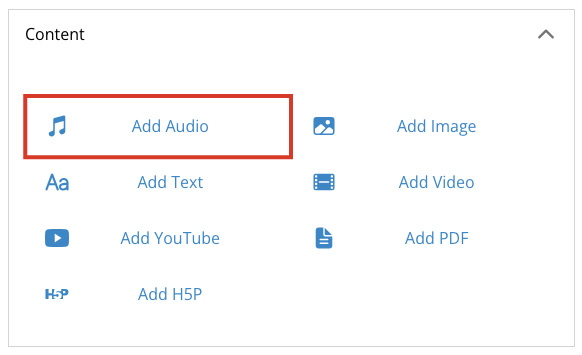
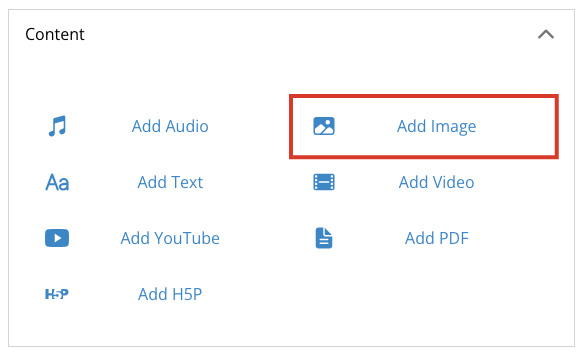
Select the Add Audio button to add an audio block to the page.
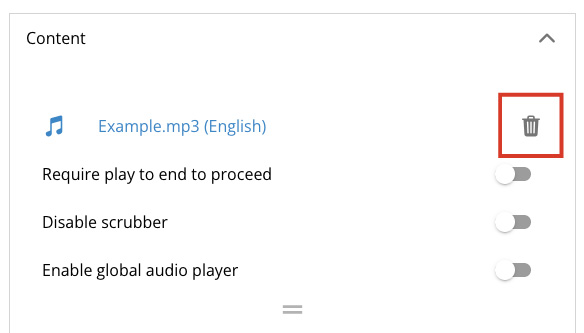
Then select Choose audio to open the upload dialog box to select an audio file from your computer.
Audio Options
Require play to end to proceed
This option will require the user to listen to all of the audio before they can move on to the next page.
Disable scrubber
This option will disable the scrubber on the audio player so the user cannot skip forward.
Note: Most common file types can be uploaded. Look at the audio file types at the bottom right of the upload dialogue box for more detailed information.
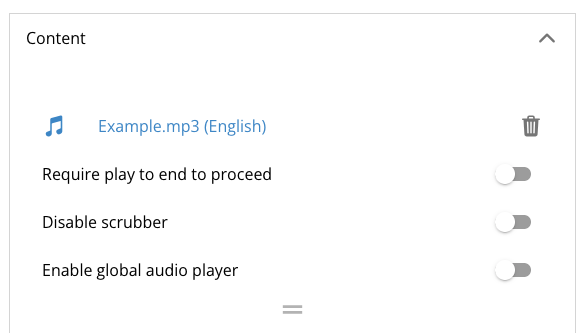
Enable Global Audio Player
Enabling the global audio player on an audio block will change it from a page audio feature to one that will play regardless of where you are on the app.
Once enabled, clicking on it will now show an audio play button in the right side of the toolbar that will display audio controls once opened.
Image Basics
An accessibility option that allows you to add a few lines of text to describe an image to users using a screen reader. While not required, it’s recommended to help increase accessibility.
Note: Most common file types can be uploaded. Look at the image file types at the bottom right of the upload dialogue box for more detailed information.
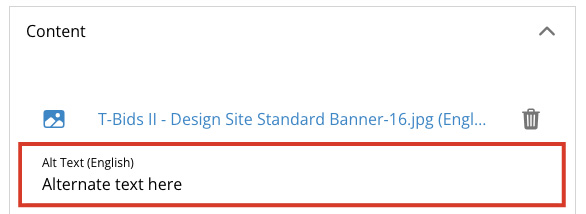
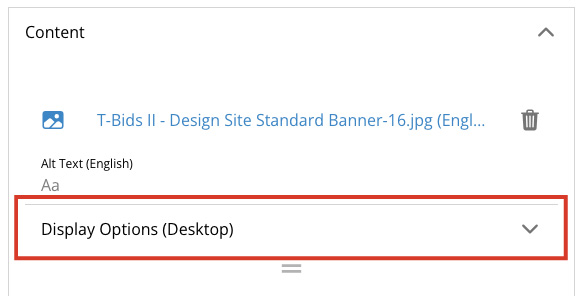
Image Display Options
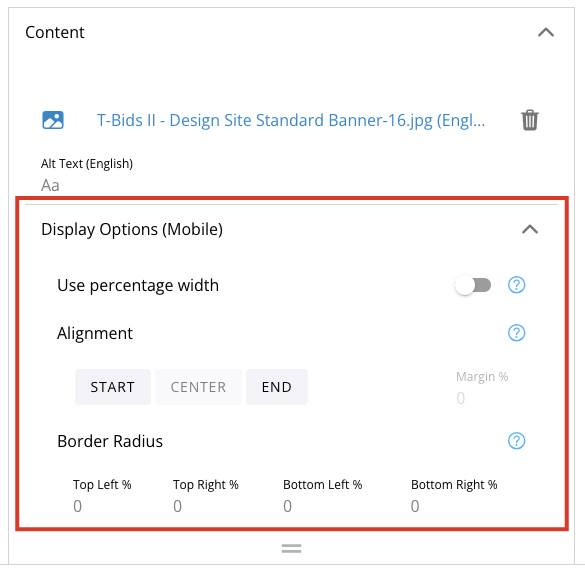
Toggling on use percentage width will let you change the size of the image on the page, from 5% of its size to 100% of its size, in increments of 5%.
Note: Most common file types can be uploaded. Look at the image file types at the bottom right of the upload dialogue box for more detailed information.
Percentage Width
Toggling on use percentage width will let you change the size of the image on the page, from 5% of its size to 100% of its size, in increments of 5%.
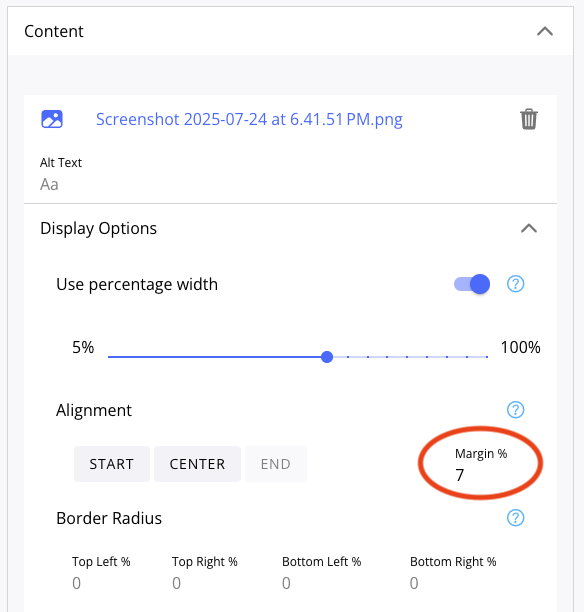
Border radius
Border radius lets you choose an amount, in percent, to curve the corners of an image.
You can set each corner to 5% to add gentle curves to a square image, or 50% to turn the square into a circle! Each corner has its own separate value, so you can mix and match the curves to add even more visually interesting images to the page.
Text Basics
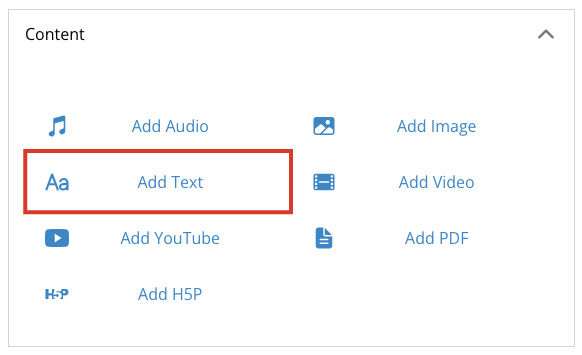
Type or paste your text into the text box. Use Markdown for formatting.
Video Basics
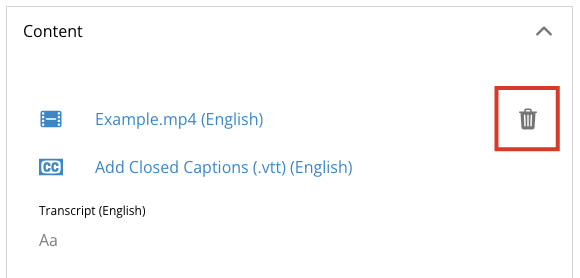
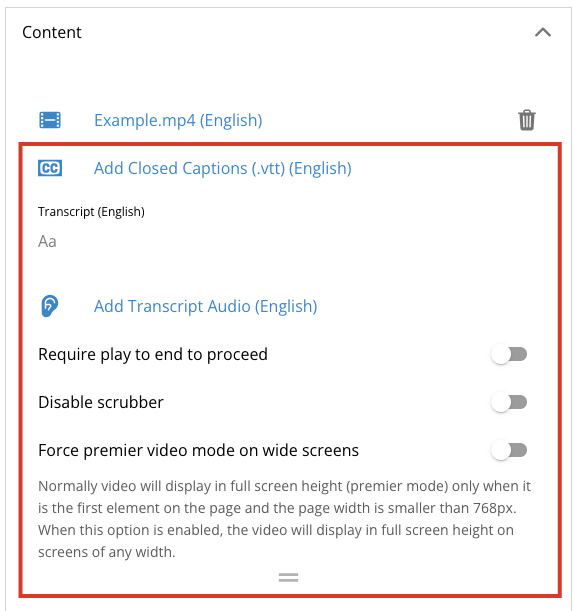
Add Closed Captions — You can add closed captions to a video by uploading a .vtt file here.
Require play to end to proceed — This option will require the user to watch all of the video before they can move on to the next page.
Disable scrubber — This option will disable the scrubber on the video player so the user cannot skip forward.
Enabling force premiere video mode on wide screens — will make the video fill the screen regardless of video size.
Most common file types can be uploaded. Look at the video file types at the bottom right of the upload dialogue box for more detailed information.
YouTube
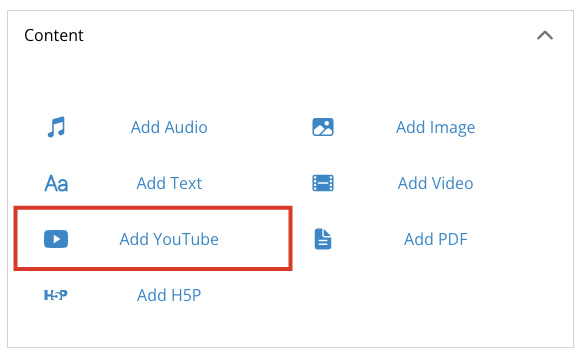
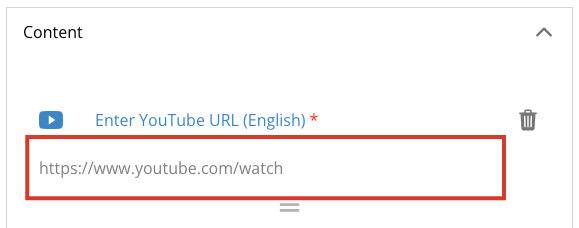
Type or paste a YouTube video link into the box to have it display on the page.
H5P
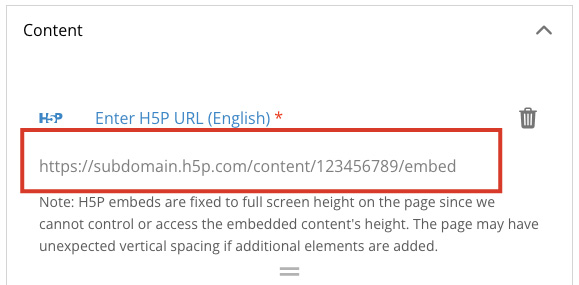
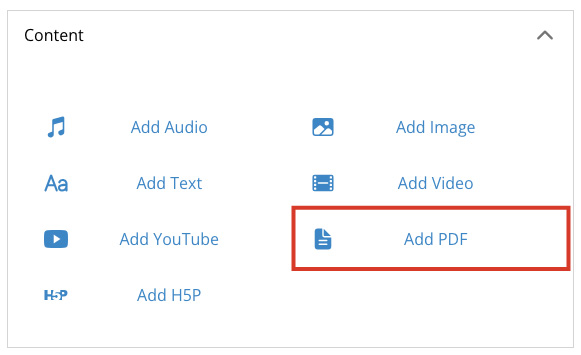
Add H5P allows you to add an H5P embed to the page to include interactive elements on the page. H5P content creation must be done separately outside of T-BIDS, this feature only allows you to embed already created content.)
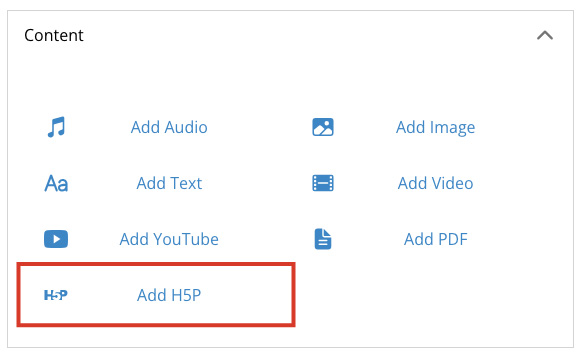
Select the Add H5P button to add a link to your created H5P content.
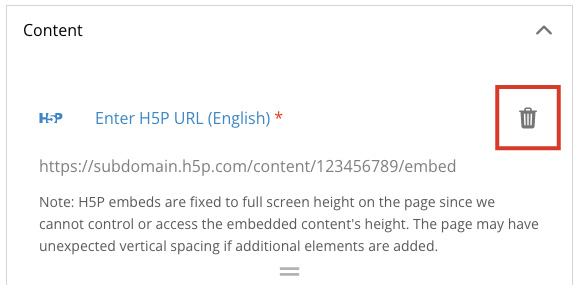
The H5P content will show up on the page, and can be moved and rearranged like any other content piece.