Editing Level Fields
Step-by-step guidance for editing level fields and settings.
To access the editing fields discussed on this page, begin by opening up the Level Editor, accessible from the Levels Page.
Titles
Level Title
When first creating a level, you’ll need to add a title.
The title is the only required section for creating a level, so you need to include one even if you are undecided on what the title for that level will be.
You can change the title at any time by re-opening this editor.
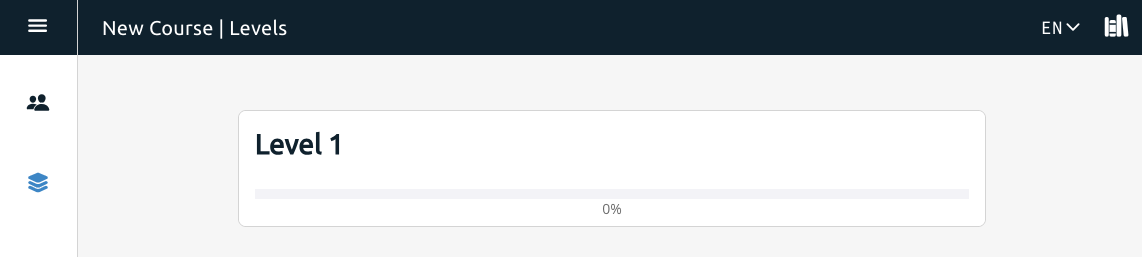
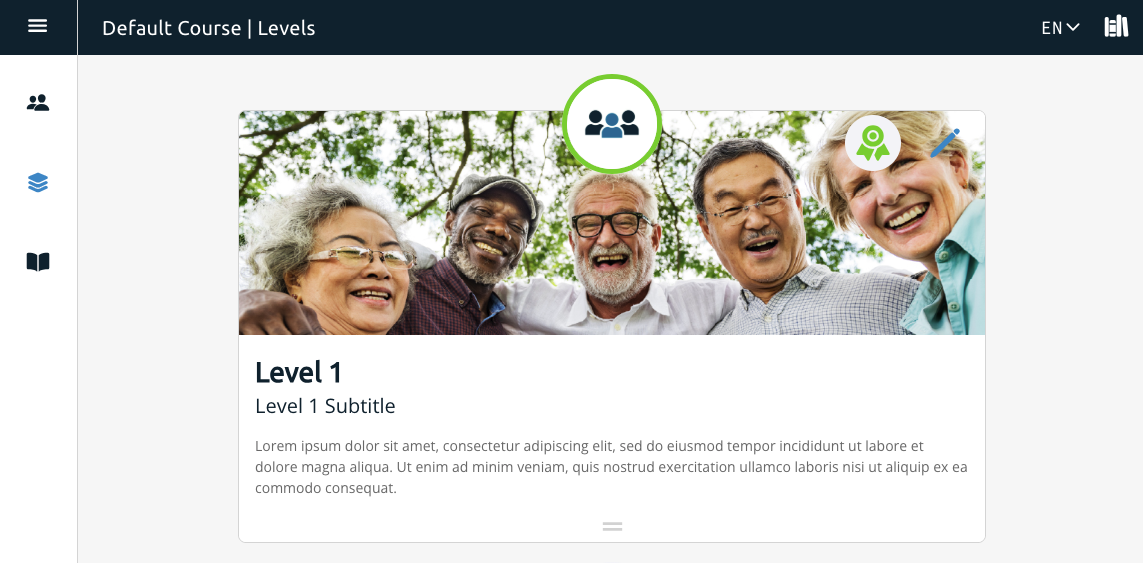
The level title is shown in large bold font as shown in the image, and will be the most prominent part of each level on the level display page.

Progress Style
The Progress Style lets you select how user progress is displayed on the level card.
Select Progress Style to open a list allowing you to choose between Ellipse Icon and Bar styles.
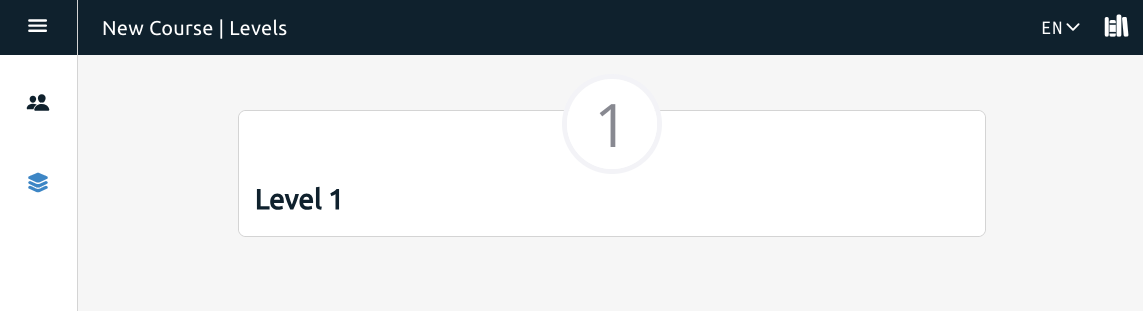
Ellipse Icon
This style shows progress as a circle around the level number or icon image (if one has been uploaded).
Subtitles
Descriptions
Icons and Banners
Icons and Banners can be added to level cards to help differentiate them and bring visual interest to your level list.
Compact View
Selecting the compact view toggle will allow you to decrease the size of the level cards on the page.
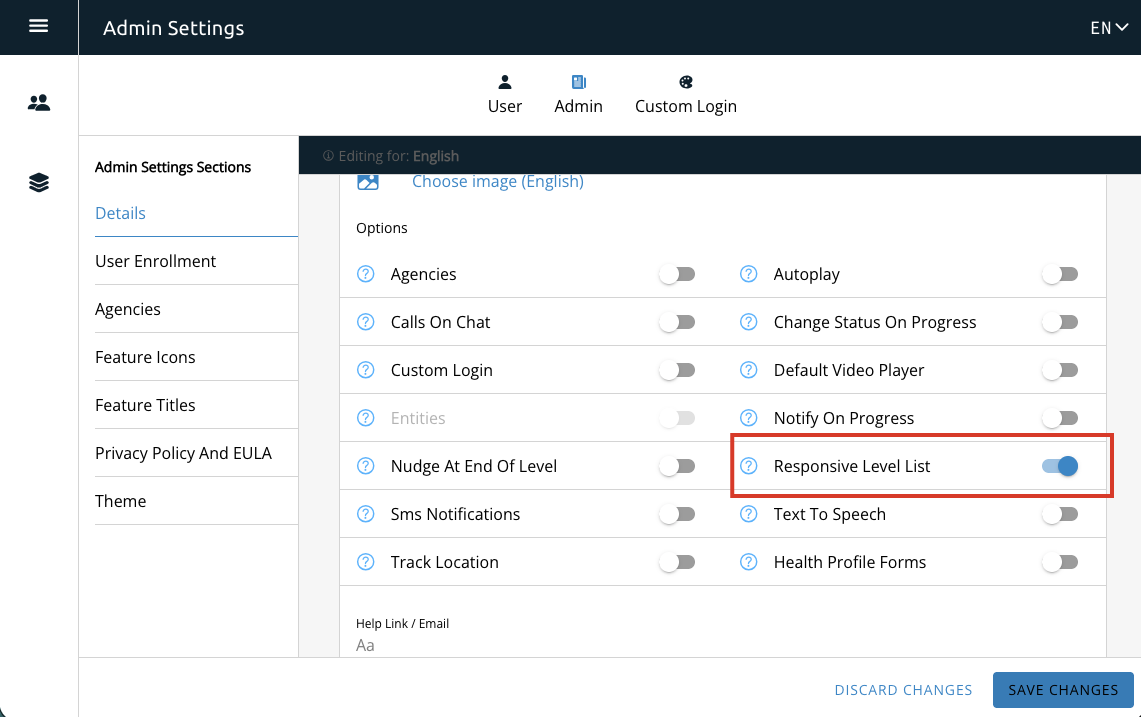
Note that this will only work if the Responsive Level List toggle has been switched on in the admin settings under Details > Options.
If this setting has not been turned on, the compact view toggle will not change the size of the level cards. If you cannot access the admin panel, please speak with an admin user.