Quiz
Overview
There are many options for quizzes that we will cover in this guide. Quizzes also interact with other features and course options: The Plan(link) course option, the Level Review Quiz page option, the Summary Page feature, and Branching. Visit these pages to learn more.
The passing score is used in Branching. The number set is the minimum score required to move on to the pass branch. The total possible score on a page is equal to the number of questions on a page, with each question being a score of 1.
Example: If you have five questions on the page and you want the passing score to be 80% correct, you would put a 4 in the box.
Setting a passing score brings up an additional option block advancement on fail. This will allow you to block a user from proceeding with the level if their score is below the threshold that was set. If this triggers, the guide assigned to the user will be notified. See the Guide Manual(link) for more information.
Note: There must be at least the same number of questions added to the page as the passing score, or the page cannot be saved.
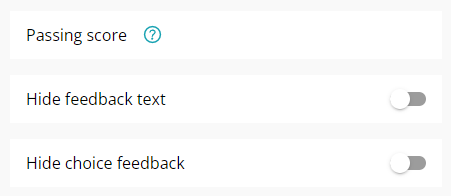

Feedback on
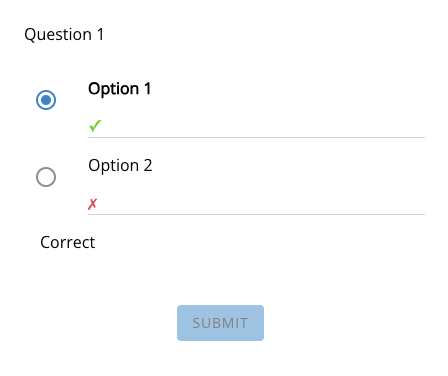
Feedback off
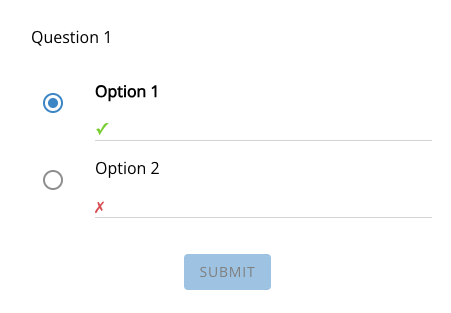
Feedback on
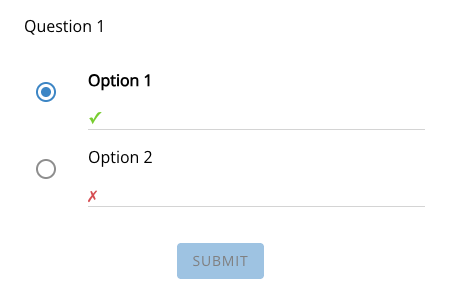
Feedback off
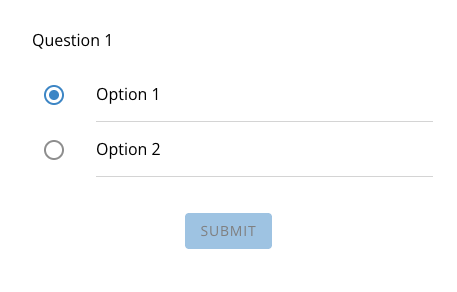
Questions
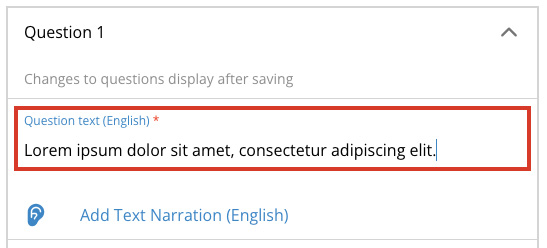
To add a new question, click the Add Question button. (Note, once you’ve added a question you won’t be able to save the page until you’ve filled out all the required fields.)
Select the Remove Question button at the bottom of the question tab to delete the question. Deleting all the questions will remove the quiz from the page.
Standard Question Types
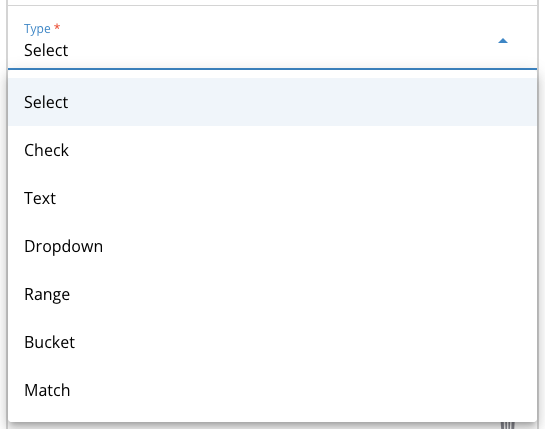
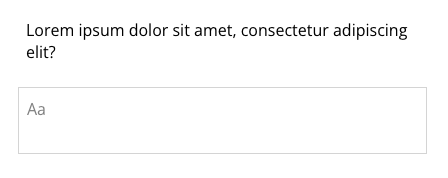
The type field is a required field that allows you to select the type of question you would like.
Bucket Questions
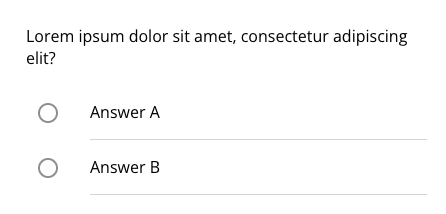
The bucket question type has users choose from a selection of answers and match them to one of 2-4 different “buckets”. These buckets can be image or text, while the answers can only be text.
There needs to be at least 2 (up to four) buckets, and each bucket must have at least one answer associated with it.
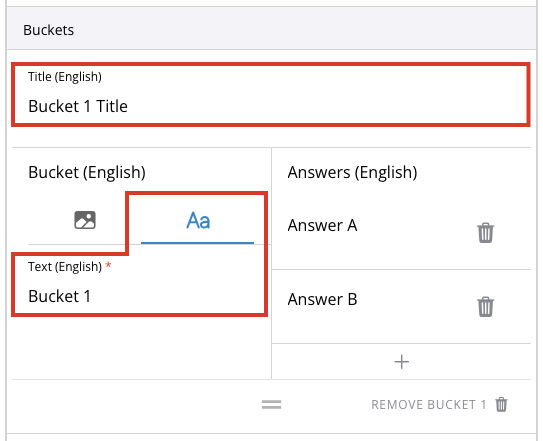
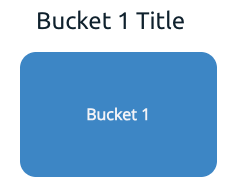
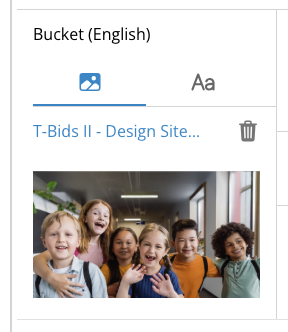
Image — You can alternatively add an image in place of the text for each bucket as an option.

Keep answer on retry — This toggle will keep the answers that are correct in the buckets if the user chooses to retry the question.
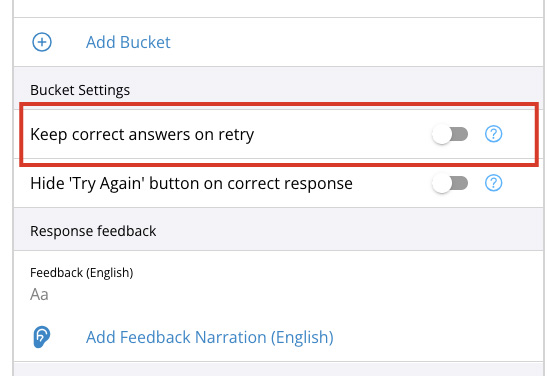
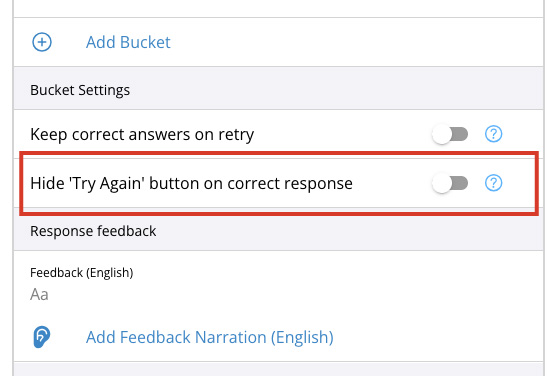
Hide Try Again button — If selected, the Try Again toggle will be hidden if the user answers the question correctly.
Match Questions
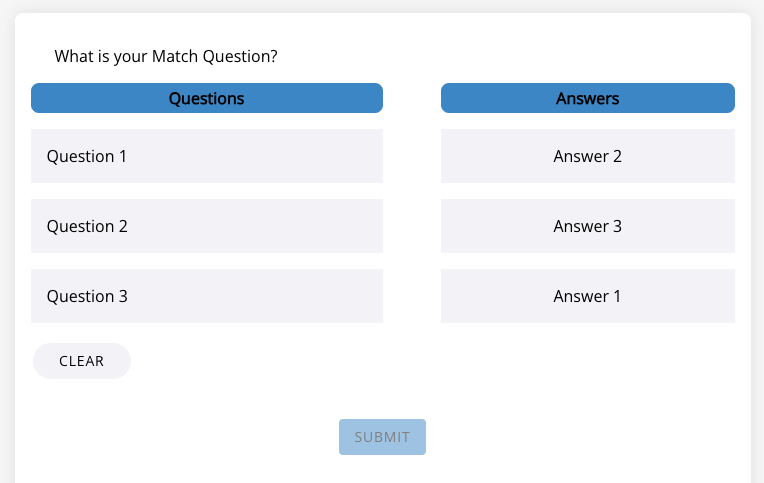
The match question type has users match one answer to one question. Unlike the bucket question type, both question and answer can only be text.
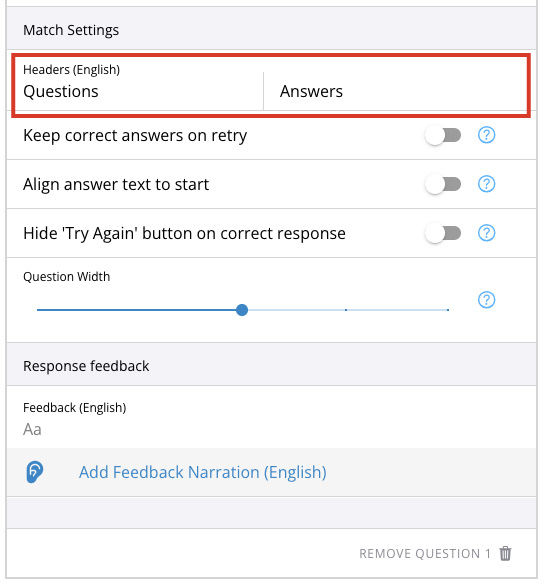
Headers will change how each side of the match game is labeled. They are labeled as Questions and Answers by default.
The keep answers on retry toggle will keep answers that are correct matched with their associated question.
The question width slider changes the ratio of space allocated to the question-and-answer columns. If the slider is all the way to the left the question column will be at its minimum possible size, while all the way to the right is its maximum possible size.
Question Options
Scorable
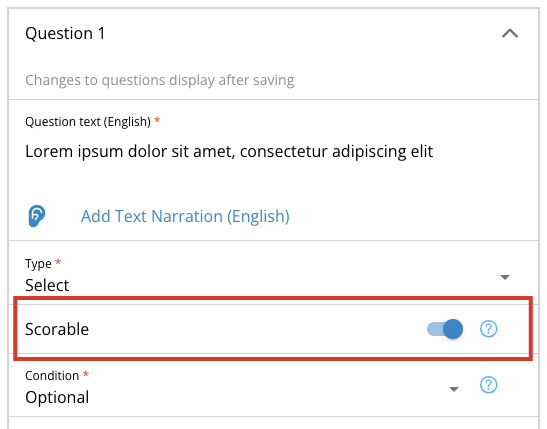
If the scorable option is selected, it allows a question to be scored.
When selected this will give the question correct/incorrect feedback (unless those options are hidden.) The scorable option is a requirement for questions used in branching and the level quiz review.
Conditions
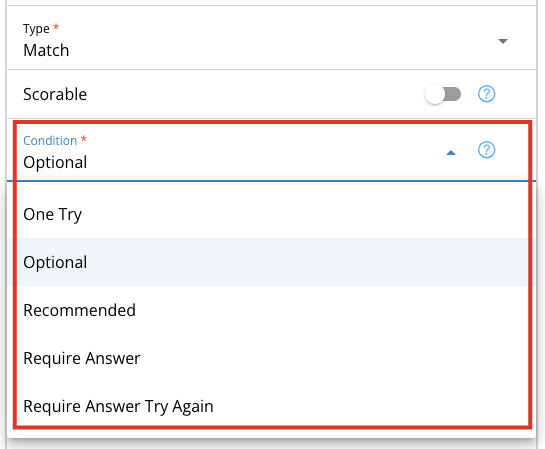
This is a required field that allows you to select the condition that should be met for the question to be complete.
One Try — Optional, but the user has only one attempt at the question.
Optional — Optional, and the user can attempt the question as many times as they like.
Recommended — Optional, but recommended.
Require Answer — An answer is required, but it doesn’t have to be correct.
Require Correct — An answer is required, but user must answer until correct. This option only shows up if the question is scorable and not a text type question.
Categories
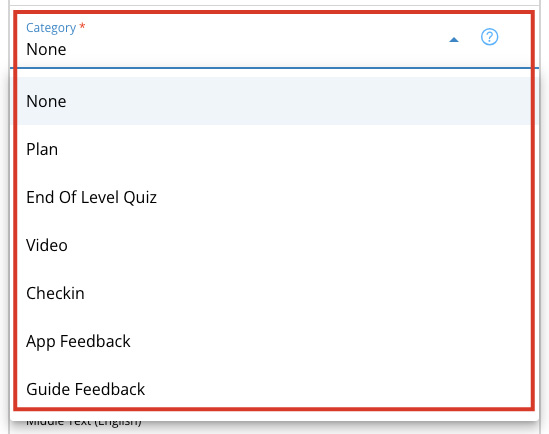
While many of these are only used for the purpose of labeling, there are a few exceptions.
None — The default, the question is not sorted into any category.
Plan — If Plan is chosen, the question will appear in the Plan course feature.
End of Level Quiz — Allows you to categorize a question as a question in an end of level quiz. Questions marked with this category will show up in the user progress report (last two completed levels only.)
Video — Categorizes the question as a video question.
Check-in — Categorizes the question as a check-in question.
App Feedback — Categorizes the question as an app feedback question.
Guide Feedback — Categorizes the question as a guide feedback question.
Show in Summary Page
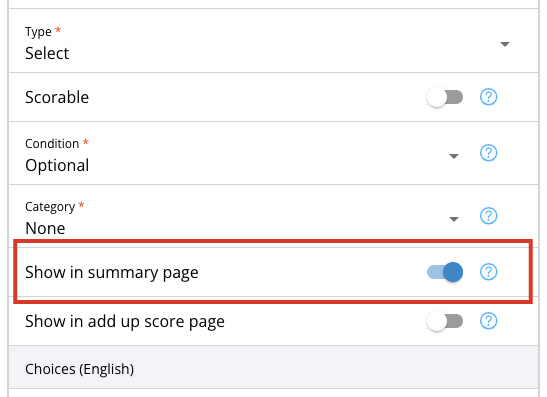
If the show in summary page option is selected, the question will appear on the next page in the level that has the Summary Page feature enabled.
Feedback
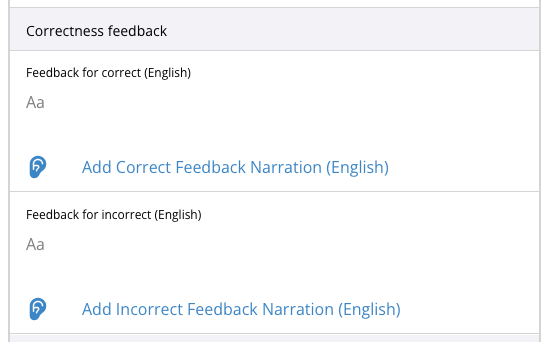
The feedback field is an optional field that allows you to add custom feedback to your questions. On scorable questions if no custom feedback is provided it will display the default correct/incorrect feedback (unless hidden.)
If a question is selected as scorable, the feedback field will be divided into two fields for separate correct and incorrect feedback. Feedback cannot be set for individual answers and will apply to any answer that is flagged as correct or incorrect.
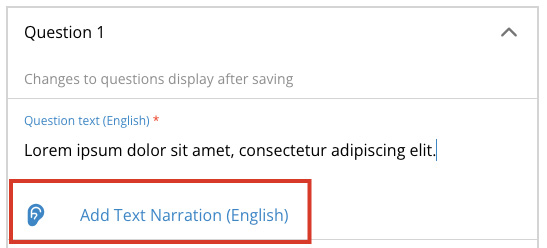
An accessibility option allows you to upload an audio file version of the text that will display as an audio icon next to the feedback text that users can click and listen to. Audio files for correct and incorrect can be added individually.
Choices
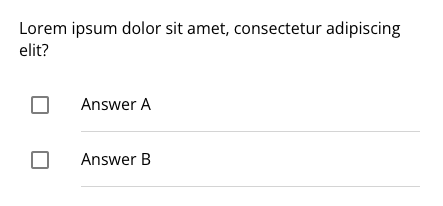
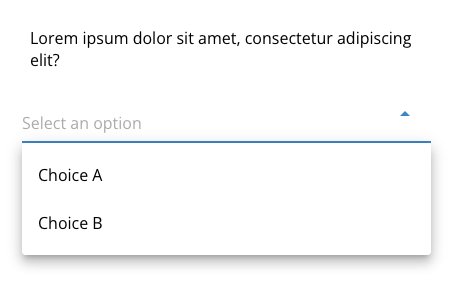
The Select, Check, and Dropdown question types include a section to input your choices. You must have at least two choices for these question types for the question to be valid.
You can add more choices below the first two by selecting Add Choice. Remove Last Choice will remove the bottom most choice.
Note: There is currently no way to reorder choices, so you’ll need to do so manually if you want your answers in a different order.
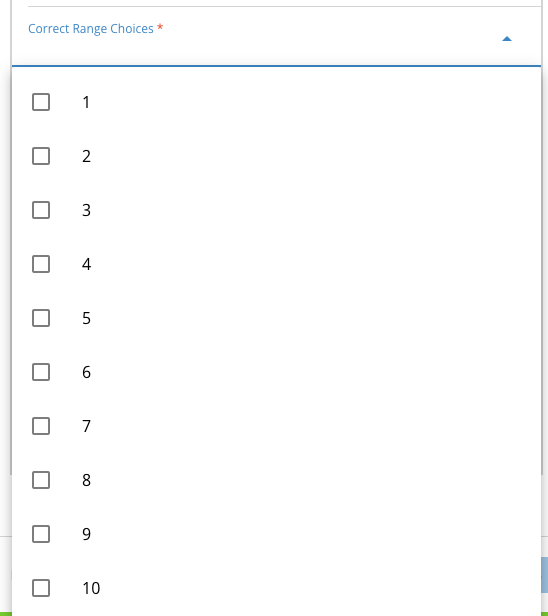
If a question has been selected as scorable, a choice must be selected as correct. The Select and Dropdown types can only have one choice, but the Check type can have multiple selections.
Range
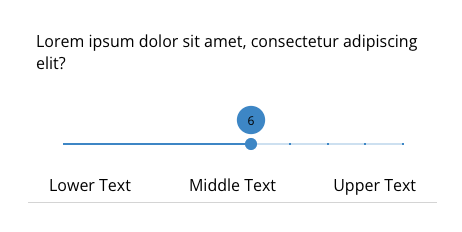
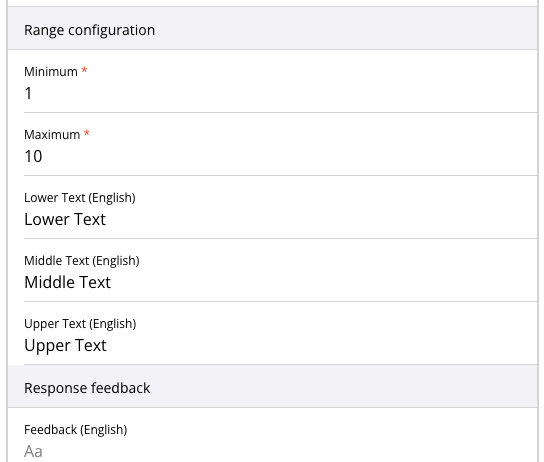
The range question type has a few unique options:
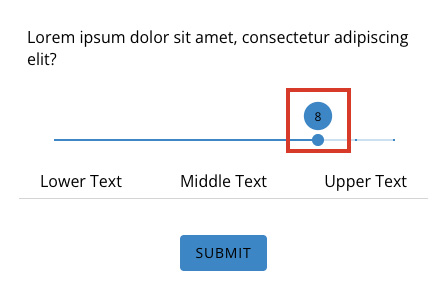
The minimum and maximum numbers on the scale to indicate the length of the scale, and optional text indicators that will show beneath the scale. The text shows up on the movable circle just above the scale with the Lower Text located on the left and Upper Text located on the right.
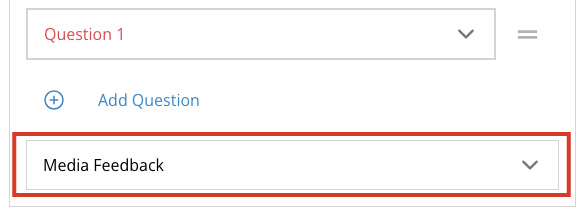
Media Feedback
Once you’ve saved your quiz, a new tab will appear. This tab allows you to upload optional additional quiz feedback.
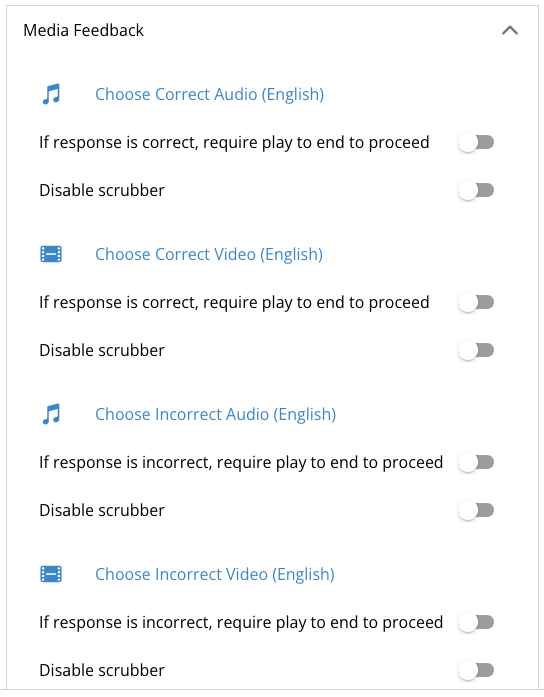
Here, you can upload correct and incorrect audio or video. Click on the header for the feedback you wish to upload and select the file from your desktop.
Similar to other types of video and audio, it also has the following options:
If response is correct/incorrect, require play to end to proceed — This option will require the user to watch all of the video/audio before they can move on to the next page. This will only trigger on the video or audio that they receive based on their quiz answers.
Disable scrubber — This option will disable the scrubber on the video player so the user cannot skip forward.
Note: This feedback is for the entire quiz, and if there are multiple questions it will require a user to get all of them correct to receive the Correct audio/video feedback.