Features
Overview
Features are interactive elements that can be added to the page to provide different functionality.
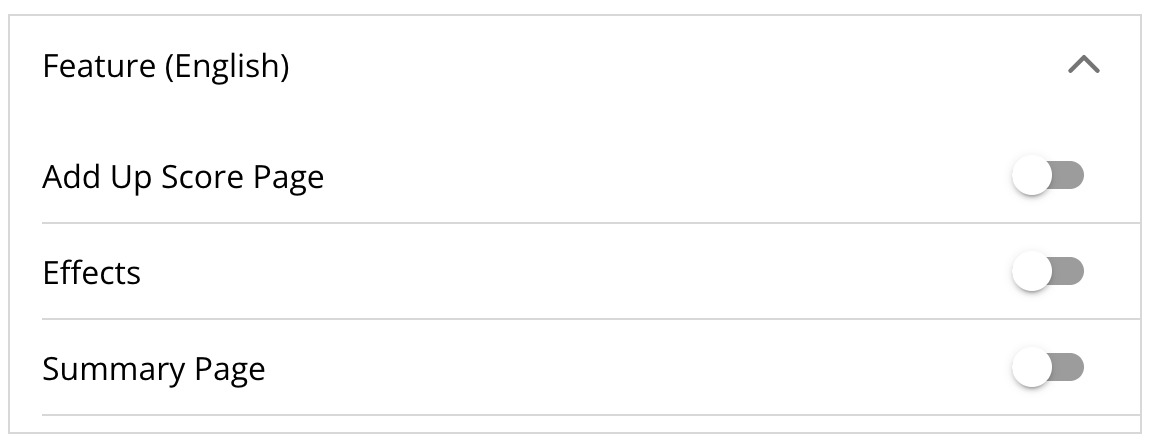
By default, the only available features are Add Up Score Page, Effects, and Summary Page. While additional features are tailored to specific projects, this guide will provide a brief overview of each feature.
Features can be displayed on the page with other content or quizzes. The features will show up beneath all other content.
Universal Features
All Current Features
Universal Features
Add Up Score Page
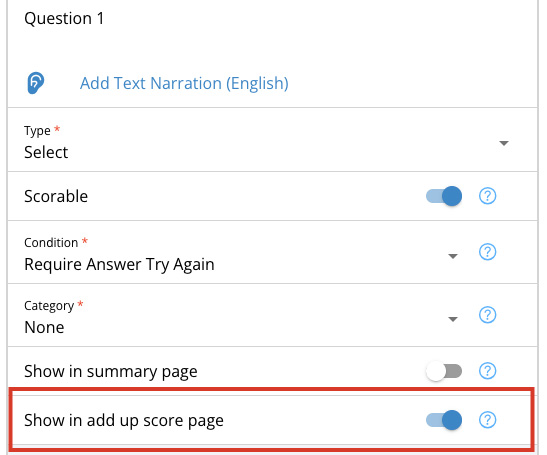
If you toggle on the add up score page feature, this will add a tally to the page that shows the user how many questions they got right.

Effects
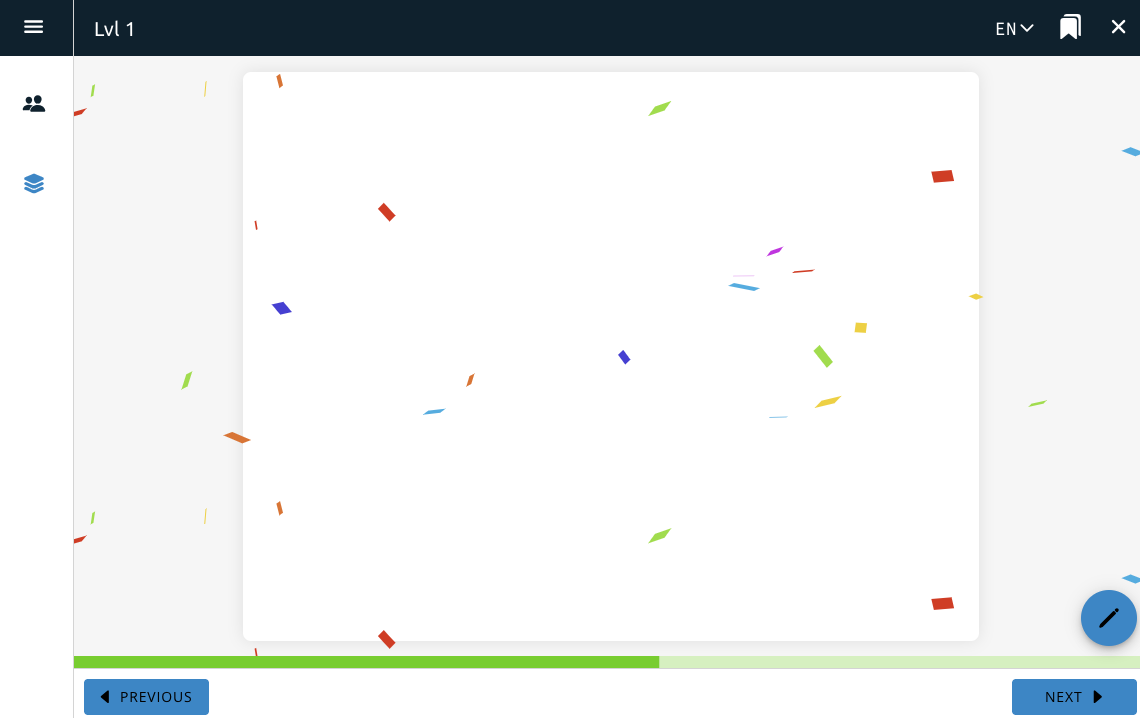
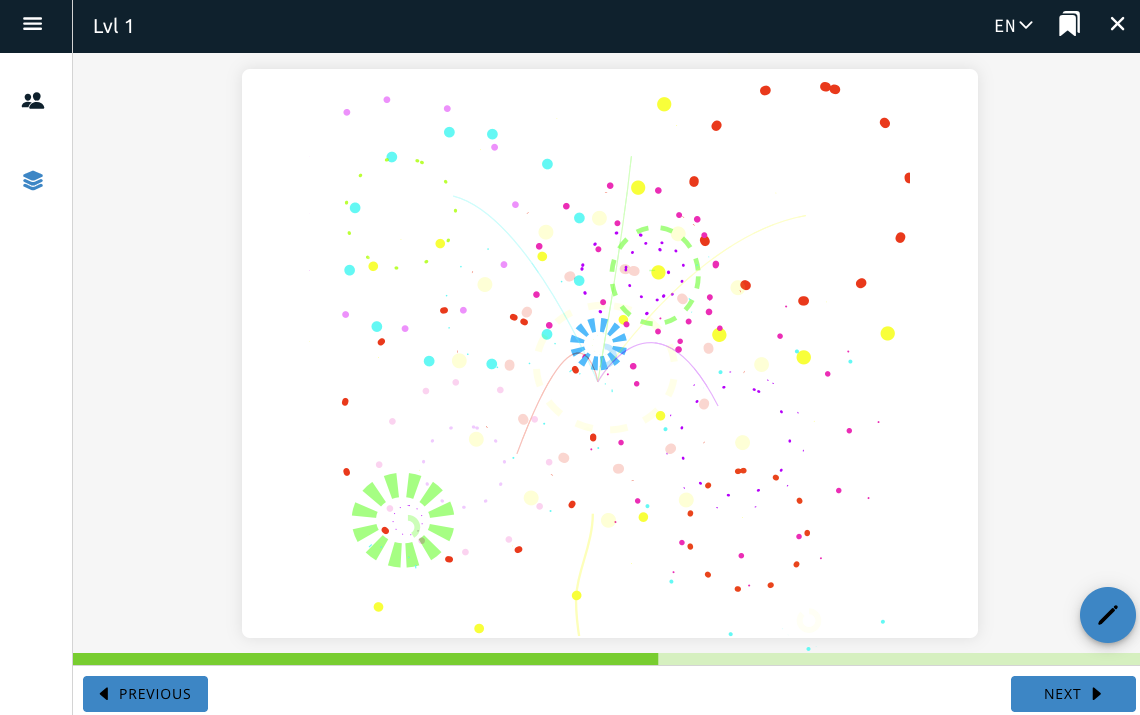
Effects will add animations over the top of page content. There are currently two options, one with confetti effects that includes a short musical jingle, and a second with a fireworks animation effect.

Summary
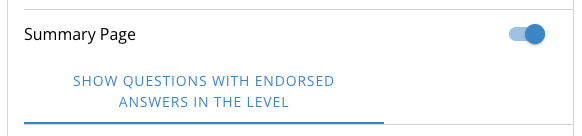
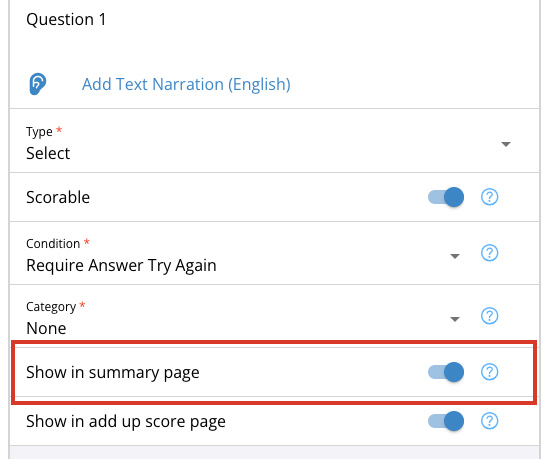
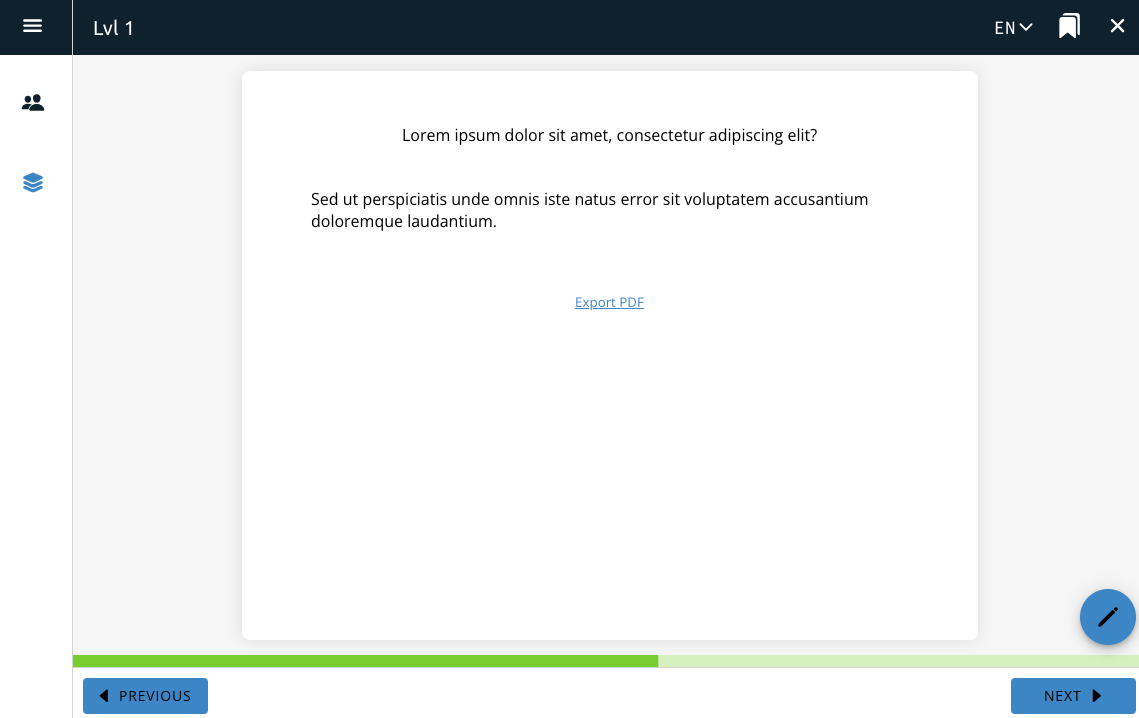
The Summary Page feature takes all quiz questions that have the “show in summary page” option selected and displays them on the page.
The Summary Page feature must be selected on a page after the questions you want to appear on the page.
The quiz questions will show up in a list that the user cannot edit. The user can also download a PDF of the questions for later viewing.
If this feature is enabled, quiz questions cannot be added to the page it is enabled on.
Project Specific Features
Please note that these features can be adapted to any project.
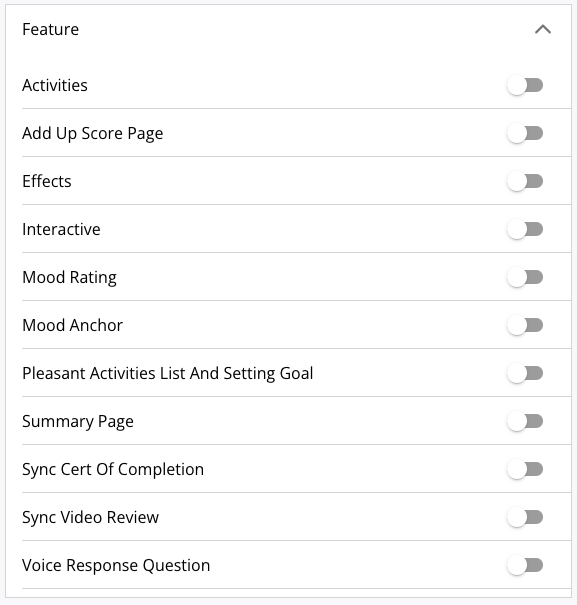
Activities
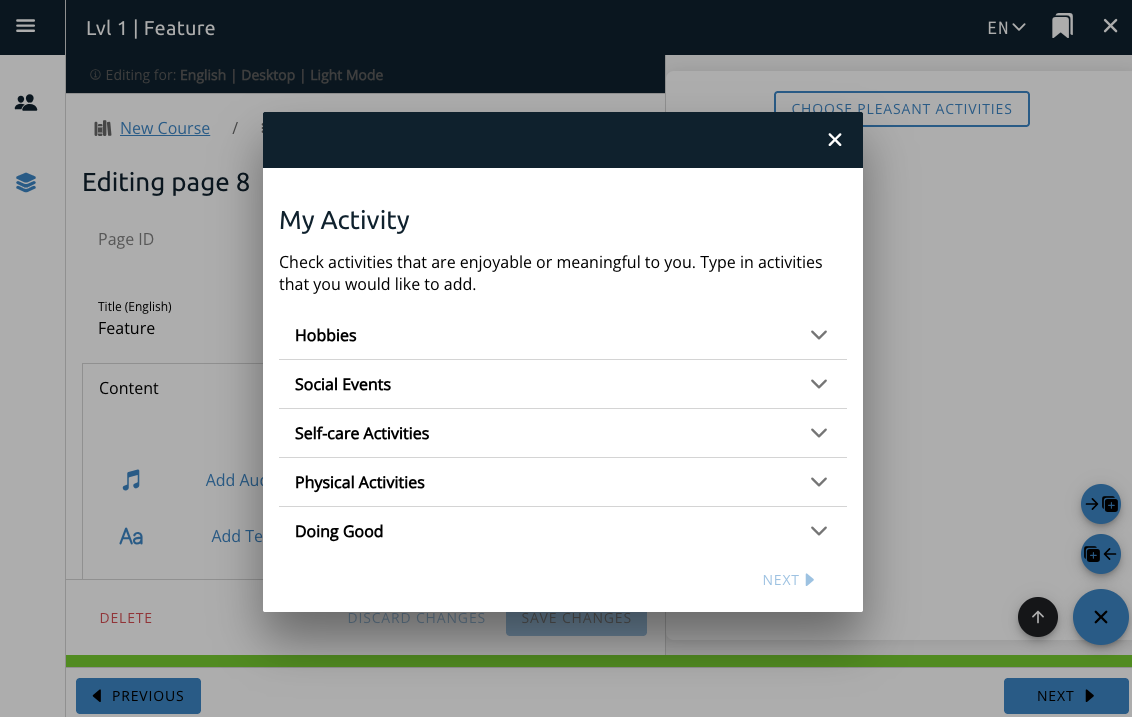
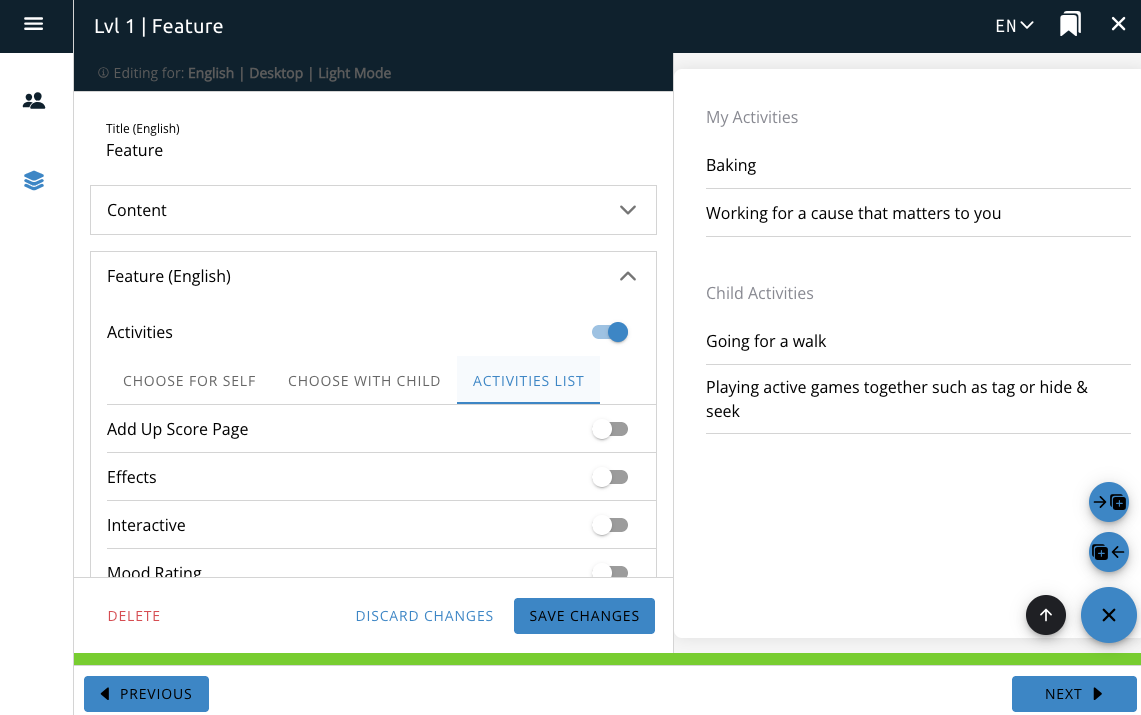
The Activities feature interacts with the Pleasant Activities course option and provides a button or a list on the page for the user to directly interact with the Pleasant Activities functionality.
The choose for self and choose with child options will create a button on the page that when clicked will create a selection box for the user to select or create a pleasant activity.
The activities list option will show a list of previously selected activities.

Interactives
Interactives are custom-built features designed for specific projects. If an interactive has been created for your project, it will appear in the Features tab.
To add one to your page, navigate to the Features tab and toggle on the Interactive option. This will display a list of interactives available for your project. Select the interactive you want to use, then save your changes.
Once saved, the interactive will appear on the page and be ready for users to engage with.
Mood
Mood Rating
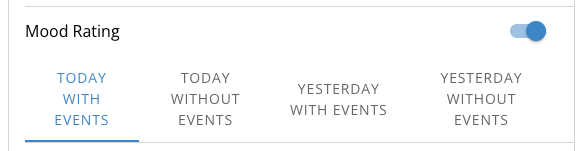
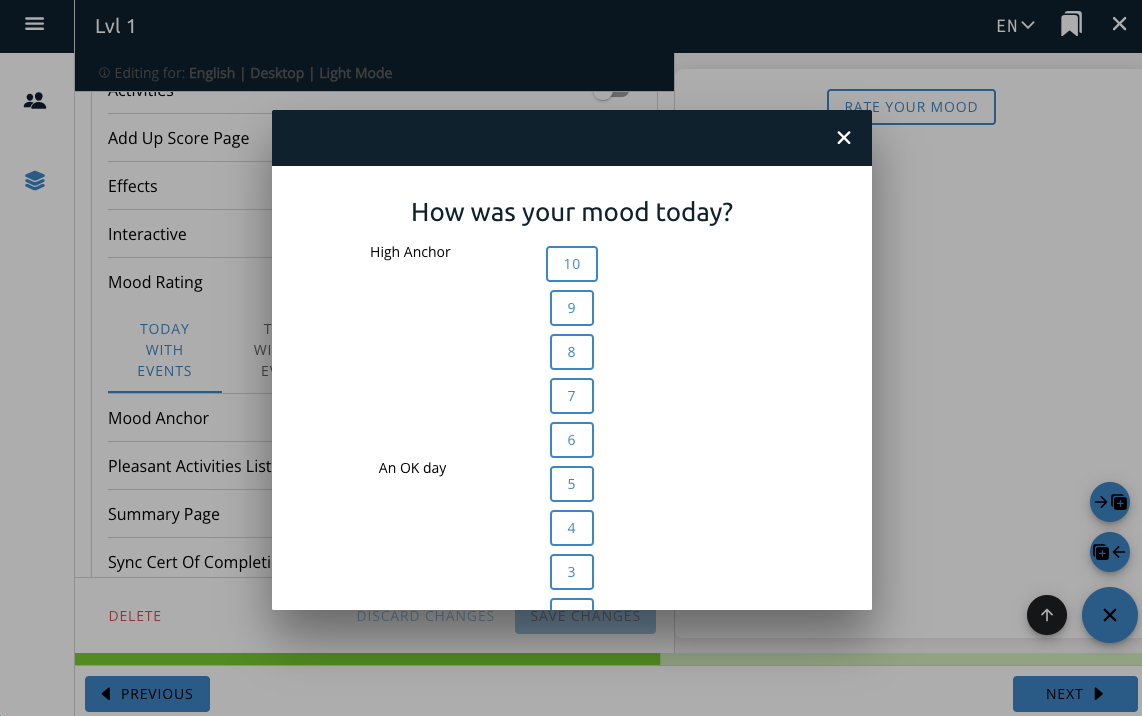
The Mood Rating feature interacts with the Mood Rating course option and provides a button on the page for the user to directly interact with the Mood Rating functionality and rate their mood for that day.
This will add a button to the page that will create a selection box for the user to rate their mood and set their number of pleasant activities.
Mood Anchor
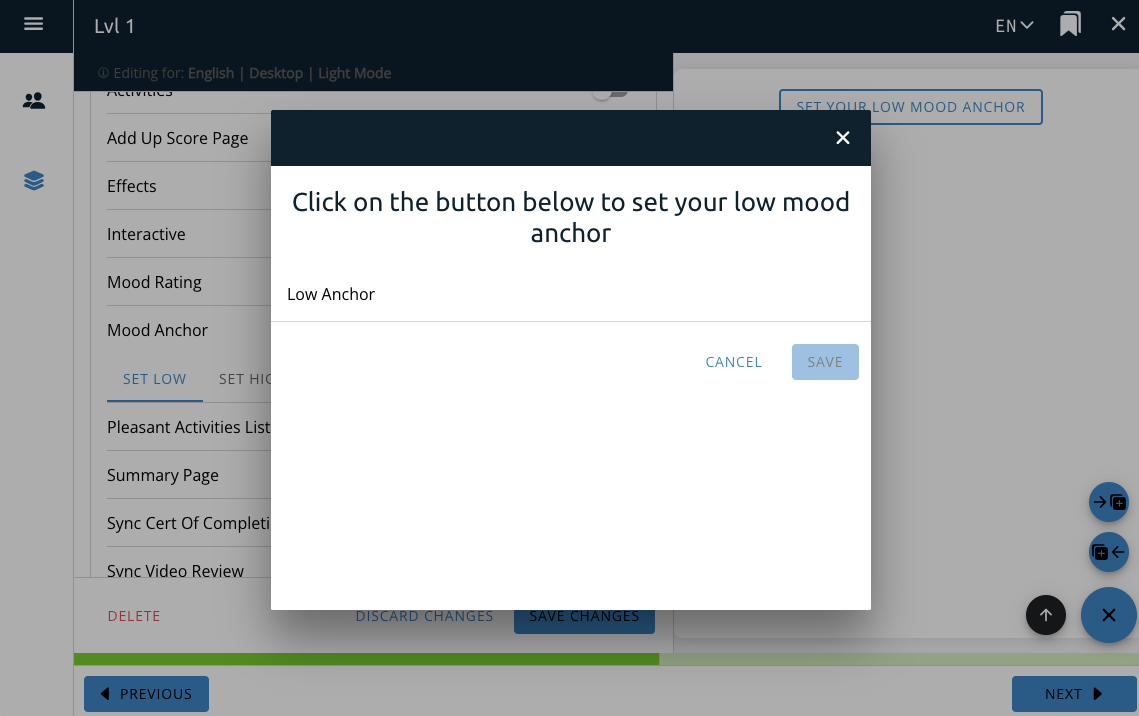
The Mood Anchor feature interacts with the Mood Anchor course option and provides a button on the page for the user to directly interact with the Mood Anchor functionality.
The set high and set low options will create a button on the page that when clicked will create a selection box for the user to set their high or low anchor, respectively.

Pleasant Activities List and Setting Goal
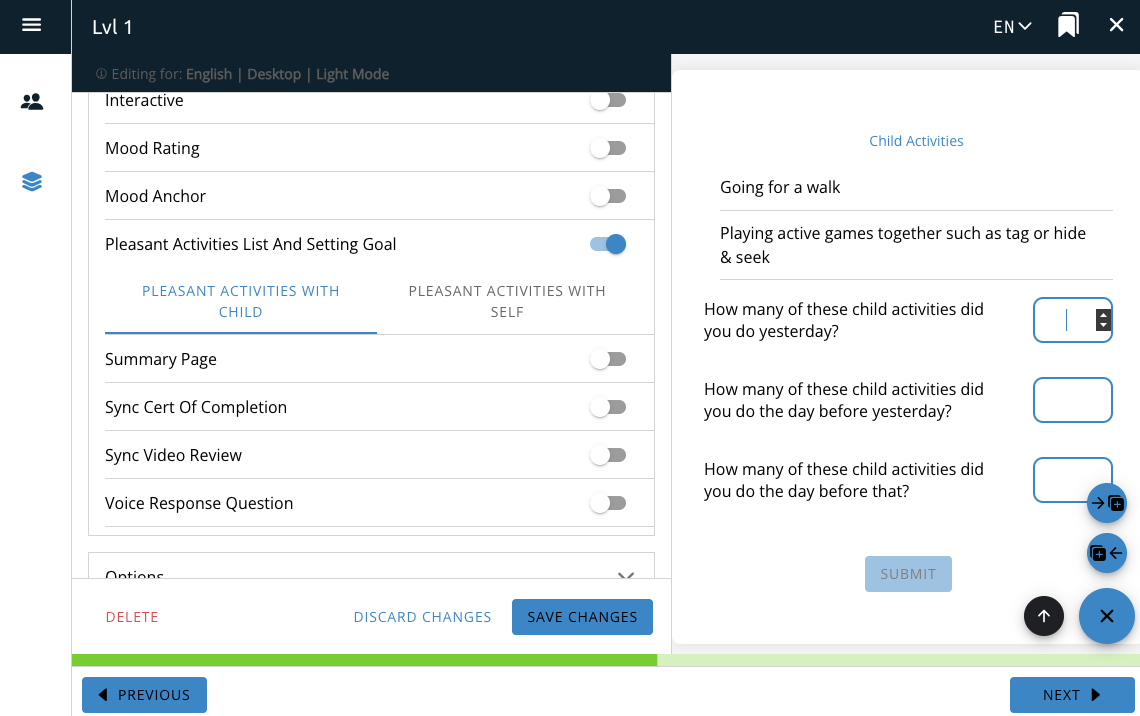
The Pleasant Activities List and Setting Goal feature interacts with the Pleasant Activities(link) course option and provides a list of questions for the user.
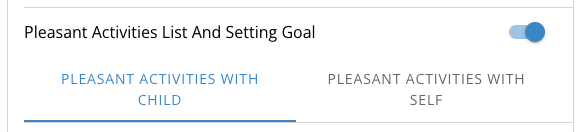
The “pleasant activities with child” and “pleasant activities with self” options will create a list of questions on the page for the user to answer about the pleasant activities they’ve selected previously.
Note: The questions in this feature are static and cannot be changed.
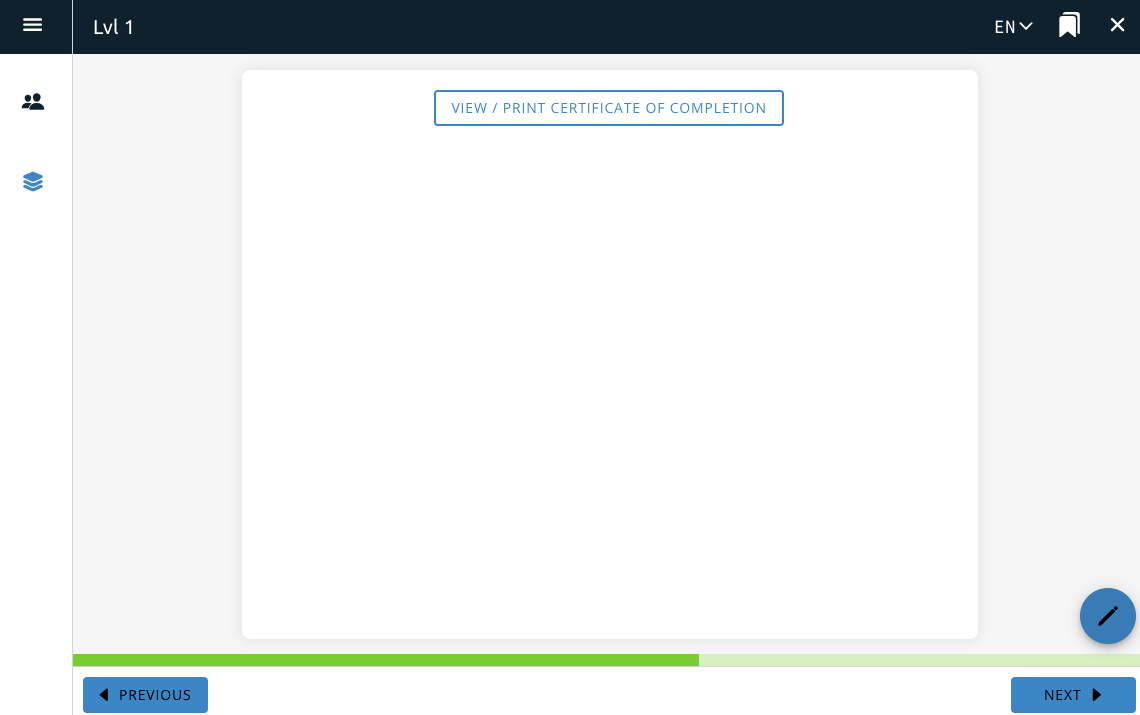
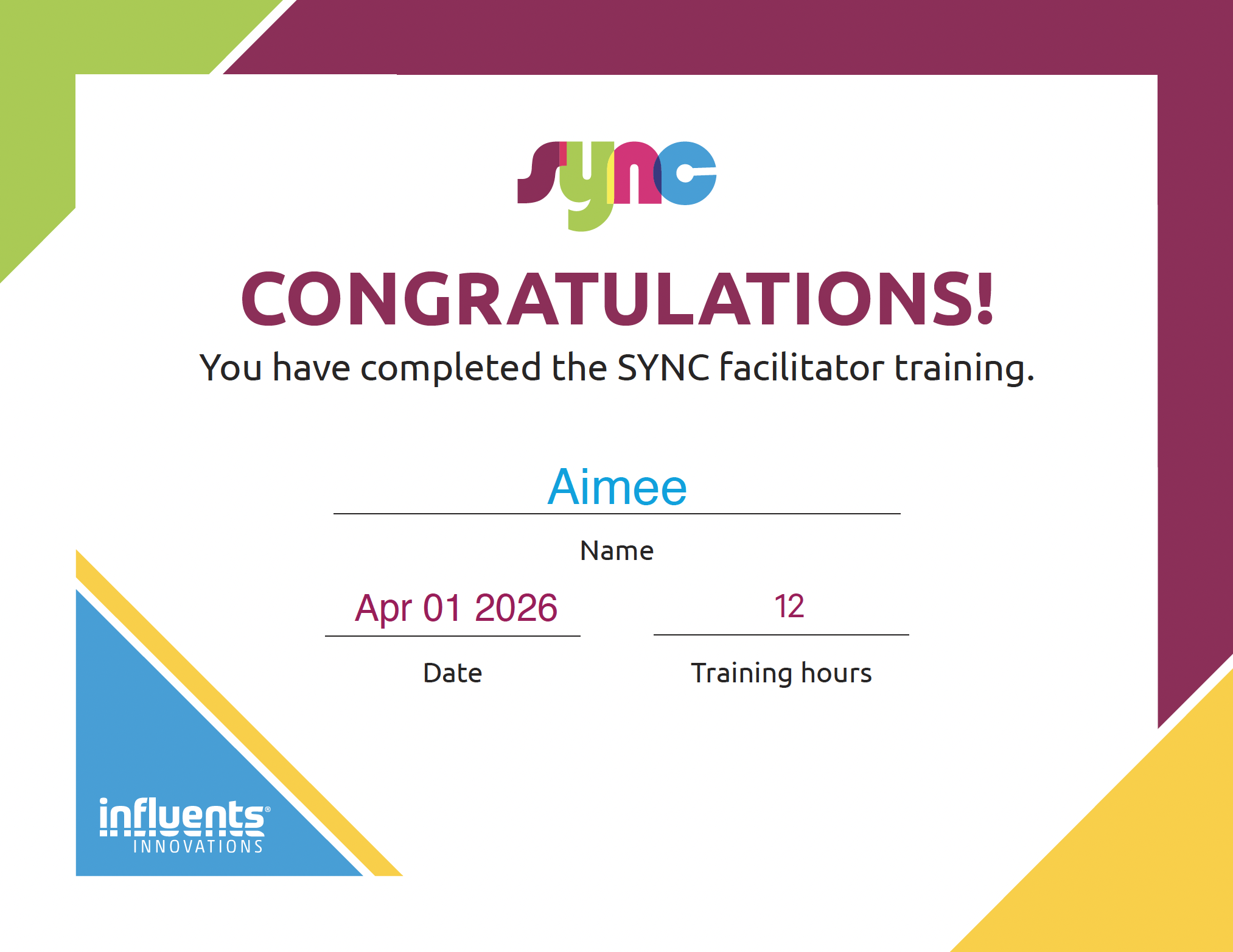
Certificate of Completion
The example shown is for the SYNC project. This feature adds a button to the page that allows a user to download a certificate of completion with their information on it.

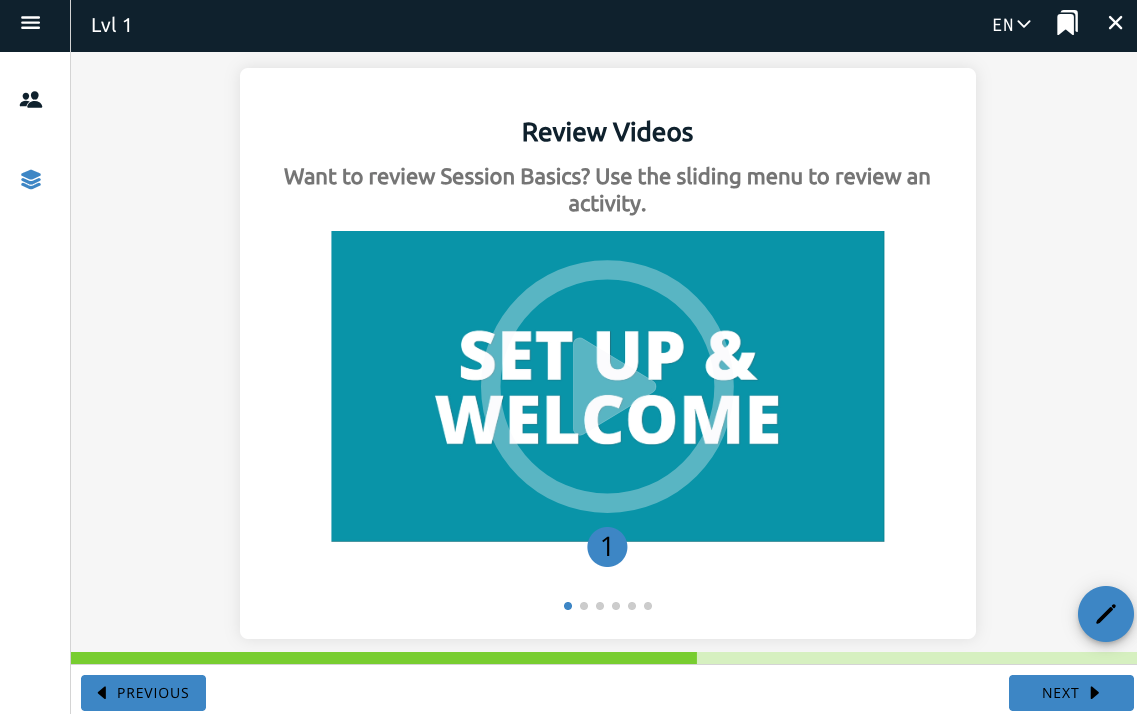
Video Review

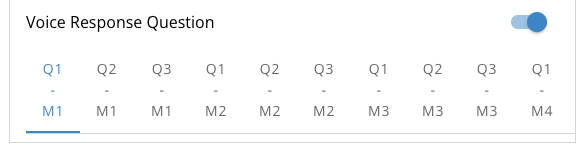
Voice Response Question
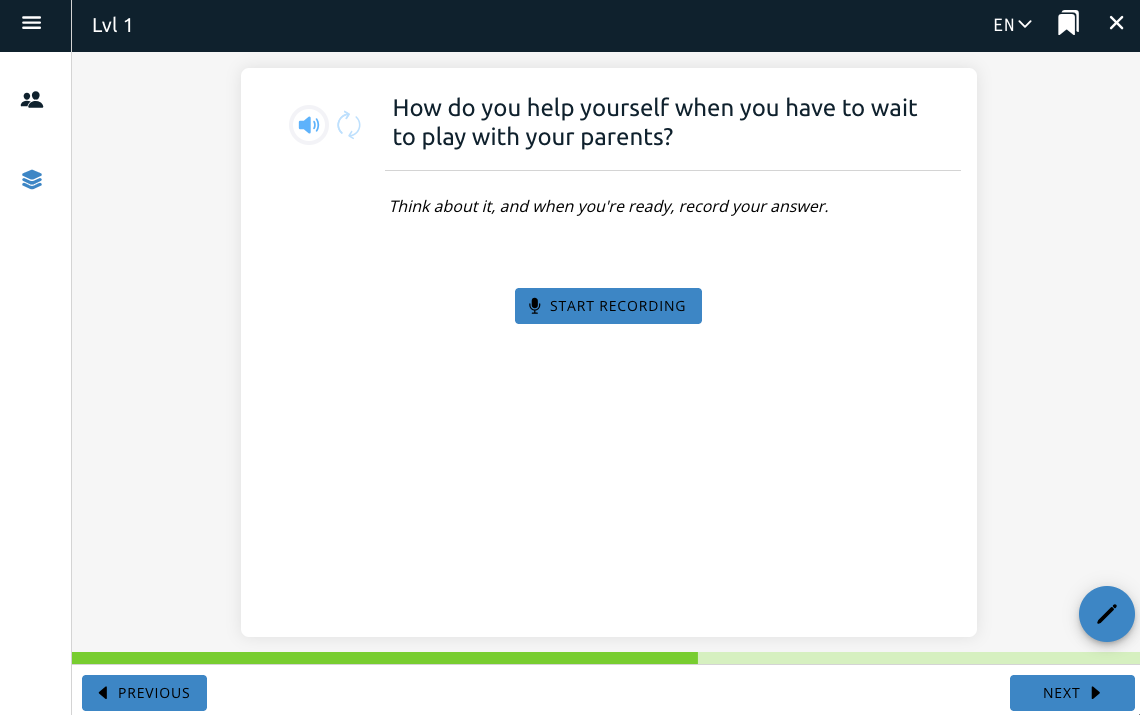
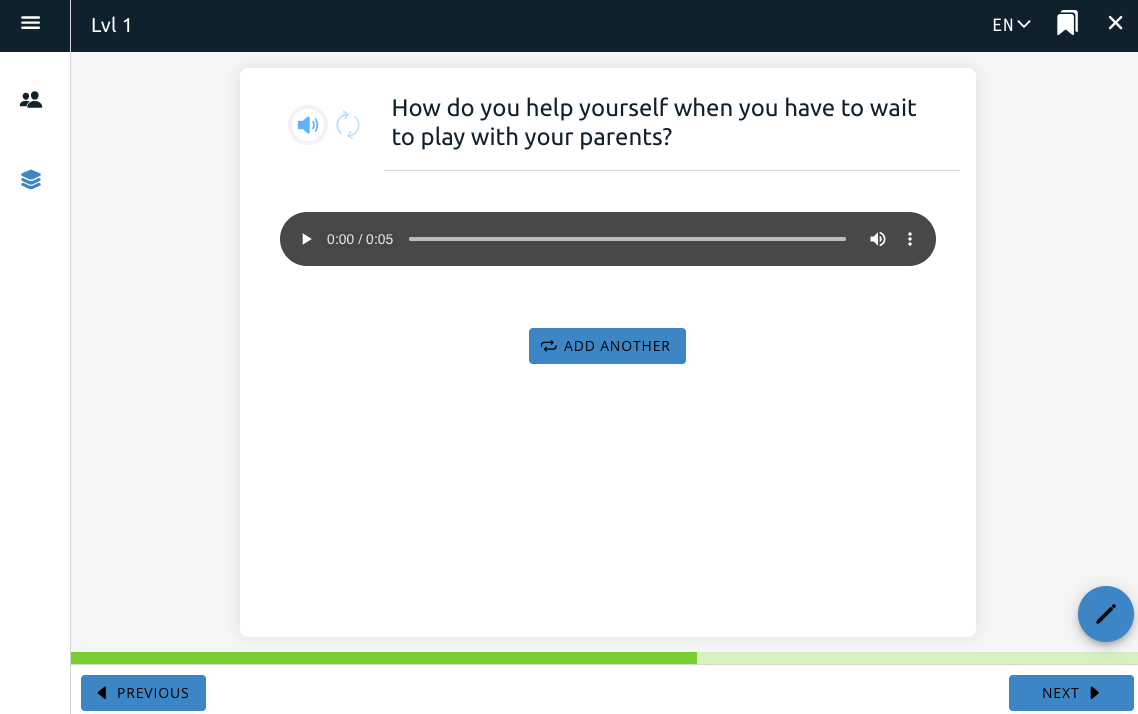
This is a feature for the SibTime project that allows a user to record themselves speaking about a specific prompt the feature provides for them.
This toggle includes the question on the page. A separate Conversation Bank feature, one of the course features, adds a new section to the app where a user can listen to their recordings from the voice response question feature.
Call Recording
Step 1
Open the sidebar and click the Bookshelf icon.
Step 2
Make sure that you are in the Mom-Net program.
Step 3
Go back to the sidebar and open Coach Chat. Click either the Video or Audio icon to
initiate a call.
Step 4
Make sure that both your microphone and camera are toggled On in your browser settings. If using mobile, turn the microphone and camera On in your phone settings.
Step 5
Once you and the mom are in the call, you may ask to record. If mom says yes, click the
Record button at the bottom of the screen. When asked if you wish to record the call, click
“Yes.”
Step 6
To end the recording, click the Record button once more. Click “Yes” when asked if you
want to stop the recording.
Step 7
Click the red Leave icon on the bottom right of the screen to end the call. Click “Leave”
when asked if you’re sure you want to leave the call.
Step 8
Go back to Coach Chat. If you recorded your call, you may click the Clock icon to view your
Call History and play back any recordings you may have.